A green toast reading “Saved” pops up in the bottom-right corner of the screen. It disappears two seconds later. For someone using a mouse, that’s complete feedback.
But for someone who isn’t looking at the screen? That toast never happened. There’s no way to know whether the save succeeded or not.
This is exactly what live regions exist to solve. Mark a region ahead of time as one whose content can change without a page refresh, and when the text inside it changes, the screen reader reads it out automatically. One line — aria-live="polite" — is all it takes.
The trouble is, it’s fairly common to add that one line correctly and still have nothing happen at all. I’ve been there myself. This post works through the causes of that silence, one by one.
The basic syntax of the attribute and the general principles of ARIA are covered in the ARIA Practical Guide; when and how much to announce, along with the WCAG 4.1.3 criterion, is covered in How Screen Readers Read aria-live Status Messages — WCAG 4.1.3. Here, I’ll focus on “I added it — so why isn’t it reading?”
The Most Common Failure: Creating the Element and Its Content Together#
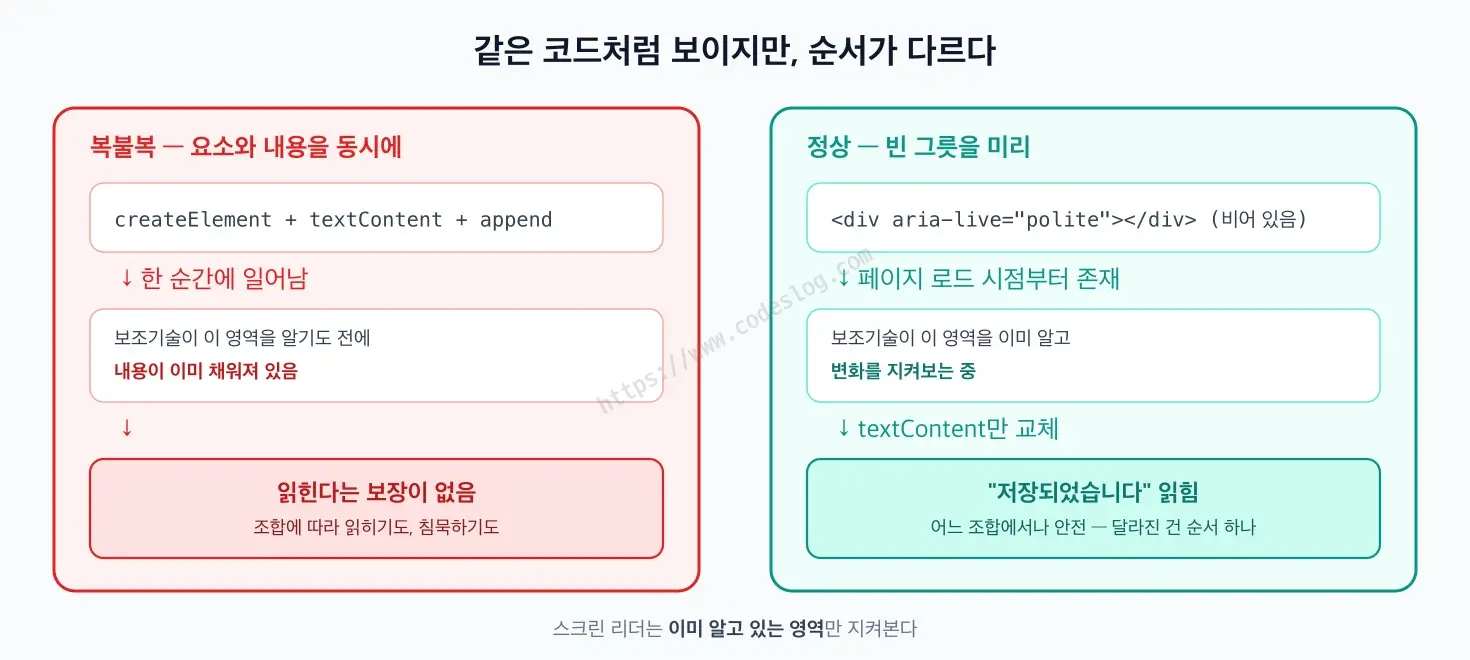
Let’s start with the code that fails. It’s a toast notification implementation that looks perfectly natural.
function showToast(message) {
  const box = document.createElement('div')
  box.setAttribute('aria-live', 'polite')   // aria-live is set correctly
  box.textContent = message                  // content is set
  document.body.appendChild(box)             // and it's added to the page
}
showToast('Saved')
Visually, this looks complete. It has aria-live, it has text, and it’s in the DOM. And yet this code might get read, or it might get silently ignored. Which one happens is up to the screen reader and browser combination, and there’s no way to know in advance. Recent testing shows more combinations reading it correctly than before, but plenty still stay silent.
The reason some combinations fail comes down to how screen readers actually work. A live region is a promise: “watch this area, and tell me when it changes.” But assistive technology only watches regions it already knows about. The code above creates the region to watch and its content at the exact same moment — there’s no window for the watching to start, so it only gets read by implementations that are lenient about this timing.
It’s a bit like a burglar walking off with something at the very instant you’re installing the security camera. The footage might catch it — but that’s a gamble on the camera’s reflexes, not a design you can rely on.
The Fix: Put an Empty Container There First#
The fix is simple. Put an empty container in the markup from the start, and only ever swap in its content later.
<!-- Exists from page load. It's fine for it to be empty. -->
<div id="toast" aria-live="polite" class="sr-only"></div>function showToast(message) {
document.getElementById('toast').textContent = message // only the content changes
}Now it reads reliably in every combination. The container has been in the accessibility tree (the structure of the page that screen readers reference) since the page loaded, and assistive technology has been watching this region the whole time.
Here, sr-only is a CSS class that’s invisible on screen but still present for screen readers (the full code is in the other causes of silence section below). You can keep drawing the visible green toast UI exactly as before — the announcement is just handled by this hidden region as a parallel channel. You could also turn the visible toast itself into the live region — the only thing that actually matters is that the container exists ahead of time.
If you’re working in a framework, watch out for this in particular. In React or Vue, if you build a notification component with conditional rendering ({isOpen && <Toast/>}), the element and its content get created together the moment it opens, falling into exactly the same trap. The container should always render, with only its inner text emptied and refilled.
One more thing worth adding: this isn’t a screen reader bug. NVDA, the open-source screen reader for Windows, has an issue in its repository (#14591) reporting that a dynamically injected role="status" doesn’t get read. The maintainer closed it as won’t-fix, saying the spec calls for reading updates, not initial values. Interestingly, the same thread notes that VoiceOver did read it. This isn’t something to wait for a fix on, or lean on one product’s leniency for — it means we’re the ones who need to write markup that’s safe regardless of the combination.
polite, assertive, and role#
Now that we’ve cleared away one cause, it’s time to choose what to actually use. There look like several options, but a handful of role values — the attribute that tells assistive technology what an element’s purpose is — have live behavior built in, so in the end they’re all just variations layered on top of the same two behaviors (polite/assertive).
| Setting | Behavior | Where to use it |
|---|---|---|
aria-live="polite" | Finishes what it’s reading, then announces | Most situations |
aria-live="assertive" | Interrupts what it’s reading to announce immediately | Only truly urgent cases |
role="status" | Same as polite (+ reads the whole region) | Save complete, search result counts |
role="alert" | Same as assertive (+ reads the whole region) | Session expired, payment failed |
role="log" | polite, for ordered content that appends to the end | Chat, live logs |
role="status" has aria-live="polite" built in as its implicit default, and role="alert" has aria-live="assertive". So stacking them isn’t required. That said, MDN recommends pairing role="status" with aria-live="polite" for maximum compatibility. Stacking assertive on role="alert", on the other hand, has been reported to cause iOS VoiceOver to read the same announcement twice — so it’s better to leave alert on its own.
<div role="status" aria-live="polite"></div>   <!-- not required, but insurance for compatibility -->
<div role="alert"></div>                       <!-- keep alert alone — stacking makes iOS VoiceOver read it twice -->
Default to polite. Assertive interrupts whatever sentence the user is currently reading. Picture reading through a document carefully and having “Added to cart” cut in — that should make it obvious why it needs to be used sparingly. Reserve it for things that genuinely need to be known right now, like a session about to expire or a payment that failed.
When Do You Need aria-atomic?#
aria-atomic="true" means “don’t just read the part that changed — read the whole region.” It’s especially needed in regions where only a number changes.
<div aria-live="polite" aria-atomic="true">
  <span id="count">23</span> search results
</div>document.getElementById('count').textContent = 3 // even if only the number updates
Without aria-atomic, when the number changes to 3, the screen reader might just say “3.” There’s no way to know what that 3 refers to. Reading the whole region gives you “3 search results.” For reference, role="status" and role="alert" already have this property (atomic) built in as a default, so you don’t need to add it separately — but a region marked with just aria-live, like the one above, defaults to partial reading, so you have to specify it.
Its sibling attribute, aria-relevant, on the other hand, is one I’d recommend against using. It lets you choose which kinds of changes (additions, removals, text) trigger a reaction, but support for it across browser and screen-reader combinations has long been reported as inconsistent. Just because something’s in the spec doesn’t mean it’s actually usable.
Every Screen Reader Reads It Differently#
Live regions have a stable spec, but implementations vary wildly.
role="alert" alone splits screen readers into camps. In Adrian Roselli’s testing from January 2026, only NVDA prefixed the message with “alert” before reading it; JAWS (Windows, paid), VoiceOver (built into Mac/iPhone), TalkBack (Android), and Narrator (built into Windows) all read just the sentence with no prefix; and Orca (Linux) didn’t read role="alert" at all in the Firefox combination. But TetraLogical’s 2024 testing has the opposite record — JAWS prefixing “Alert” too. Even the same product gives different results in different tests, depending on version, browser, and settings.
VoiceOver is inconsistent even with itself. Roselli’s testing notes that on Mac, while using the “Read All” feature to work through a document, polite announcements get skipped entirely.
The reason I bring this up is that “it works fine on my NVDA” doesn’t hold up. And you can’t cover every combination either. Here’s roughly where I’d draw a practical line.
- Put everything the message needs into the message itself. Since some environments won’t read “alert” out loud, spell out urgency in the sentence, like “Error:”, when it matters.
- Design so that the task isn’t blocked even if one announcement doesn’t get read. A live region should be a supporting channel, never the only one.
- Actually listen to it, at minimum, on the combinations you can turn on for free right now — NVDA + Chrome on Windows, VoiceOver on Mac. If you’re building for users in Korea, it’s worth also checking SenseReader, the screen reader most widely used by blind users in Korea.
That last point matters the most and gets skipped the most. I’ve been guilty of running only automated checks and calling it done, plenty of times. Automated tools like axe can tell you whether your aria-live value is valid, but they can’t tell you whether it’s actually being read. That’s something only a human ear can confirm.
The Other Causes of Silence#
Beyond DOM timing, there are a few more causes worth knowing. Once you’ve hit each of these once, you won’t forget them.
Regions Hidden with display: none Stay Silent Forever#
Since they’re removed from the accessibility tree entirely, any changes made while hidden go unread even after you make them visible again. The same goes for visibility: hidden and aria-hidden="true". If you only want to hide something visually, push it off-screen instead.
/* Invisible on screen, but still alive in the accessibility tree */
.sr-only {
  position: absolute;
  width: 1px; height: 1px;
  margin: -1px; padding: 0;
  overflow: hidden;
  clip-path: inset(50%);
  white-space: nowrap;
  border: 0;
}
Splitting One Message Across Multiple Updates Can Trigger Multiple Announcements#
Touch the DOM three separate times, as below, and the screen reader can react each time, causing the announcement to fire repeatedly or get fragmented.
// Bad: three changes → the announcement can fire multiple times or fragment
box.textContent = ''
box.appendChild(icon)
box.appendChild(text)

// Good: build the full content first, then write it once
box.textContent = 'Saved'
If a chunked update is unavoidable, the spec does offer aria-busy="true" to pause watching while the update is in progress. Support for that is uneven too, though, so writing it in one shot is still the safest option.
Writing the Same Sentence Twice in a Row Can Get the Second One Ignored#
Since the content hasn’t changed, it doesn’t count as a change. If a repeated error’s second announcement goes quiet, this is worth suspecting. And deciding when and how often to announce a value that keeps changing rapidly, like a cart count, is a separate design question — I covered the debounce pattern and a demo for it in How Screen Readers Read aria-live Status Messages.
What a Live Region Isn’t the Right Tool For#
This last part is actually the most important thing here. Before using live regions well, it matters more to know where not to use them at all.
A live region is a tool for delivering news it’s fine to miss. Save complete, result counts, the last auto-save time — information the user can keep doing what they were doing without any harm.
On the other hand, if it’s a situation the user needs to respond to, an announcement isn’t enough. Say a form was submitted with an invalid email address. Reading “Invalid email format” through a live region is a nice touch, but the user still has to go find that field themselves. Navigating backward through a form with a screen reader is more tedious than it sounds.
That’s when you need to move focus instead — to the field itself if there’s one error, or to an error summary block if there are several.
How that call plays out in a real form is covered in Form Validation Timing, and what happens when a whole page swaps out under SPA routing is in Focus Management in SPAs.
<!-- the div needs tabindex="-1" for focus() to work -->
<div id="error-summary" tabindex="-1" role="alert">
  Please check your input — 2 errors
</div>if (errors.length) { // errors: the array of validation errors collected from the form
document.getElementById('error-summary').focus() // don't stop at announcing it — take them there
}The line is clean once you draw it this way: a live region for news the user only needs to know, focus for anywhere the user needs to go. The detailed pattern for form error handling is in the Form Accessibility post, and the principles for moving focus are in the Keyboard Accessibility post.
One-Page Summary#
- A live region only reads reliably across every combination when you put an empty container in the markup ahead of time and swap in just the content. Creating the element and its content together might get read by some combinations, but it’s never guaranteed
- Default to
polite, and reserveassertivefor genuinely urgent cases. Stacking isn’t required — the one case worth doubling up as compatibility insurance isaria-live="polite"onrole="status"(keeprole="alert"on its own) - For regions where only a number changes, use
aria-atomic="true"to get the full context read back (it’s already built intorole="status"androle="alert"). Don’t rely onaria-relevant— support for it is unreliable - Screen readers behave differently from each other, and even real-world test results disagree with each other (the same
role="alert"prefix gets logged differently from one test to the next). Put the important context in the message itself, and design so the task doesn’t get blocked even if one announcement doesn’t land - Regions hidden with
display:noneoraria-hiddennever get read. To hide something, use CSS that pushes it off-screen (sr-only) instead - Use a live region for news the user only needs to know, and move focus for anywhere the user needs to go. Form errors are usually the latter
질문으로 다시 보기#
I added aria-live, but the screen reader isn't reading it. What's the most common cause?
Should I add aria-live='assertive' on top of role='alert'?
Why doesn't a live region hidden with display:none get read?
Is it okay to use the aria-relevant attribute?
Can form errors just be announced through a live region?
Cutting Down on Silent Failures#
What makes live regions such a headache is that the failure is silent. Nothing shows up in red in the console, and automated checks pass. The code looks fine, yet nothing ever reaches the user.
So in the end, this is something you can only confirm by turning it on and listening once. Installing NVDA and pressing your own site’s save button takes about five minutes. Those five minutes are what keep a user from clicking the same button three times, wondering “did that actually save?”
Why not go listen to the toast you built today? And if you haven’t built one yet, feel free to turn on and listen to the notifications on the status messages demo page.
References
Leave a comment