Once you’re in the habit of kicking off a long task and walking away, you end up wiring up a notification. And once you have one, the same thought always follows: “This would be nicer on Slack.”
Email is quiet and it sticks around, but it’s slow. If you keep Slack open all day, having alerts land in one window you already watch beats digging through your inbox. If you want your phone to buzz the instant something finishes, Telegram is faster. It’s not just a matter of taste, either — if your team already lives in a channel, that’s where the notification belongs.
Switching channels turns out to take longer than expected, though — because of attachments. If all you want is a one-line “task done,” any channel takes five minutes to set up. The moment you try to send along the report or CSV the task produced, every channel has its own method and its own trap. Slack blocks the most widely documented way to do it outright, and Discord strips non-ASCII filenames.
This post works through all of that. For anyone who kicks off long-running Claude Code tasks, it covers how to attach files when sending to three channels (Slack, Discord, Telegram), and how to keep the results in iCloud Drive and Google Drive. Everything here was actually sent and checked on arrival, so what follows is a plain account of what works and what doesn’t.
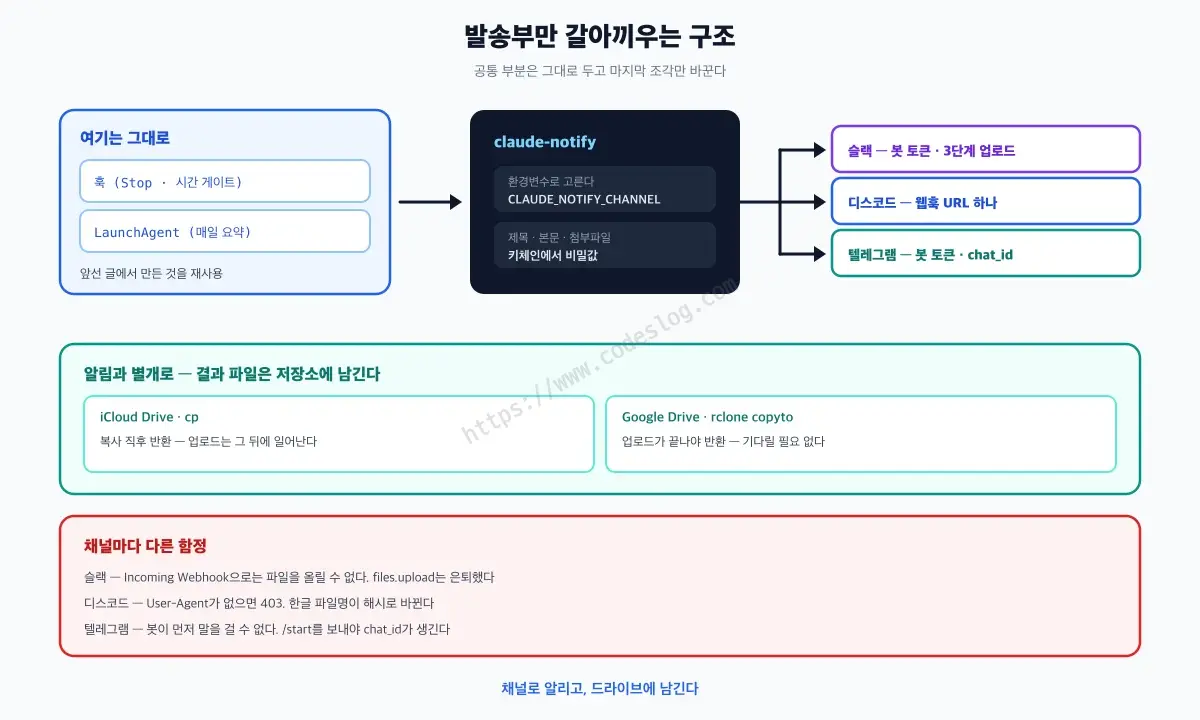
This post reuses the hooks and scheduled run from the earlier post, Claude Code: Email Results When Tasks Finish. You don’t need to have read it — everything you need is explained again here. It’s written for macOS; on Linux, only the Keychain parts change.
Setup — If You’re Starting Here#
You don’t need to have read the earlier post. But two things need to be in place first. If you’ve already done them, skip this section.
Create folders to hold the scripts.
mkdir -p ~/.claude/bin ~/.claude/hooksYou need a hook that records the start time. The notification this post builds only fires for tasks that ran over 10 minutes, and to measure that you need to know when the task started. Save this as ~/.claude/hooks/notify-start.sh.
#!/bin/bash
# UserPromptSubmit — record this turn's start time. The Stop hook uses it to measure elapsed time.
set -u
D="${TMPDIR:-/tmp}/claude-notify"; mkdir -p "$D"
SID="$(python3 -c 'import json,sys;print(json.load(sys.stdin).get("session_id","unknown"))' 2>/dev/null || echo unknown)"
date +%s > "$D/$SID.start"
exit 0
Give it execute permission. Skip this and the hook fails silently. Claude Code runs this file directly, so without the execute bit, nothing happens — and no error appears either.
chmod +x ~/.claude/hooks/notify-start.shA hook is a command Claude Code runs automatically at a specific point. UserPromptSubmit fires when you send a message, Stop fires when Claude finishes responding. JSON arrives on stdin, and the script pulls the session ID out of it. Since each session gets its own file, running multiple windows won’t mix them up.
Register both hooks in ~/.claude/settings.json. If the file already exists, just merge in the hooks key.
{
  "hooks": {
    "UserPromptSubmit": [
      {
        "hooks": [
          { "type": "command", "command": "\"$HOME/.claude/hooks/notify-start.sh\"", "timeout": 5 }
        ]
      }
    ],
    "Stop": [
      {
        "hooks": [
          { "type": "command", "command": "\"$HOME/.claude/hooks/notify-stop.sh\"", "timeout": 30, "async": true }
        ]
      }
    ]
  }
}
async: true is what keeps Claude from freezing while the email or message is being sent. notify-stop.sh gets built further down.
If you want to use the mail channel too, there’s one more piece. This post’s adapter calls
~/.claude/bin/claude-mail-attachwhen you pick
Alerting and Archiving Are Different Jobs#
There’s a distinction worth making first. What you’re actually trying to do here is two separate things.
Alerting is telling you “it’s done” right now. It needs to be fast and noticeable, and it’s fine if it’s gone in a few days.
Archiving is keeping the result somewhere you can pull it back up later. It can be slow, but it can’t disappear.
Try to make Slack alone do both and things fall apart. On the free plan, messages and files vanish after 90 days. Slack is great for alerting, but it can’t double as archival storage. Google Drive is the opposite — things stick around fine, but you hear nothing until you actually open the folder.
So this post handles them separately. Alert through a channel, archive to a drive. Set up both, and you get the notification on your phone, then find the file in the drive once you’re back at your desk.
If Building It Sounds Like a Lot, Hand It to Claude#
Below you’ll find several scripts: one adapter, three per-channel send functions, one hook. That’s a while to type out. But this is all file-creating and permission-setting work, so you can hand it straight to Claude Code.
Only one part genuinely needs you: getting the credentials. A Slack bot token, a Discord webhook URL, a Telegram bot token — each requires logging into that service and clicking buttons. Nobody can do that for you. Each channel’s section below walks through it.
So the order goes:
- Pick your channels and follow the relevant section below to get the token or URL
- Put it into Keychain yourself with
security add-generic-password - Hand the rest to Claude with the prompt below
Start claude in your terminal and paste this in.
Set up Claude Code task notifications that go to Slack, Discord, and Telegram on macOS.
The point is that attachments travel with the message. I'll be using Telegram, but build it
so I can switch channels later.
(Swap in whichever channel you actually plan to use)

1. Write `~/.claude/bin/claude-notify` — a thin dispatcher.
   Pick mail|slack|discord|telegram from the `CLAUDE_NOTIFY_CHANNEL` env var. Take the subject
   as an argument, the body from stdin, and attachments as the remaining arguments.
   If the channel is unknown, exit 0 quietly instead of erroring.

2. Write `~/.claude/bin/claude-notify-send.py` — the actual sending. Standard library only.
   Read every secret from Keychain via `security find-generic-password`, and skip quietly
   rather than erroring when an entry is missing. Per channel:

   - Slack: **Incoming Webhooks can't upload files, so use a bot token.**
     Don't use `files.upload` — it's retired. Do the three steps:
     `files.getUploadURLExternal` (this one takes form encoding, not JSON) → POST the file to
     the returned URL → `files.completeUploadExternal`.
     Keychain entries: `claude-notify-slack` with `bot` (xoxb- token) and `channel` (channel ID
     starting with C).
   - Discord: one webhook URL, multipart (`payload_json` + `files[0]`).
     **Always send a User-Agent header.** Without it Cloudflare blocks the request with
     403 error code 1010. Discord replaces non-ASCII filenames with a hash, so when any
     attachment has one, also list the original names in the message body.
     Keychain entry: `claude-notify-discord` with `webhook`.
   - Telegram: `sendDocument` per file, `sendMessage` when there are no attachments.
     Captions cap at 1024 characters, so truncate. Keychain entries:
     `claude-notify-telegram` with `bot` (token) and `chat` (numeric chat_id).

3. Write `~/.claude/hooks/notify-start.sh` and `notify-stop.sh`.
   The start hook records the turn's start time per session in a temp folder on
   `UserPromptSubmit`. The stop hook measures elapsed time on `Stop` and only sends when it
   exceeds a threshold (`CLAUDE_NOTIFY_AFTER_SEC`, default 600 seconds).
   **Without that time gate every single turn sends a notification and it becomes spam,
   so this is required.** Two more things in the stop hook:
   - Strip code blocks, tables, and markdown symbols from the last response and truncate to
     400 characters for the body
   - Using the start-time file as the reference, find files changed during this turn
     (md, pdf, csv, xlsx, docx, pptx) and attach them. **`find -newermt "@epoch"` is
     GNU-only and fails on the stock macOS find. Use the start-time file itself as the
     reference with `-newer <file>`.** Exclude `.git`, `node_modules`, `public`, `dist`,
     and cap at 3 files.

4. Register both hooks in `~/.claude/settings.json`. Merge into any existing config rather
   than overwriting it. Add `"async": true` to the `Stop` hook.

5. **Run `chmod +x` on every script and hook you create.** Hooks fail silently without the
   execute bit.

Important:
- **Never ask me for a token or webhook URL, and never write one into any file.**
  I'll register them in Keychain myself — just tell me the commands to run.
- The stock macOS bash is 3.2. Expanding an empty array under `set -u` crashes it, so guard
  against that.
- When you're done, tell me how to send a test message through each channel by hand.
Once Claude has the files in place, you just add your Keychain entries and send a test.
I’d still read the rest. When notifications stop arriving, you’ll need to know how the pieces fit together to fix it. And half of this post is what actually tripped me up while building it — Slack webhooks refusing files, Discord erasing filenames, Telegram bots being unable to speak first. The prompt heads those off, but knowing why they exist is worth the read.
Swapping Out Only the Sender — a Single Adapter#
Writing a separate script per channel gets messy fast. The part that hooks into Claude Code, the part that measures elapsed time, the part that gathers files — all of that is identical no matter which channel you’re sending to. The only thing that differs is where you throw it at the very end.
So that’s the only part built to be swappable. This is what’s called an adapter — a piece that leaves the shared machinery alone and swaps out only what needs to match the other side. Same idea as a plug adapter for a different outlet.
Save this as ~/.claude/bin/claude-notify.
#!/bin/bash
# Task notification sender — an adapter you can swap channels on.
#   echo "body" | claude-notify "subject" [attachment ...]
#
# Pick a channel: CLAUDE_NOTIFY_CHANNEL=mail|slack|discord|telegram  (default: mail)
# All secrets are read from Keychain. No tokens live in this file.

set -u
CHANNEL="${CLAUDE_NOTIFY_CHANNEL:-mail}"
SUBJECT="${1:-Claude Code Notification}"; shift || true
BODY="$(cat)"

case "$CHANNEL" in
  mail)
    # Reuse the mail sender built in the earlier post.
    printf '%s' "$BODY" | "$HOME/.claude/bin/claude-mail-attach" "$SUBJECT" "$@"
    ;;
  slack|discord|telegram)
    python3 "$HOME/.claude/bin/claude-notify-send.py" \
      "$CHANNEL" "$SUBJECT" "$BODY" "$@"
    ;;
  *)
    echo "Unknown channel: $CHANNEL" >&2; exit 0 ;;
esac
exit 0
Give it execute permission with chmod +x ~/.claude/bin/claude-notify.
Two things here are deliberate.
The channel is picked by an environment variable. You can override it on the fly like CLAUDE_NOTIFY_CHANNEL=slack claude-notify ..., and when you wire it into a hook or scheduled run, you set it once there. The hook script itself never needs to change.
An unrecognized channel still exits with exit 0. Notifications are a side feature — if this fails and blocks the actual task, that’s a real problem. This same principle shows up throughout the Python side below.
Wiring It Into the Hook#
If you’re already using the Stop hook from the earlier post, just swap the last line that called claude-mail.
# Before
  | "$HOME/.claude/bin/claude-mail" "[Claude] Task done — $(basename "$CWD") (${MIN}m)"

# After
  | CLAUDE_NOTIFY_CHANNEL=slack \
    "$HOME/.claude/bin/claude-notify" "[Claude] Task done — $(basename "$CWD") (${MIN}m)"
If you haven’t built the Stop hook yet, the full script is further down in “Polishing the Hook” — use that. The gist: UserPromptSubmit records a start time, Stop measures elapsed time, and only long tasks trigger an alert. The Stop hook fires at the end of every turn, so without this time gate you’d get dozens of pings a day.
To attach files, pass their paths as arguments.
echo "Research is done." | CLAUDE_NOTIFY_CHANNEL=telegram \
  ~/.claude/bin/claude-notify "[Claude] Research results" report.md summary.csv
The Shared Skeleton#
The actual sending is handled by Python. All three channels upload files over HTTP using multipart/form-data — the same format a browser builds when you attach a file to a web form. Python’s standard library doesn’t have a function that builds this for you, so the script assembles it by hand. No extra packages to install.
Here’s the top of ~/.claude/bin/claude-notify-send.py.
#!/usr/bin/env python3
"""Per-channel send adapter. The point is sending attachments along with the message.

Usage: claude-notify-send.py <channel> <subject> <body> [file ...]
Secrets are read from the macOS Keychain. No tokens are written to this file.
"""
import json
import mimetypes
import pathlib
import subprocess
import sys
import urllib.error
import urllib.request
import uuid

# Discord's Cloudflare front end blocks requests with no User-Agent (error code 1010).
UA = "claude-notify (https://example.com, 1.0)"


def keychain(service, account):
    """Fetch a secret from Keychain. Returns None if it's missing."""
    try:
        out = subprocess.run(
            ["security", "find-generic-password", "-s", service, "-a", account, "-w"],
            capture_output=True, text=True, check=True)
        return out.stdout.strip()
    except subprocess.CalledProcessError:
        return None


def multipart(fields, files):
    """Build a multipart/form-data body. Returns (body, Content-Type).

    fields: {name: string}
    files:  [(field_name, filename, bytes)]
    """
    boundary = uuid.uuid4().hex
    out = bytearray()
    for name, value in fields.items():
        out += f'--{boundary}\r\nContent-Disposition: form-data; name="{name}"\r\n\r\n'.encode()
        out += str(value).encode() + b"\r\n"
    for field, filename, blob in files:
        ctype = mimetypes.guess_type(filename)[0] or "application/octet-stream"
        out += (f'--{boundary}\r\nContent-Disposition: form-data; '
                f'name="{field}"; filename="{filename}"\r\n'
                f"Content-Type: {ctype}\r\n\r\n").encode()
        out += blob + b"\r\n"
    out += f"--{boundary}--\r\n".encode()
    return bytes(out), f"multipart/form-data; boundary={boundary}"


def post(url, data, headers=None, timeout=30):
    headers = {"User-Agent": UA, **(headers or {})}
    req = urllib.request.Request(url, data=data, headers=headers, method="POST")
    try:
        with urllib.request.urlopen(req, timeout=timeout) as r:
            return r.status, r.read()
    except urllib.error.HTTPError as e:
        return e.code, e.read()


def post_json(url, payload, token, timeout=30):
    body = json.dumps(payload).encode()
    headers = {"Content-Type": "application/json; charset=utf-8",
               "Authorization": f"Bearer {token}"}
    status, raw = post(url, body, headers, timeout)
    try:
        return json.loads(raw)
    except ValueError:
        return {"ok": False, "error": f"http {status}: {raw[:200]!r}"}


def fail(where, resp):
    print(f"{where} failed: {resp}", file=sys.stderr)
    return 0  # A failed notification must never block the actual task
And here’s the tail end that goes at the bottom of the file.
In the end, claude-notify-send.py is a single file assembled in this order. The per-channel functions appear one by one in the sections below — read through all of them, then stitch it together.
① The shared skeleton above (import · UA · keychain · multipart · post · post_json · fail)
② send_slack      — Slack section
③ send_discord    — Discord section
④ send_telegram   — Telegram section
⑤ The tail below (SENDERS · main)SENDERS = {"slack": send_slack, "discord": send_discord, "telegram": send_telegram}
def main():
channel, subject, body, *raw_paths = sys.argv[1:]
paths = []
for f in raw_paths:
p = pathlib.Path(f)
if p.is_file():
paths.append(p)
else:
print(f"Skipping attachment (file not found): {f}", file=sys.stderr)
sys.exit(SENDERS[channel](subject, body, paths))
if __name__ == "__main__":
main()A missing file just logs a warning and moves on. If one missing file killed the entire notification, it wouldn’t be much of a notification system.
Sending to Slack — Webhooks Can’t Upload Files#
Search for Slack notifications and Incoming Webhooks come up first. You grab one URL, POST JSON to it, and a message appears — simple. But it can’t handle files.
A webhook only accepts text and Block Kit (Slack’s message formatting). And it’s locked to whichever channel you picked when you created it — you can’t redirect it to a different one. If you need attachments, you have to build a bot app instead of a webhook. That detour is why Slack has the longest setup of the three.
Creating the App — the Screen May Not Match What You Find Online#
Go to api.slack.com/apps and click Create New App. Most guides tell you to pick “From scratch” here, but that button no longer exists. It’s been renamed Blank app.
Since the name could change again, take a more durable route. From a manifest, on the same screen, lets you paste in the entire app configuration as JSON at once.
From a manifest → pick a workspace → paste the JSON below into the JSON tab → Next → Create
{
  "display_information": { "name": "claude-notify" },
  "features": {
    "bot_user": { "display_name": "claude-notify", "always_online": false }
  },
  "oauth_config": {
    "scopes": { "bot": ["chat:write", "files:write"] }
  },
  "settings": {
    "org_deploy_enabled": false,
    "socket_mode_enabled": false,
    "token_rotation_enabled": false
  }
}
files:write is the file-upload permission, chat:write is the post-a-message permission. Loading it via a manifest heads off a common mistake — adding scopes under User Token Scopes instead of Bot Token Scopes — which is easy to get wrong when you’re picking them by hand in the UI.
Once it’s created, go to OAuth & Permissions in the left menu → Install to Workspace → authorize. You’ll get a Bot User OAuth Token starting with xoxb-.
Create a Private Channel and Invite the Bot#
Create a channel in the Slack app. Click the + next to Channels in the left sidebar → Create channel → enter a name → choose Private → don’t add anyone else.
Then invite the bot into that channel.
/invite @claude-notifySkip this and uploads get rejected. The bot can only post to channels it’s been invited into.
Last, you need the channel ID. Click the channel name to open the details panel, then scroll to the very bottom — there’s a channel ID starting with C and a copy button. Use this ID, not the channel name.
Put both values in Keychain. The first is a secret (the token); the second is just a room number.
security add-generic-password -s claude-notify-slack -a bot -wsecurity add-generic-password -s claude-notify-slack -a channel -wBoth commands prompt for a value — it won’t show on screen as you type. That’s expected.
The first time you send, macOS pops up a Keychain access prompt. Make sure to click “Always Allow.” Clicking just “Allow” means the prompt reappears every time, and in a hook or scheduled run — where there’s no one to click anything — it just sits there waiting forever. This is exactly the kind of thing that later has you wondering, “why does this work by hand but not automatically?”
The Three-Step Upload — files.upload Is Retired#
This is where most people get stuck with Slack.
Nearly every Slack file-upload example you’ll find online uses files.upload. It was popular because one line — curl -F [email protected] ... — did the whole job. But this method is retired. New apps have had no access to it since May 16, 2024, and apps created before that cutoff lost access too, on November 12, 2025.
Now it takes three steps.
files.getUploadURLExternal— get an address to upload the file to- Upload the file itself to that address
files.completeUploadExternal— post the uploaded file into the channel
It looks like more work, and there’s a reason for it. The old method held the Slack API response open until the file transfer finished, which failed often on large files. Now the transfer and the posting are separate steps.
def send_slack(subject, body, paths):
    """Slack. Webhooks can't upload files, so this uses a bot token and a 3-step upload."""
    token = keychain("claude-notify-slack", "bot")
    channel = keychain("claude-notify-slack", "channel")  # channel ID, starts with C
    if not token or not channel:
        print("No claude-notify-slack entry in Keychain — skipping", file=sys.stderr)
        return 0

    text = f"*{subject}*\n{body}"
    if not paths:
        r = post_json("https://slack.com/api/chat.postMessage",
                      {"channel": channel, "text": text}, token)
        return 0 if r.get("ok") else fail("slack", r)

    uploaded = []
    for p in paths:
        blob = p.read_bytes()
        # Step 1: get a slot to upload into.
        # This method takes form encoding, not JSON — send JSON and it fails.
        form, ctype = multipart({"filename": p.name, "length": len(blob)}, [])
        raw = post("https://slack.com/api/files.getUploadURLExternal", form,
                   {"Content-Type": ctype, "Authorization": f"Bearer {token}"})[1]
        r = json.loads(raw)
        if not r.get("ok"):
            return fail("slack getUploadURLExternal", r)
        # Step 2: upload the file itself to that address
        form, ctype = multipart({}, [("file", p.name, blob)])
        status, _ = post(r["upload_url"], form, {"Content-Type": ctype})
        if status != 200:
            return fail("slack upload", {"error": f"http {status}"})
        uploaded.append({"id": r["file_id"], "title": p.name})

    # Step 3: post the uploaded files into the channel
    r = post_json("https://slack.com/api/files.completeUploadExternal",
                  {"files": uploaded, "channel_id": channel, "initial_comment": text},
                  token)
    return 0 if r.get("ok") else fail("slack completeUpload", r)
Worth calling out the trap noted in the comment again. Step 1 doesn’t accept JSON. Every other Slack API call uses JSON, so it’s an easy habit to send JSON here too — but this one method wants form encoding.
Now it sends.
echo "Research is done." | CLAUDE_NOTIFY_CHANNEL=slack \
  ~/.claude/bin/claude-notify "[Claude] Research results" report.md summary.csv
Non-ASCII filenames come through untouched. A Korean filename made it through exactly as it was, spaces and all.
Keeping permissions minimal has one cost. Calling
conversations.infoto check whether the bot actually made it into the channel returnsmissing_scope, becausegroups:readisn’t granted — even though uploads work fine. It’s tempting to add the scope just for diagnostics, but better not to. You can just look at the Slack window instead.
Sending to Discord — One Webhook Does It, but Filenames Change#
Discord is the easiest of the three. No app to create, no permissions to pick.
If you don’t have a server, make one. Click the + at the bottom of the left sidebar → Create My Own → For me and my friends. It’s free and takes a minute. Since this is your own personal inbox, you don’t need to invite anyone.
Then, on the channel you want alerts in, click Edit Channel (the gear icon) → Integrations → Webhooks → New Webhook → Copy Webhook URL.
security add-generic-password -s claude-notify-discord -a webhook -wdef send_discord(subject, body, paths):
"""Discord. One webhook handles files too."""
url = keychain("claude-notify-discord", "webhook")
if not url:
print("No claude-notify-discord entry in Keychain — skipping", file=sys.stderr)
return 0
# Discord replaces non-ASCII filenames with a hash.
# Note the original name in the message body so you can tell files apart.
renamed = [p.name for p in paths if not p.name.isascii()]
text = f"**{subject}**\n{body}"
if renamed:
text += "\n\nOriginal attachment names: " + ", ".join(renamed)
payload = {"content": text[:2000]}
files = [(f"files[{i}]", p.name, p.read_bytes()) for i, p in enumerate(paths)]
data, ctype = multipart({"payload_json": json.dumps(payload)}, files)
status, raw = post(url, data, {"Content-Type": ctype})
if status not in (200, 204):
return fail("discord", {"error": f"http {status}: {raw[:200]!r}"})
return 0Two traps are hiding in here.
No User-Agent, and you’re blocked. Python’s urllib defaults to Python-urllib/3.13 as its User-Agent, and the Cloudflare layer in front of Discord rejects it — you get back a 403 with error code: 1010. Port a curl example over to Python and this is exactly where it breaks, since curl attaches its own User-Agent automatically. That’s why UA is baked into the shared post function above.
Non-ASCII filenames disappear. This one couldn’t be fixed. Four different approaches were tried, all with the same outcome.
| Attempt | Filename that arrived |
|---|---|
| Sent as-is (non-ASCII filename, e.g. Korean) | 3dea60277ccfd7f8.md |
Set attachments[].filename in payload_json | 0f26e5259170a9c3.md |
filename*=UTF-8''... (RFC 2231 style) | 41d8de65f1b204c0.md |
| Percent-encoded filename | EAB2B0EAB3BCEBB3B4EAB3A0EC849C.md |
The last row explains why. Sending %EA%B2%B0... came back with just the % signs stripped, leaving EAB2B0.... Discord sanitizes filenames down to an allowed character set, and if the result doesn’t match the original, replaces it with a hash. The extension and file type survive, so the file still opens — it just loses its name.
So the code notes the original name in the message body, so you can still tell files apart when there’s more than one. If you genuinely need the filename itself preserved, zip it up. Keep the archive’s own name in ASCII, and whatever non-ASCII names are inside survive intact — confirmed by downloading an uploaded zip and opening it back up. The tradeoff is you have to unzip it again on your phone.
Sending to Telegram — Bots Can’t Speak First#
Telegram has the most generous attachment limit of the three, at 50 MB. Setup isn’t hard either — but one last step trips people up.
In the Telegram app, find @BotFather and send /newbot. Pick a name, and you get a token.
security add-generic-password -s claude-notify-telegram -a bot -wHere’s the catch. To send a message, you have to tell the API which conversation to send it to, and that conversation’s number is called chat_id. But to find that number, you have to look up messages the bot has received — and for it to have received any, someone has to have messaged it first.
Telegram bots can’t message a user first. It’s built that way to prevent spam. So the order has to be:
- Find the bot you just created in Telegram and send
/start - Then look up the
chat_id
curl -s "https://api.telegram.org/bot$(security find-generic-password -s claude-notify-telegram -a bot -w)/getUpdates" \
  | python3 -c 'import json,sys; print([u["message"]["chat"]["id"] for u in json.load(sys.stdin)["result"] if "message" in u])'
The token is pulled straight from Keychain so it’s never typed into the shell directly. If a number comes back, that’s your chat_id. If nothing does, you haven’t sent /start yet.
security add-generic-password -s claude-notify-telegram -a chat -wThis entry holds a number, not a token. It’s easy to mix up with the
botentry above since the names look similar — butbotis a secret andchatis just a room number. Since both go in with the same command, this is a spot where it’s easy to slip up.
def send_telegram(subject, body, paths):
    """Telegram. The most generous attachment limit, at 50 MB."""
    token = keychain("claude-notify-telegram", "bot")
    chat = keychain("claude-notify-telegram", "chat")
    if not token or not chat:
        print("No claude-notify-telegram entry in Keychain — skipping", file=sys.stderr)
        return 0

    base = f"https://api.telegram.org/bot{token}"
    caption = f"{subject}\n\n{body}"
    if not paths:
        data, ctype = multipart({"chat_id": chat, "text": caption}, [])
        status, raw = post(f"{base}/sendMessage", data, {"Content-Type": ctype})
        return 0 if status == 200 else fail("telegram", {"error": raw[:200]})

    # sendDocument handles one file at a time. Only the first file gets the caption.
    for i, p in enumerate(paths):
        fields = {"chat_id": chat}
        if i == 0:
            fields["caption"] = caption[:1024]
        data, ctype = multipart(fields, [("document", p.name, p.read_bytes())])
        status, raw = post(f"{base}/sendDocument", data, {"Content-Type": ctype})
        if status != 200:
            return fail("telegram sendDocument", {"error": raw[:200]})
    return 0
Non-ASCII filenames arrive intact, spaces included — a name with a space in it came through exactly as sent.
Checking That This Much Works#
Once you’ve set up at least one of the three channels, send a test by hand before wiring it into the hook. If it doesn’t work here, it won’t work from the hook either.
printf '# Test\n\nChecking whether the attachment arrives.\n' > /tmp/test.md
echo "Just checking the connection." | CLAUDE_NOTIFY_CHANNEL=telegram \
  ~/.claude/bin/claude-notify "[Claude] Connection check" /tmp/test.md
Just swap CLAUDE_NOTIFY_CHANNEL to slack or discord and check each one the same way.
If nothing arrives and there’s no error either, check the Keychain entry names. This post’s scripts skip silently instead of erroring out when an entry is missing, on the theory that a failed notification blocking the actual task is worse. That does make it harder to spot the cause here, though, so watch for the No ... entry in Keychain — skipping message printed to the terminal.
security find-generic-password -s claude-notify-telegram -a bot -wIf this prints a value, the entry is registered. It prints the secret in plain text, so don’t run it anywhere someone else can see your screen.
Which of the Three — a Hands-On Comparison#
Results from sending the same three files to all three channels and checking what arrived.
| Aspect | Slack | Discord | Telegram |
|---|---|---|---|
| Setup time | 20 min | 5 min | 10 min |
| App/bot required | Yes | No | Yes |
| Attachment limit | 5 GB shared per workspace (free) | 20 MB (changes often) | 50 MB |
| Non-ASCII filenames | Preserved | Replaced with hash | Preserved |
| Retention | 90 days (free plan) | Indefinite | Indefinite |
| Trap hit | No webhook uploads · files.upload retired | 403 without a User-Agent | Bot can’t speak first |
Fastest to get running is Discord. One webhook URL and you’re done — you just have to accept that filenames change.
If you’ll open results often, go with Telegram. The limit is generous and phone notifications land the fastest.
If your team already lives in Slack, use Slack. Setup is long, but it’s a one-time cost. Just keep in mind that on the free plan, everything disappears after 90 days.
What I Settled On — Kept Mail, Added Telegram#
Here’s the setup I actually kept after trying all three. Writing it down in case it’s useful as a reference.
| When | Where | Why |
|---|---|---|
| When a task finishes | Telegram | Fastest phone notification, generous attachment limit |
| Daily summary | For reading later — needs to be searchable months on | |
| Results over 25 MB | Left in Google Drive, only the path is sent | Where Gmail starts rejecting attachments |
Mail couldn’t be dropped. Of the four, it’s the only one you can still search and pull up six months later. Telegram fills in mail’s weak spot — being anything but real-time.
Discord didn’t fit my use case. My results are Korean-named documents, and they arrive with hashed names. The workaround of noting the name in the message body is a mitigation, not a fix.
Slack got shelved. It’s a personal workspace I don’t normally have open, and the free plan’s 90-day expiry rules it out as archival storage too. It had the longest setup for the least payoff. If a team ever moves onto Slack, switching over is a one-line environment variable change — this is exactly where building it as an adapter pays off.
One thing worth flagging: the same alert never goes to multiple channels at once. Five finished tasks a day would mean ten notifications, not five. Adding a time gate and then turning around and adding more channels to get noisy again would defeat the point. Storage is a different matter — the notification goes out once, and the file is kept separately in a drive, so that’s not duplication.
Polishing the Hook — Send Only a Summary, Attach Results Automatically#
After settling on a channel, two things still bugged me: the message body was too long, and attachments had to be specified by hand every time.
The body needs to stay short. Telegram captions cap out at 1,024 characters, so long responses get truncated. Since tables and code blocks aren’t readable on a phone anyway, it’s better to keep just the prose and send only the front portion.
Attachments need to be picked automatically. This is where the piece from the earlier post turned out to be handy in an unexpected way. The UserPromptSubmit hook records the turn’s start time to a file, and the same file built for timing doubles as the cutoff for “what’s changed since then.” Any document file created or modified after that timestamp is, by definition, this task’s output.
Here’s the full ~/.claude/hooks/notify-stop.sh.
#!/bin/bash
# Stop — only sends an alert if this turn ran longer than the threshold.
# Sending on every turn would be spam, so the time gate is the whole point. Default: 10 minutes.
# The body carries only a summary; result files created this turn are attached.
set -u
THRESHOLD="${CLAUDE_NOTIFY_AFTER_SEC:-600}"
CHANNEL="${CLAUDE_NOTIFY_CHANNEL:-telegram}"
SUMMARY_CHARS="${CLAUDE_NOTIFY_SUMMARY_CHARS:-400}"
MAX_FILES="${CLAUDE_NOTIFY_MAX_FILES:-3}"
MAX_MB="${CLAUDE_NOTIFY_MAX_MB:-45}"
D="${TMPDIR:-/tmp}/claude-notify"

IN="$(cat)"
read -r SID CWD TRANSCRIPT <<EOF2
$(printf '%s' "$IN" | python3 -c '
import json,sys
d=json.load(sys.stdin)
print(d.get("session_id","unknown"), d.get("cwd","?"), d.get("transcript_path",""))
' 2>/dev/null || echo "unknown ? ")
EOF2

F="$D/$SID.start"
[ -f "$F" ] || exit 0
START="$(cat "$F")"   # this file's mtime is the turn's start time
NOW="$(date +%s)"
ELAPSED=$((NOW - START))
[ "$ELAPSED" -ge "$THRESHOLD" ] || exit 0
MIN=$((ELAPSED / 60))

# Pull just a summary out of the last response. Telegram captions cap at 1024 chars and truncate past that.
SUMMARY="$(python3 - "$TRANSCRIPT" "$SUMMARY_CHARS" <<'PY' 2>/dev/null
import json, re, sys
try:
    path, limit = sys.argv[1], int(sys.argv[2])
except (IndexError, ValueError):
    sys.exit()
txt = ""
for line in open(path, errors="ignore"):
    try: d = json.loads(line)
    except Exception: continue
    if d.get("type") != "assistant": continue
    c = d.get("message", {}).get("content")
    if isinstance(c, list):
        t = "".join(b.get("text", "") for b in c
                    if isinstance(b, dict) and b.get("type") == "text")
        if t.strip(): txt = t
# Tables and code blocks aren't readable on a phone anyway. Keep only prose.
txt = re.sub(r"\x60{3}.*?\x60{3}", "", txt, flags=re.S)  # code blocks
txt = re.sub(r"^\s*\|.*$", "", txt, flags=re.M)
txt = re.sub(r"[*#\x60>]", "", txt)  # markdown symbols
txt = re.sub(r"\n{2,}", "\n", txt).strip()
print(txt[:limit] + ("…" if len(txt) > limit else ""))
PY
)"

# Find result files created or changed this turn. Possible because the start time was recorded.
FILES=()
while IFS= read -r f; do
  [ -n "$f" ] || continue
  SZ=$(( $(stat -f%z "$f" 2>/dev/null || echo 0) / 1048576 ))
  [ "$SZ" -le "$MAX_MB" ] && FILES+=("$f")
done < <(find "$CWD" -maxdepth 4 -type f -newer "$F" \
           \( -name '*.md' -o -name '*.pdf' -o -name '*.csv' -o -name '*.xlsx' \
              -o -name '*.docx' -o -name '*.pptx' \) \
           -not -path '*/.git/*' -not -path '*/node_modules/*' \
           -not -path '*/public/*' -not -path '*/dist/*' -not -path '*/build/*' \
           -not -path '*/.claude/*' 2>/dev/null | head -n "$MAX_FILES")

rm -f "$F"

# $( ) eats the trailing newline, so assemble it all at once
COUNT=${#FILES[@]}
BODY="$(printf 'Working directory: %s\nElapsed: %d min\nResult files: %d\n\n%s' \
  "$(basename "$CWD")" "$MIN" "$COUNT" "${SUMMARY:-(no summary)}")"

printf '%s' "$BODY" | CLAUDE_NOTIFY_CHANNEL="$CHANNEL" \
  "$HOME/.claude/bin/claude-notify" \
  "[Claude] Task done — $(basename "$CWD") (${MIN}m)" ${FILES[@]+"${FILES[@]}"}
exit 0
Once saved, give this one execute permission too.
chmod +x ~/.claude/hooks/notify-stop.shA few things worth pointing out.
The summary strips markdown and truncates. Code blocks and tables are removed entirely, and symbols like * and # come out too — a phone notification full of literal asterisks looks messy. Length is controlled by CLAUDE_NOTIFY_SUMMARY_CHARS.
-newer "$F" is both the key and the trap. The first attempt used -newermt "@$START" — a natural choice, since the start time was already a number. But it failed silently, and only inside the hook. Why gets its own section below.
Build output gets excluded. Skip public, dist, and build, and hundreds of files from a static site generator end up as candidates. The very first run actually picked up Hugo’s public/search/index.md as the first attachment.
Watch out for expanding an empty array. With no attachments at all, plain "${FILES[@]}" dies with unbound variable on macOS’s stock bash. ${FILES[@]+"${FILES[@]}"} is the idiom that guards against it.
Keeping Result Files — iCloud and Google Drive#
This moves into the second half of the story. A file sent through a channel is a copy that rode along with the notification. It disappears after 90 days on free Slack, or scrolls off the top as the conversation grows. Keeping results long-term calls for separate storage.
iCloud Drive — Copying It Doesn’t Mean It’s Uploaded#
On a Mac, this needs no extra install. Copy into the folder, and it opens in the Files app on your phone.
mkdir -p ~/Library/Mobile\ Documents/com~apple~CloudDocs/claude-out
cp report.md ~/Library/Mobile\ Documents/com~apple~CloudDocs/claude-out/
There’s a catch, though. cp returns as soon as the local copy is done. The actual upload happens in the background afterward. Send a “done” notification right after cp, and the file might not actually be there yet when you open it on your phone.
You can check with a command called brctl, a built-in macOS tool for watching iCloud sync status. Copying a 30 MB file while watching it looks like this.
cp returned (20MB)
 o /big2.md ↑ 20.0 MB (20000000) 24.1%
 o /big2.md ↑ 20.0 MB (20000000) 95.0%
 o /big2.md ☁
↑ means uploading, ☁ means done. brctl isn’t a tool Apple documents publicly, so its output format could change — treat this as what was observed in this one environment. cp already finished on the first line, while the upload keeps going below it. Timed against a 30 MB file, the gap between copy and upload completion was about 5 seconds.
If you need to wait for it, do this. Save it as ~/.claude/bin/icloud-wait.sh and chmod +x it too.
#!/bin/bash
# Wait until an iCloud Drive upload finishes.
#   icloud-wait.sh <path to file in iCloud> [max seconds]
set -u
F="$1"; MAX="${2:-120}"
DIR="$(dirname "$F")"; NAME="$(basename "$F")"
for ((i=0; i<MAX; i+=2)); do
  # ☁ = upload complete, ↑ = uploading
  if brctl monitor -t 2 "$DIR" 2>/dev/null | grep -F "$NAME" | tail -1 | grep -q '☁'; then
    exit 0
  fi
done
echo "Timed out waiting for upload: $NAME" >&2
exit 1
brctl monitor -t 2 prints status for 2 seconds and stops, so this loops it and waits for the completion mark. It catches non-ASCII filenames just fine.
Google Drive — With rclone, Done Means Done#
There are two paths with Google Drive. Install the Drive desktop app and you get a folder under ~/Library/CloudStorage/, so cp works just like with iCloud. But it carries the same problem as iCloud — the upload is asynchronous, with no brctl-style way to check on it.
So rclone is the recommendation instead. It’s a command-line tool for moving files to and from cloud storage, supporting dozens of providers beyond Google Drive. Its biggest advantage: rclone copy doesn’t return until the upload is finished. The moment the command ends is the moment the file has arrived — no waiting code needed.
brew install rclonerclone configFrom here it’s an interactive wizard, asking one question at a time in the terminal. When you see options like n/s/q> at the bottom, type the letter and hit enter.
| Prompt | What it’s asking | Input |
|---|---|---|
n/s/q> | Create a new connection | n |
name> | A nickname for this connection | gdrive |
Storage> | Find Google Drive in the list | drive |
client_id> | Your own app’s registration ID — not needed for personal use | Enter |
client_secret> | Same as above | Enter |
scope> | How much of the Drive it can touch | 1 |
service_account_file> | For server accounts — not applicable here | Enter |
Edit advanced config? | Advanced settings | n |
Continue using the shared client_id anyway? | Whether to keep using the shared registration ID | y |
Use web browser to automatically authenticate? | Log into Google via browser | y |
Configure this as a Shared Drive? | Whether this is a company shared drive | n |
y/e/d> | Save the config | y |
e/n/d/r/c/s/q> | Exit the wizard | q |
Watch out for the row in bold. The screen shows n) No (default), which makes the default look like the safe pick, but choosing n here stalls the whole thing. It moves on to asking for your own registration ID, and since you don’t have one, the same question loops forever. This one caught me too.
The warning itself is accurate — the shared registration ID rclone provides is being retired sometime in 2026. But that’s something to swap out for your own later, and for right now, y is the correct answer.
Once configured, it’s used like this.
rclone mkdir gdrive:claude-out
rclone copyto report.md gdrive:claude-out/report.md
There’s a reason it’s copyto and not copy. rclone copy only takes a source and a destination — two arguments, period. List multiple files and it rejects the command with Command copy needs 2 arguments maximum. Run copyto once per file, or use --files-from instead.
Non-ASCII filenames come through untouched. And the synchronous-return claim checked out too — a 30 MB file took real 54.88 seconds, and it was already showing up in the Drive listing the moment the command finished. There’s no “copy’s done but the upload isn’t” gap the way there is with iCloud.
| Aspect | iCloud Drive | Google Drive (rclone) |
|---|---|---|
| Install | None (built into macOS) | brew install rclone + Google login |
| Command | cp | rclone copyto |
| Returns | Right after the local copy | After the upload completes |
| Confirming completion | Requires waiting on brctl monitor | Not needed |
| Non-ASCII filenames | Preserved | Preserved |
Is It OK to Wire This Into a Work Slack#
If you already have a work workspace, it’s tempting to hook into that instead. The technical answer and the practical one diverge a bit here.
Technically, only you can see it. Create a private channel alone, and anyone not invited can’t even see the channel’s name. On top of that, free and Pro plans have no way to export private channels at all — the workspace owner can only export public channels; private channels and DMs require Business+ or above.
But three things still get in the way.
Installing an app leaves a record in the admin console. Channel contents stay hidden, but “who installed which app” doesn’t. And the free plan caps third-party and custom apps at 10 total — if that’s already full, someone would have to remove another app to make room. Not something you can do on a work workspace.
Everything disappears after 90 days. The free plan keeps only the last 90 days of messages and files. The file storage cap is also shared across the whole workspace at 5 GB, so anything you upload eats into everyone else’s share.
Last, there’s the question of running personal automation on company infrastructure, more so if the results carry actual work content. That one comes down to your own organization’s policy.
Bottom line: spinning up a separate personal workspace is simpler. It’s free, takes a minute, needs no app approval, and sidesteps company policy entirely.
If You Get Stuck Following Along, It’s Usually Not You#
Putting this post together turned up four cases where the guide and the actual screen disagreed. Worth writing down.
- Slack examples using
files.uploadstill rank at the top of search results. The method is retired. - Slack’s app-creation
From scratchbutton has been renamed toBlank app. - rclone added a new prompt warning that the shared registration ID is expiring, and following the default stalls the whole thing.
- Discord’s API works fine from curl but breaks the moment you port it to Python (the User-Agent).
find -newermt "@epoch"is GNU find syntax. macOS’s stockfindis BSD-based and doesn’t understand it.
None of this turns up easily when you search. The docs are current, but the blog posts ranking above them are old, and the actual screen sits somewhere in between. So don’t blame yourself if you get stuck. Losing an hour only to find out a button just got renamed happens more often than you’d think.
What Worked by Hand but Failed Only in the Hook#
Passing an epoch timestamp like @1787032262 to -newermt is GNU find syntax. But /usr/bin/find, the one shipped by default on macOS, is BSD-based and doesn’t recognize this format.
find: Can't parse date/time: @1787032262The annoying part is that it worked fine when run by hand in the terminal. Installing enough dev tools tends to put a GNU-compatible find earlier in PATH. But the hook runs under #!/bin/bash in a clean environment, so it picks up the original BSD find instead. bash -n won’t catch this either — the syntax itself is fine, and the problem only shows up at runtime.
The fix is to key off a file instead of a timestamp. -newer <file> is old syntax both variants support. There’s already a file with the start time written into it, and its modification time is exactly the turn’s start time. So it gets deleted only after find is done with it.
START="$(cat "$F")"   # this file's mtime is the turn's start time
# ... after find "$CWD" -newer "$F" ... finishes
rm -f "$F"
This is the same family of problem as “cron can’t read Keychain and fails silently” from the earlier post — things that work by hand but not automatically. Before wiring anything into automation, it’s worth running it once in a clean environment like env -i bash script first.
An Accessibility Note — Filenames Are Names Too#
It’d be a shame to write off Discord turning a Korean-named .md file into 6362520ec7093d67.md as a minor annoyance.
Web accessibility has a concept called the accessible name — a name that tells you what an element is, independent of how it looks. A button with only an icon and no name gets read by a screen reader as just “button.” Which button, there’s no way to tell.
A hashed filename is in exactly that state. Someone looking at the screen can guess from a thumbnail preview or the surrounding context, but someone scanning the attachment list with a screen reader gets nothing at all. Picture sixteen hex digits being read out one character at a time — and it repeats three times if there are three files.
That’s why the code that writes the original name into the message body isn’t a convenience feature — it’s giving the name back. It’s the same move as a person rewriting alt text once the auto-generated version turns out useless. South Korea’s alt-text compliance sitting at just 17.1% in the national survey comes down to the same story. A name a machine fills in usually doesn’t work as a name.
Notifications raise one more accessibility point. WCAG 2.2’s success criterion 2.2.4 Interruptions puts it this way:
Interruptions can be postponed or suppressed by the user, except interruptions involving an emergency.
It’s a Level AAA criterion, tricky enough to meet even for websites, but the intent is clear. A notification that interrupts without warning makes it harder for users with cognitive disabilities or attention difficulties to get back to what they were doing. The same goes for screen reader users — break their reading flow, and they have to hunt for where they left off.
What was built here is a personal tool, not a website, but the same principle applies. The time gate added in the earlier post — only alerting for tasks over 10 minutes — was, in effect, already meeting this criterion. Alert on every short task too, and your flow breaks dozens of times a day. Making the channel an environment variable follows the same logic: mail on days you want it quiet, Telegram on days you need to know right away. The user decides how much interruption is acceptable.
One-Page Summary#
- Alerting and archiving are different jobs. Alert through a channel, archive to a drive.
- You only need to fetch the tokens yourself — Claude can write the scripts. The prompt is in the post.
- Pull just the sender out as an adapter, and the hook and scheduled run stay reusable as-is.
- Slack can’t upload files through a webhook. It needs a bot app +
files:write+ a 3-step upload.files.uploadis retired. - Discord needs just one webhook, but non-ASCII filenames get replaced with a hash. Note the original name in the body, or zip it up.
- Telegram needs
/startsent first before achat_idexists. Bots can’t message first. - With iCloud, right after
cpis not the same as upload complete. With rclone, when the command ends, it’s actually done. - Free Slack disappears after 90 days. For a work workspace, a separate personal one is the simpler call.
- Keying the hook off the start-time file as a reference file lets it automatically find and attach this turn’s results.
find -newermt "@epoch"is GNU-only — macOS’s stock find can’t read it.-newer <file>is the safe choice.- Don’t fan the same alert out to multiple channels. One channel for alerts, separate storage for files.
- A hashed filename is the equivalent of a nameless button. Someone has to give the name back.
Leave a comment