Introduction#
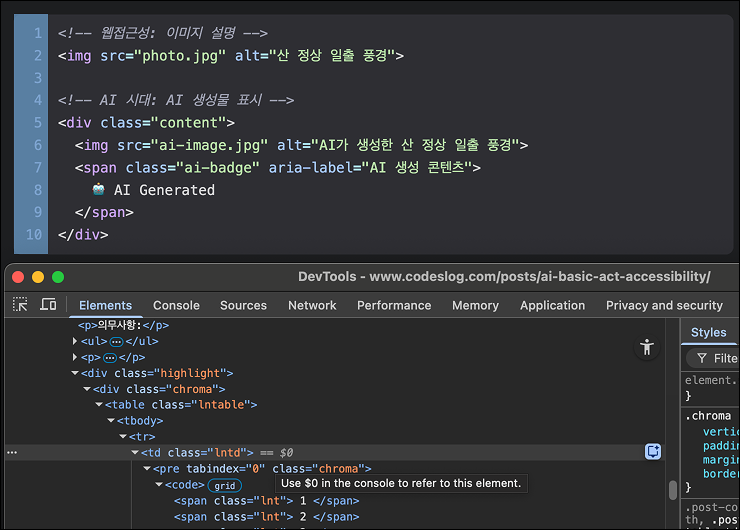
Recently, I started building and operating a blog using Hugo with the PaperMod theme. Using someone else’s theme has the advantage of quick setup, but not everything fits my needs perfectly. After customizing many parts to match my preferences, I noticed some issues with the code blocks.
Line numbers were implemented with <table> tags.
While this doesn’t violate accessibility guidelines, it felt not semantic. Moreover, I wondered: what’s the experience for screen reader users? I found a better approach using CSS Counters.
This article documents why the table approach is problematic and how I improved accessibility.

Photo: Bernd 📷 Dittrich on Unsplash
🔍 Problem Analysis: Why Is Table Problematic?#
1. Non-Semantic Structure#
HTML’s <table> element is designed to represent tabular data. However, line numbers in code blocks are more of a visual decoration than data.
WCAG (Web Content Accessibility Guidelines) recommends using HTML elements according to their intended purpose - semantic markup. Using tables for layout purposes is outdated; with modern CSS, it’s no longer necessary.
2. Screen Reader User Experience#
When encountering a <table> tag, screen readers announce information like “table, 2 columns, 1 row”. Hearing this unnecessary information every time a code block is read isn’t a good experience.
Actual screen reader experience:
"Table, 2 columns, 1 row"
"Cell 1, 1"
"1, 2, 3, 4, 5"
"Cell 2, 1"
"const example = Hello World
console log example"
The line numbers and code are recognized as separate cells, breaking the reading flow.

Photo: Muhammad Asim on Unsplash
3. DOM Structure Complexity#
Table-based structure creates unnecessarily many DOM nodes:
<table class="lntable">
  <tbody>
    <tr>
      <td class="lntd">
        <pre><code><span>1</span><span>2</span><span>3</span></code></pre>
      </td>
      <td class="lntd">
        <pre><code>Actual code...</code></pre>
      </td>
    </tr>
  </tbody>
</table>
This can impact performance and makes CSS styling more complex.
✅ Solution: Accessibility-Conscious Line Number Implementation#
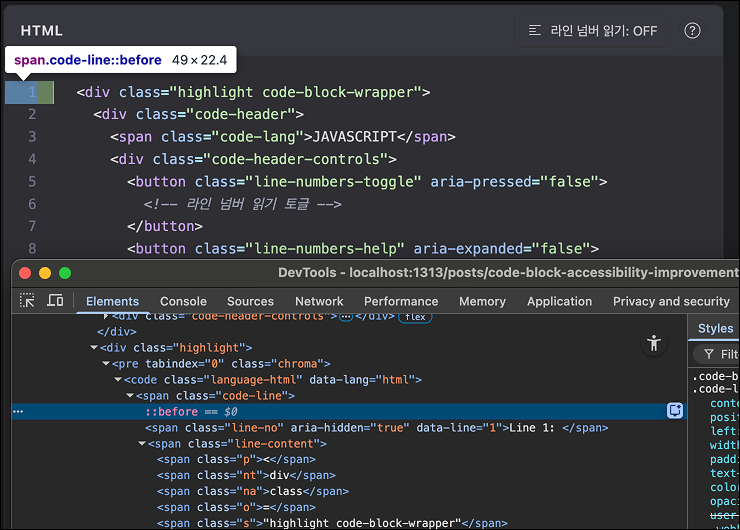
The final implementation has these characteristics:
- Semantic HTML: Clear line separation with
<span class="code-line">structure - Visual Line Numbers via CSS Counter: Always visible visual line numbers
- HTML Line Numbers: Line numbers that screen reader users can selectively hear
- aria-hidden Toggle: Users can enable/disable line number reading as needed
- Syntax Highlighting Preserved: Perfect preservation of Chroma’s syntax highlighting
- Line Numbers Excluded When Copying: Excluded from drag-to-copy and Copy button
Step 1: Modify Hugo Configuration#
First, disable Hugo’s default line number feature.
File: config.yaml
markup:
  highlight:
    noClasses: false
    lineNos: false  # Disable table-based line numbers
    codeFences: true
    guessSyntax: true
Step 2: Write Custom Code Block Renderer#
Use Hugo’s render hooks to customize code block rendering.
File: layouts/_default/_markup/render-codeblock.html
{{- $lang := .Type -}}
{{- $code := .Inner -}}

{{- /* Highlight code with Chroma to get syntax highlighting */ -}}
{{- $highlighted := transform.Highlight $code $lang "lineNos=false,noClasses=false" -}}

<div class="highlight code-block-wrapper">
  <div class="code-header">
    {{- if $lang }}
    <span class="code-lang">{{ $lang }}</span>
    {{- end }}
    <div class="code-header-controls">
      <button class="line-numbers-toggle" aria-pressed="false" aria-label="Toggle line number reading">
        <svg class="icon-line-numbers" width="16" height="16" viewBox="0 0 16 16" fill="currentColor">
          <path d="M2.5 3.5a.5.5 0 0 1 0-1h11a.5.5 0 0 1 0 1h-11zm0 3a.5.5 0 0 1 0-1h6a.5.5 0 0 1 0 1h-6zm0 3a.5.5 0 0 1 0-1h6a.5.5 0 0 1 0 1h-6zm0 3a.5.5 0 0 1 0-1h11a.5.5 0 0 1 0 1h-11z"/>
        </svg>
        <span class="toggle-text">Line Number Reading: OFF</span>
      </button>
      <button class="line-numbers-help" aria-label="Line number reading feature help" aria-expanded="false">
        <svg class="icon-help" width="16" height="16" viewBox="0 0 16 16" fill="currentColor">
          <path d="M8 15A7 7 0 1 1 8 1a7 7 0 0 1 0 14zm0 1A8 8 0 1 0 8 0a8 8 0 0 0 0 16z"/>
          <path d="M5.255 5.786a.237.237 0 0 0 .241.247h.825c.138 0 .248-.113.266-.25.09-.656.54-1.134 1.342-1.134.686 0 1.314.343 1.314 1.168 0 .635-.374.927-.965 1.371-.673.489-1.206 1.06-1.168 1.987l.003.217a.25.25 0 0 0 .25.246h.811a.25.25 0 0 0 .25-.25v-.105c0-.718.273-.927 1.01-1.486.609-.463 1.244-.977 1.244-2.056 0-1.511-1.276-2.241-2.673-2.241-1.267 0-2.655.59-2.75 2.286zm1.557 5.763c0 .533.425.927 1.01.927.609 0 1.028-.394 1.028-.927 0-.552-.42-.94-1.029-.94-.584 0-1.009.388-1.009.94z"/>
        </svg>
      </button>
      <div class="line-numbers-help-tooltip" role="tooltip" aria-hidden="true">
        <h4>Line Number Reading Feature</h4>
        <p>This button is for screen reader users.</p>
        <ul>
          <li><strong>OFF (default):</strong> Screen reader doesn't read line numbers, only code content.</li>
          <li><strong>ON:</strong> Screen reader reads line numbers along with code. (e.g., "Line 1: console.log...")</li>
        </ul>
        <p class="help-note">Line numbers are always visible on screen. This setting only changes how the screen reader reads them.</p>
        <button class="help-close" aria-label="Close help">
          <svg width="12" height="12" viewBox="0 0 12 12" fill="currentColor">
            <path d="M11.25 1.81L10.19.75 6 4.94 1.81.75.75 1.81 4.94 6 .75 10.19l1.06 1.06L6 7.06l4.19 4.19 1.06-1.06L7.06 6z"/>
          </svg>
        </button>
      </div>
    </div>
  </div>
  {{ $highlighted | safeHTML }}
</div>
This template:
- Displays language tag
- Provides line number reading toggle button
- Adds help button and tooltip
- Applies Chroma’s syntax highlighting
Step 3: Transform HTML Structure with JavaScript#
Convert Chroma-generated HTML to an accessibility-friendly structure.
File: assets/js/code-block-accessibility.js
/**
 * Code Block Accessibility Enhancement
 * Converts Chroma-generated code blocks to accessible structure
 * Implements line number toggle for screen readers
 */

document.addEventListener('DOMContentLoaded', function() {
  // Find all code block wrappers
  const codeBlocks = document.querySelectorAll('.code-block-wrapper');

  codeBlocks.forEach(wrapper => {
    const pre = wrapper.querySelector('pre');
    const code = pre?.querySelector('code');

    if (!code) return;

    // Get code content - preserve Chroma's syntax highlighting structure
    const lines = [];

    // Chroma generates <span class="line"><span class="cl">content</span></span> structure
    if (code.children.length > 0) {
      Array.from(code.children).forEach((child) => {
        if (child.tagName === 'SPAN' && child.classList.contains('line')) {
          // Get the inner <span class="cl"> which contains the highlighted code
          const clSpan = child.querySelector('.cl');
          if (clSpan) {
            // Preserve the innerHTML of .cl which has all the syntax highlighting
            lines.push(clSpan.innerHTML);
          } else {
            // Fallback: use the whole line's innerHTML
            lines.push(child.innerHTML);
          }
        }
      });
    } else {
      // Fallback: split by newlines
      const textContent = code.textContent || code.innerText;
      textContent.split('\n').forEach(line => {
        lines.push(line);
      });
    }

    // Remove last empty line if exists
    if (lines.length > 0 && !lines[lines.length - 1].trim()) {
      lines.pop();
    }

    // Create new structure with line numbers
    const newContent = lines.map((lineContent, index) => {
      const lineNumber = index + 1;
      return `<span class="code-line">` +
        `<span class="line-no" aria-hidden="true" data-line="${lineNumber}">Line ${lineNumber}: </span>` +
        `<span class="line-content">${lineContent}</span>` +
        `</span>`;
    }).join('');

    // Replace code content
    code.innerHTML = newContent;

    // Prevent line numbers from being copied when dragging/selecting
    code.addEventListener('copy', (e) => {
      const selection = window.getSelection();
      if (!selection.rangeCount) return;

      const container = document.createElement('div');
      for (let i = 0; i < selection.rangeCount; i++) {
        container.appendChild(selection.getRangeAt(i).cloneContents());
      }

      container.querySelectorAll('.line-no').forEach(el => el.remove());
      e.clipboardData.setData('text/plain', container.textContent);
      e.preventDefault();
    });

    // Setup toggle button functionality
    const toggleButton = wrapper.querySelector('.line-numbers-toggle');
    if (toggleButton) {
      toggleButton.addEventListener('click', function() {
        const isPressed = this.getAttribute('aria-pressed') === 'true';
        const newState = !isPressed;

        // Update button state
        this.setAttribute('aria-pressed', newState);

        // Update wrapper class
        if (newState) {
          wrapper.classList.add('line-numbers-visible');
        } else {
          wrapper.classList.remove('line-numbers-visible');
        }

        // Update button text
        const toggleText = this.querySelector('.toggle-text');
        if (toggleText) {
          toggleText.textContent = newState ? 'Line Number Reading: ON' : 'Line Number Reading: OFF';
        }

        // Toggle aria-hidden on line numbers
        const lineNumbers = wrapper.querySelectorAll('.line-no');
        lineNumbers.forEach(lineNo => {
          if (newState) {
            lineNo.removeAttribute('aria-hidden');
          } else {
            lineNo.setAttribute('aria-hidden', 'true');
          }
        });

        // Announce state change
        const announcement = document.createElement('div');
        announcement.setAttribute('role', 'status');
        announcement.setAttribute('aria-live', 'polite');
        announcement.className = 'sr-only';
        announcement.textContent = newState
          ? 'Line numbers are now read by screen readers'
          : 'Line numbers are now hidden from screen readers';
        document.body.appendChild(announcement);
        setTimeout(() => announcement.remove(), 1000);
      });
    }
  });

  // Setup help button functionality
  setupHelpButtons();
});

/**
 * Setup help button functionality with accessibility support
 */
function setupHelpButtons() {
  document.querySelectorAll('.code-block-wrapper').forEach(wrapper => {
    const helpButton = wrapper.querySelector('.line-numbers-help');
    const tooltip = wrapper.querySelector('.line-numbers-help-tooltip');
    const closeButton = tooltip?.querySelector('.help-close');

    if (!helpButton || !tooltip) return;

    // Toggle tooltip on help button click
    helpButton.addEventListener('click', (e) => {
      e.stopPropagation();
      const isExpanded = helpButton.getAttribute('aria-expanded') === 'true';

      if (isExpanded) {
        closeTooltip();
      } else {
        openTooltip();
      }
    });

    // Close tooltip on close button click
    if (closeButton) {
      closeButton.addEventListener('click', (e) => {
        e.stopPropagation();
        closeTooltip();
      });
    }

    // Close tooltip when clicking outside
    document.addEventListener('click', (e) => {
      if (!wrapper.contains(e.target)) {
        closeTooltip();
      }
    });

    // Close tooltip on Escape key
    document.addEventListener('keydown', (e) => {
      if (e.key === 'Escape' && helpButton.getAttribute('aria-expanded') === 'true') {
        closeTooltip();
        helpButton.focus();
      }
    });

    function openTooltip() {
      helpButton.setAttribute('aria-expanded', 'true');
      tooltip.setAttribute('aria-hidden', 'false');
      if (closeButton) {
        setTimeout(() => closeButton.focus(), 100);
      }
    }

    function closeTooltip() {
      helpButton.setAttribute('aria-expanded', 'false');
      tooltip.setAttribute('aria-hidden', 'true');
    }
  });
}
Step 4: CSS Styling#
File: assets/css/extended/chroma.css (excerpts of key parts)
/* Code block wrapper */
.code-block-wrapper {
  position: relative;
  margin: 1.5rem 0;
}

/* Code header with controls */
.code-header {
  display: flex;
  justify-content: space-between;
  align-items: center;
  padding: 0.5rem 1rem;
  background: var(--code-bg);
  border: 1px solid var(--border);
  border-bottom: none;
  border-radius: 8px 8px 0 0;
}

.code-header-controls {
  display: flex;
  align-items: center;
  gap: 0.5rem;
  position: relative;
}

/* Line numbers toggle button */
.line-numbers-toggle {
  display: flex;
  align-items: center;
  gap: 0.5rem;
  padding: 0.25rem 0.75rem;
  background: transparent;
  border: 1px solid var(--border);
  border-radius: 4px;
  color: var(--content);
  font-size: 0.8125rem;
  cursor: pointer;
  transition: all 0.2s ease;
}

.line-numbers-toggle:hover {
  background: var(--theme);
  border-color: var(--primary);
}

.line-numbers-toggle[aria-pressed="true"] {
  background: var(--primary);
  color: var(--theme);
  border-color: var(--primary);
}

/* Code line structure */
.code-block-wrapper pre code {
  counter-reset: line;
  display: block;
}

.code-line {
  counter-increment: line;
  position: relative;
  display: block;
  padding-left: 4.5em;
  min-height: 1.5em;
}

/* Visual line numbers (CSS counter - always visible) */
.code-line::before {
  content: counter(line);
  position: absolute;
  left: 0;
  width: 3.5em;
  padding-right: 1rem;
  text-align: right;
  color: #939ab7;
  opacity: 0.6;
  user-select: none;
  border-right: 1px solid var(--border);
}

/* Screen reader line numbers (HTML, controlled by aria-hidden) */
.line-no {
  position: absolute;
  width: 1px;
  height: 1px;
  padding: 0;
  margin: -1px;
  overflow: hidden;
  clip: rect(0, 0, 0, 0);
  white-space: nowrap;
  border-width: 0;
}

/* Help tooltip styles */
.line-numbers-help-tooltip {
  position: absolute;
  top: calc(100% + 0.5rem);
  right: 0;
  width: 320px;
  max-width: calc(100vw - 2rem);
  padding: 1rem;
  background: var(--entry);
  border: 1px solid var(--border);
  border-radius: 8px;
  box-shadow: 0 4px 12px rgba(0, 0, 0, 0.15);
  z-index: 1000;
  opacity: 0;
  visibility: hidden;
  transform: translateY(-8px);
  transition: all 0.2s ease;
}

.line-numbers-help-tooltip[aria-hidden="false"] {
  opacity: 1;
  visibility: visible;
  transform: translateY(0);
}
Step 5: Modify Copy Button to Exclude Line Numbers#
Modify the existing PaperMod theme’s Copy button to exclude line numbers.
File: layouts/partials/footer.html (Copy button section only)
copybutton.addEventListener('click', (cb) => {
    // Extract only code content, not line numbers
    const lineContents = codeblock.querySelectorAll('.line-content');
    let textToCopy = '';

    if (lineContents.length > 0) {
        const lines = Array.from(lineContents)
            .map(el => {
                const text = el.textContent || '';
                return text.replace(/\n$/, '');
            });

        if (lines.length > 0 && lines[lines.length - 1].trim() === '') {
            lines.pop();
        }

        textToCopy = lines.join('\n');
    } else {
        const container = codeblock.cloneNode(true);
        container.querySelectorAll('.line-no').forEach(el => el.remove());
        textToCopy = container.textContent;
    }

    navigator.clipboard.writeText(textToCopy);
    copyingDone();
});
✅ Apply Using AI#
For those who want to apply this feature to your own blog, we have something ready.
Quick Tip: Instead of complex explanations, just ask AI! Our blog provides copy-paste-ready prompts. Whether you use Claude Code, Cursor, ChatGPT, or any other AI tool, it doesn’t matter. Just copy and paste the prompt below to your AI and you’re done.
I want to improve the accessibility of code blocks in my Hugo blog.
Please implement the following features:

1. Set lineNos to false in Hugo config.yaml
2. Create layouts/_default/_markup/render-codeblock.html
   - Display language tag
   - Line number reading toggle button (aria-pressed)
   - Help button (aria-expanded)
   - Help tooltip (role="tooltip")
3. Create assets/js/code-block-accessibility.js
   - Convert Chroma's <span class="line"><span class="cl">...</span></span> structure to
     <span class="code-line"><span class="line-no" aria-hidden="true">...</span><span class="line-content">...</span></span>
   - Line number toggle functionality (control aria-hidden)
   - Help button toggle (handle Escape key, outside click, focus management)
   - Exclude line numbers from drag-to-copy (copy event)
4. Style assets/css/extended/chroma.css
   - Visual line numbers using CSS Counter (::before)
   - .line-no with sr-only styling
   - Help tooltip styles (slide animation)
5. Modify layouts/partials/footer.html Copy button
   - Extract only .line-content for copying
   - Remove trailing newlines

Reference: https://www.codeslog.com/en/posts/code-block-accessibility-improvement/
That’s it! AI will create and modify the necessary files. After the work is done, test it locally, and if everything looks good, you’re ready to deploy!
For manual implementation: If you prefer to apply it by hand instead of using the AI-generated code, refer to the code at each implementation step in this post.
Important:
- Test with a screen reader (NVDA, VoiceOver, etc.)
- Verify the Copy feature works correctly (drag-to-copy + Copy button)
📊 Improvement Effects#
1. Semantic HTML Structure#
Before (table-based):
<table class="lntable">
  <tbody>
    <tr>
      <td class="lntd">
        <pre><code><span class="lnt">1</span>
<span class="lnt">2</span></code></pre>
      </td>
      <td class="lntd">
        <pre><code class="language-javascript">const example = "Hello, World!";
console.log(example);</code></pre>
      </td>
    </tr>
  </tbody>
</table>
After (accessibility-friendly structure):
<div class="highlight code-block-wrapper">
  <div class="code-header">
    <span class="code-lang">JAVASCRIPT</span>
    <div class="code-header-controls">
      <button class="line-numbers-toggle" aria-pressed="false">
        <!-- Line number reading toggle -->
      </button>
      <button class="line-numbers-help" aria-expanded="false">
        <!-- Help button -->
      </button>
    </div>
  </div>
  <pre><code>
    <span class="code-line">
      <span class="line-no" aria-hidden="true">Line 1: </span>
      <span class="line-content">const example = "Hello, World!";</span>
    </span>
    <span class="code-line">
      <span class="line-no" aria-hidden="true">Line 2: </span>
      <span class="line-content">console.log(example);</span>
    </span>
  </code></pre>
</div>
Much more meaningful structure! Line numbers are controlled with aria-hidden and users can choose whether to hear them.
2. Dramatically Improved Screen Reader Experience#
Before (table-based):
"Table, 2 columns, 1 row" → "Cell 1, 1" → "1, 2, 3" → "Cell 2, 1" → "const example..."After (Line numbers OFF - default):
"const example = Hello World" → "console log example"After (Line numbers ON - user choice):
"Line 1: const example = Hello World" → "Line 2: console log example"Now screen reader users can choose!
- Default OFF: Only reads code (suitable for most cases)
- ON: Reads line numbers with code (useful for debugging or collaboration)
3. Perfect Copy Support#
Drag-to-copy:
- Intercept the
copyevent to remove.line-noelements - Only code is copied, without line numbers
Copy button:
- Extract only
textContentof.line-content - Remove trailing newlines for clean copying
4. Syntax Highlighting Preserved#
Preserve Chroma’s <span class="line"><span class="cl">...</span></span> structure:
- Extract
innerHTMLof.clspan to keep all syntax highlighting classes - All colors, font weights, and styles are displayed as intended
Photo: Nick Karvounis on Unsplash
5. User Experience (UX) Improvement#
Help Feature:
- Display feature explanation tooltip when clicking ? button
- Keyboard accessibility: Close with Escape, manage focus
- Auto-close on outside click
Accessibility Feedback:
- Announce toggle button state change via
aria-live - Communicate state with
aria-pressed,aria-expandedattributes - Button text also changes based on state (ON/OFF)
💡 Significance of This Work#
“Accessibility is About Giving Freedom of Choice”#
The biggest lesson from this work is that there’s no single right answer for accessibility.
- Some screen reader users may want to hear line numbers (debugging, collaboration)
- Some users may prefer to hear only the code without line numbers (general learning)
Don’t impose one answer; give users the choice - this is true accessibility.

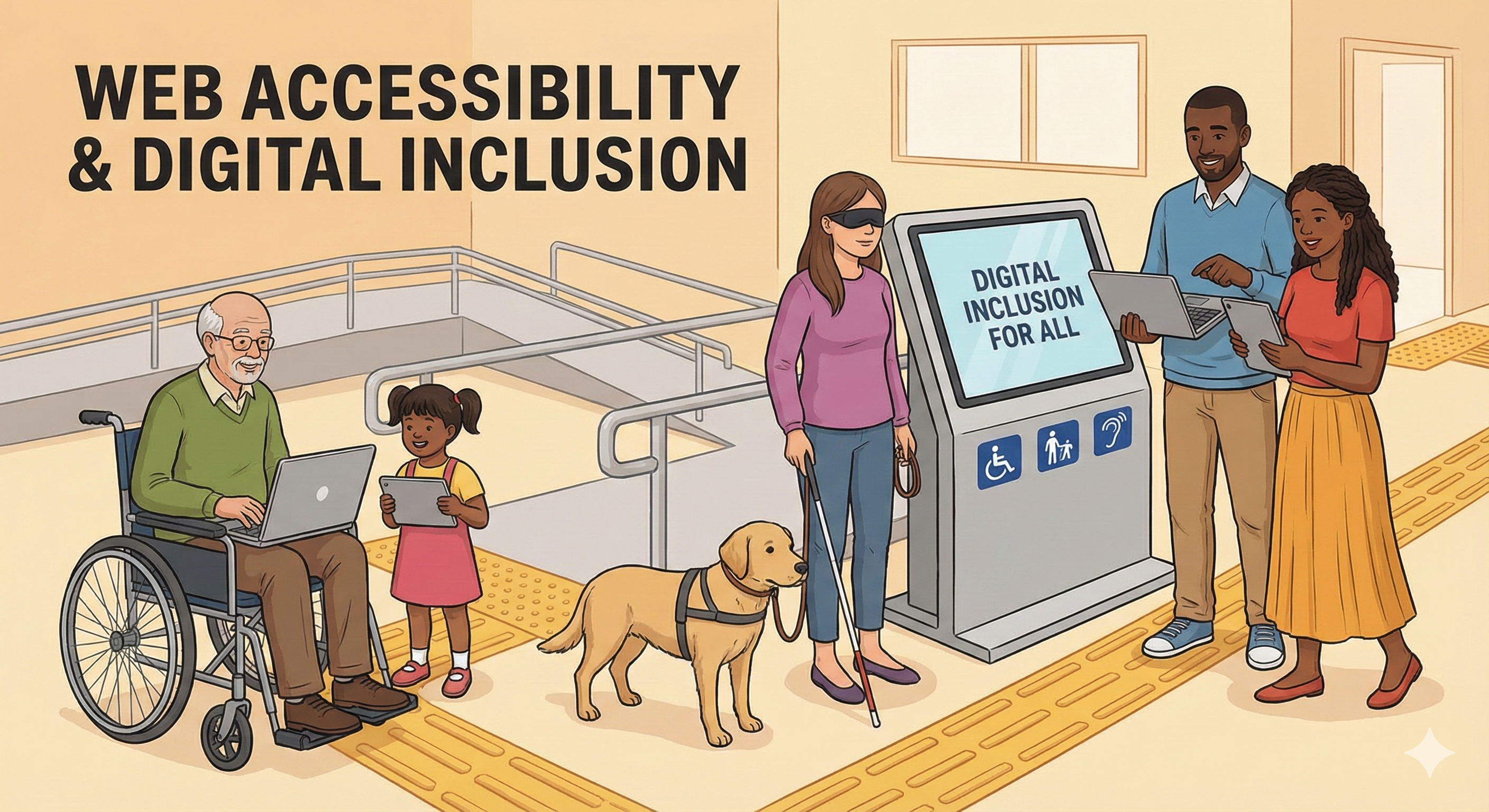
Accessibility isn't one right answer, but providing users the freedom to choose. (Created by nano-banana)
Evolution of the Implementation#
This feature was perfected through several iterations:
- First attempt: CSS Counter only → Screen readers couldn’t read it
- Second attempt: CSS
::afterfor screen reader text →::afterisn’t read by screen readers - Final: HTML line numbers +
aria-hiddentoggle → User choice!
What we learned from failures:
- CSS pseudo-elements aren’t in the accessibility tree
aria-hiddenis powerful but must be used carefully- Giving users choice is the best solution
Integration with Chroma#
Maintaining Chroma’s syntax highlighting while changing the structure was the hardest part:
- Chroma generates
<span class="line"><span class="cl">...</span></span>structure - All highlighting classes are inside the
.clspan - Must reconstruct DOM while preserving
.clinnerHTML
Result: Syntax highlighting is perfectly preserved!
Developer Responsibility#
Web accessibility isn’t just about “passing a checklist”. It’s about “providing a great experience for all users”.
As a developer running a development blog, I want my blog to become a model example of web accessibility best practices. I believe each small improvement like this can inspire someone.
Conclusion#
Working on a single code block resulted in this deep reflection and multiple iterations. Removing table structure, CSS Counter, aria-hidden toggle, help feature - behind all this lies thoughtful consideration of semantic HTML, web accessibility, and user experience.
And now, with AI assistance, these complex tasks can be easily applied. Just paste the prompt above into Claude Code or Cursor, and AI will implement it for you.
A small improvement, but I believe these small improvements together make a better web.
Your blog or system might also have such small improvement opportunities hiding somewhere. Small actions can create a web for everyone.
Created by nano-banana
References: