Introduction#
“How hard can a signup form be?” If that thought has ever crossed your mind… you’ve probably never tested it for accessibility.
Forms are the most important interface for user input on the web. Login, checkout, search, surveys — virtually every core web function goes through a form.
Yet for countless people, these forms are a complete barrier.
- Screen reader users can’t tell what an input field is asking for
- Keyboard-only users get stuck in front of a date picker
- People with cognitive disabilities see an error message but have no idea how to fix it

Photo: Susan Q Yin / Unsplash
In this post, we’ll go through form accessibility from top to bottom, based on WCAG 2.2. No dry theory — just practical code you can use right away, paired with a demo page I built for this post.
🔗 Demo page: https://isaaceryn.github.io/demo_codes/form-accessibility-mastery/?lang=en
Two signup forms — one inaccessible, one accessible — side by side. Try them with your keyboard and screen reader.
Label Association: The Tragedy of Unlabeled Fields#
The most fundamental requirement of WCAG 2.2 Success Criterion 1.3.1 (Info and Relationships) and 3.3.2 (Labels or Instructions) is this: every input field must have a programmatically associated label.
placeholder alone isn’t enough#
You’ve probably built a form like this at least once. So have I.
<!-- ❌ Don't do this -->
<input type="text" placeholder="Enter your name">
placeholder looks like a hint visually, but it’s not a label. It disappears the moment the user starts typing, and many screen readers don’t treat it as a label at all. The color contrast is usually below WCAG standards too.
How to connect labels correctly#
Method 1: <label for> — the most basic and reliable
<!-- ✅ Explicit association with the for attribute -->
<label for="user-name">Name</label>
<input type="text" id="user-name" name="name">
When for and id match, clicking the label focuses the input — a bigger click target. Anyone who’s ever struggled to click a tiny checkbox knows exactly how friendly this is.
Method 2: aria-label — when you want to hide the label visually
<!-- ✅ For cases like a search bar with no visible label -->
<input type="search" aria-label="Search this site">
<button type="submit">
  <svg aria-hidden="true"><!-- magnifier icon --></svg>
  <span class="sr-only">Search</span>
</button>
Method 3: aria-labelledby — reference existing text on the page as a label
<!-- ✅ Use an existing heading as the label -->
<h2 id="billing-section">Billing Information</h2>
<input type="text" id="card-number" aria-labelledby="billing-section card-number-label">
<span id="card-number-label">Card Number</span>
aria-labelledby can reference multiple ids separated by spaces, making it useful for assembling context in complex forms.
Required Field Indicators: An Asterisk Isn’t Enough#
WCAG 2.2 3.3.2 (Labels or Instructions) requires that required fields be clearly indicated.
<!-- ❌ Visual indicator only -->
<label for="email">Email <span style="color:red">*</span></label>
<input type="email" id="email">
An asterisk meaning “required” is a visual convention. Screen readers may read it as “asterisk” or skip it entirely.
<!-- ✅ Programmatically marked as required -->
<label for="email">
  Email
  <span aria-hidden="true">*</span>
  <span class="sr-only">(required)</span>
</label>
<input type="email" id="email" required aria-required="true">
required enables native browser validation, and aria-required="true" explicitly informs screen readers. The asterisk with aria-hidden="true" is visual-only; screen readers hear “(required)” instead.
You can still occasionally see required validation implemented with JavaScript — stick to the browser’s native validation whenever you can.
Adding a note at the top of the form is also good practice.
<p id="required-notice">
  Fields marked with <span aria-hidden="true">*</span> are required.
</p>
Input Hints: The Power of aria-describedby#
How should you connect hint text below an input field (like “Must be at least 8 characters”)?
<!-- ✅ Connect hint text with aria-describedby -->
<label for="password">Password <span class="sr-only">(required)</span></label>
<input
  type="password"
  id="password"
  required
  aria-describedby="password-hint"
>
<p id="password-hint" class="field-hint">
  Must be at least 8 characters and include letters, numbers, and a special character.
</p>
Unlike aria-labelledby, aria-describedby connects supplementary descriptions. When a user focuses the field, the screen reader reads the label first, then after a moment, the hint text.
Multiple descriptions can be chained with a space.
<input
  type="password"
  id="password"
  aria-describedby="password-hint password-strength"
>
<p id="password-hint">Must be at least 8 characters.</p>
<p id="password-strength">Strength: Medium</p>
Photo: Toa Heftiba / Unsplash
Error Handling: A Red Border Tells Users Nothing#
Now, let’s add some error messages to the mix.

The most common pattern after validation failure is turning the input border red. It’s visually clear, but screen reader users get absolutely nothing.
WCAG 2.2 3.3.1 (Error Identification) and 3.3.3 (Error Suggestion) require three things:
- Inform the user that an error has occurred
- Identify which field caused the error
- Suggest how to fix it
The aria-invalid + aria-describedby pattern#
<!-- State added dynamically after error -->
<label for="email">Email <span class="sr-only">(required)</span></label>
<input
  type="email"
  id="email"
  aria-invalid="true"
  aria-describedby="email-error"
>
<p id="email-error" class="field-error" role="alert">
  Please enter a valid email address. Example: [email protected]
</p>
aria-invalid="true" tells screen readers “there’s an error in this field.” role="alert" causes the screen reader to announce the message immediately when it’s added to the DOM.
When there’s no error, remove aria-invalid entirely or set it to "false".
// On validation success
input.removeAttribute('aria-invalid');
errorEl.textContent = '';

// On validation failure
input.setAttribute('aria-invalid', 'true');
errorEl.textContent = 'Please enter a valid email address.';
Handling multiple errors after form submission#
When multiple fields have errors at once, provide a summary at the top of the form with links that jump directly to the relevant fields. (WCAG 2.2 3.3.1 Error Identification / 3.3.3 Error Suggestion)
<div role="alert" aria-labelledby="error-summary-title" class="error-summary">
  <h2 id="error-summary-title">3 input errors found</h2>
  <ul>
    <li><a href="#email">Email: Please enter a valid format</a></li>
    <li><a href="#password">Password: Must be at least 8 characters</a></li>
    <li><a href="#phone">Phone: Numbers only</a></li>
  </ul>
</div>
Try it in the demo: form-a11y-demo — Error Handling section Turn on your screen reader and click Submit. You’ll hear exactly how the error guidance works.
Grouping: fieldset and legend#
When you have multiple radio buttons or checkboxes, individual labels alone don’t provide enough context.
<!-- ❌ No group context -->
<input type="radio" id="card" name="payment"> <label for="card">Credit Card</label>
<input type="radio" id="transfer" name="payment"> <label for="transfer">Bank Transfer</label>
Screen reader users only hear “Credit Card” — they have no way of knowing this belongs to “Payment Method.”
<!-- ✅ Group context with fieldset + legend -->
<fieldset>
  <legend>Payment Method <span class="sr-only">(required, choose one)</span></legend>
  <div class="radio-group">
    <input type="radio" id="card" name="payment" value="card">
    <label for="card">Credit Card</label>
  </div>
  <div class="radio-group">
    <input type="radio" id="transfer" name="payment" value="transfer">
    <label for="transfer">Bank Transfer</label>
  </div>
  <div class="radio-group">
    <input type="radio" id="phone-pay" name="payment" value="phone">
    <label for="phone-pay">Mobile Payment</label>
  </div>
</fieldset>
When a radio button receives focus, screen readers announce something like “Payment Method, Credit Card, radio button, 1 of 3” — group context included.
<fieldset> can also be used to divide sections in a long form.
Keyboard Navigation: Tab Order and Focus Management#
WCAG 2.2 2.1.1 (Keyboard) and 2.4.3 (Focus Order) require that all form controls be operable by keyboard and that the focus order be logical.
Use tabindex sparingly#
<!-- ❌ Forcing tab order creates confusion -->
<input tabindex="3" ...>
<input tabindex="1" ...>
<input tabindex="2" ...>
Instead of forcing order with tabindex, design your HTML structure to have a logical order from the start.
Use tabindex="0" only to include elements that don’t normally receive focus (like <div>) into the tab order.
<!-- ✅ Adding keyboard accessibility to a custom component -->
<div
  role="combobox"
  tabindex="0"
  aria-expanded="false"
  aria-haspopup="listbox"
>
  Select Country
</div>
Submit buttons and keyboard behavior#
Form submission should work with the Enter key. Using <button type="submit"> gives you this automatically.
<!-- ✅ Use standard buttons -->
<button type="submit">Sign Up</button>
<button type="button" onclick="cancelForm()">Cancel</button>
A fake button built with <div onclick="..."> can’t be activated by keyboard and won’t respond to Enter. That’s about the worst accessibility choice you can make.
Live Demo: See It for Yourself#
Nothing beats experiencing it hands-on.
The demo shows two identical signup forms side by side.
| Aspect | Inaccessible Form | Accessible Form |
|---|---|---|
| Labels | placeholder only | explicit <label> |
| Required fields | visual asterisk only | aria-required + hidden text |
| Error messages | red border only | aria-invalid + role="alert" |
| Grouping | <div> wrapper | <fieldset> + <legend> |
| Keyboard | some controls inaccessible | fully keyboard operable |
How to test:
- Use
Tabto navigate through the form and observe where focus goes - Turn on macOS VoiceOver (
Cmd + F5) or NVDA, and compare what gets announced in each field - Intentionally trigger errors and submit — see how differently the two forms handle them
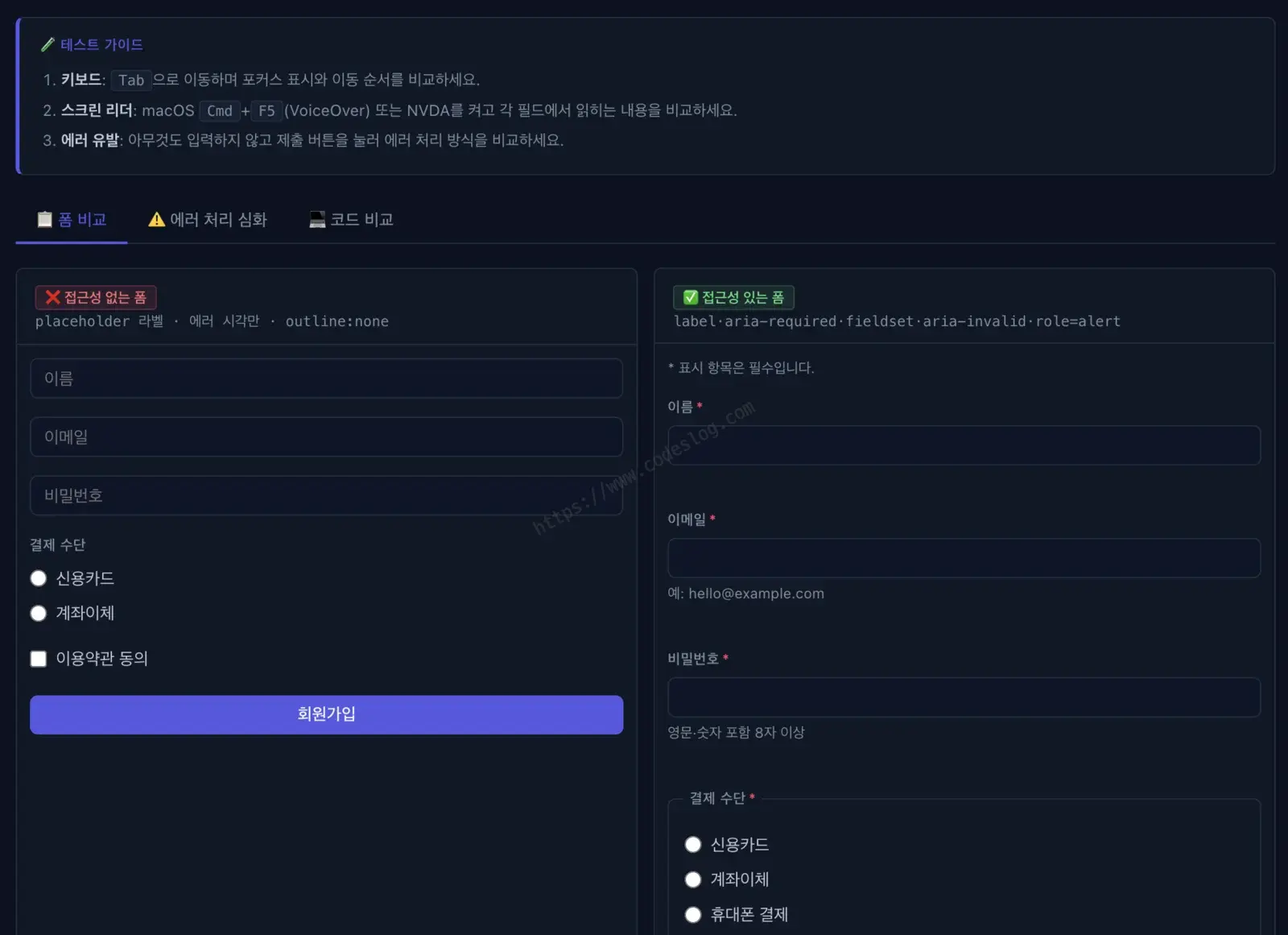
A demo I built — experience the difference with keyboard and screen reader
Bonus: What to Watch for in WCAG 3.0#
WCAG 3.0 is still in Draft, but several directional changes are already signaled for form accessibility.
💡 Curious about the bigger picture of WCAG 3.0? Check out the WCAG 3.0 Era series on this blog.

Photo: Devon Beard / Unsplash
1. Cognitive accessibility gets center stage#
WCAG 3.0 takes Cognitive Accessibility seriously. For form design, that means:
- Error messages must be written in plain, human-readable language (no codes or technical jargon)
- Complex forms should be broken into multiple steps
- Forms should offer auto-save or re-entry prevention during input
These are already good UX today, but WCAG 3.0 looks set to make them testable, formal requirements.
2. Outcome-based evaluation, not just pass/fail criteria#
WCAG 2.2 evaluates each success criterion individually as Pass/Fail. WCAG 3.0 shifts toward evaluating the overall experience based on user outcomes.
Applied to forms: the core question becomes “Can a user complete this form without errors?” Even if aria-invalid is technically present, if a real user can’t understand and correct the error, the outcome isn’t met.
3. What you can prepare right now#
| Today (WCAG 2.2) | Preparing for WCAG 3.0 |
|---|---|
aria-invalid + error text | Write error messages in clear, everyday language |
| Required field indicators | Expand use of input examples/hints |
| Focus management | Design focus flow through form completion, including success confirmation |
| Automatic validation | Real-time inline validation (but avoid errors that fire too early) |
WCAG 3.0 still has a way to go before becoming an official standard. But aligning in this direction now means you’ll need minimal changes when it does.
Wrap-Up: Form Accessibility Checklist#
Use this checklist to quickly verify whether your form meets accessibility standards.
Label Association (WCAG 1.3.1 / 3.3.2)
- Every input field has one of:
<label for>,aria-label, oraria-labelledby - placeholder is not used as a substitute for a label
Required Field Indicators (WCAG 3.3.2)
- Required fields have both
requiredandaria-required="true" - Visual required indicators (
*) are conveyed meaningfully to screen readers
Error Handling (WCAG 3.3.1 / 3.3.3)
-
aria-invalid="true"is set on error - Error message is connected via
aria-describedby - Error is announced immediately to screen readers (
role="alert"or live region) - Error message includes specific guidance on how to fix it
Grouping (WCAG 1.3.1)
- Radio/checkbox groups use
<fieldset>+<legend>
Keyboard Accessibility (WCAG 2.1.1 / 2.4.3)
- All form controls are reachable by Tab
- Tab order isn’t forcibly changed with
tabindex - Form can be submitted with Enter
- Custom controls have appropriate keyboard behavior
Building a truly accessible form takes more effort than it might seem — but it’s worth every bit. When someone is able to complete a form successfully for the first time because of choices you made, that’s accessibility in action.
Try it in the demo and drop a comment if you have questions!