This is Part 20 of the “Frontend Testing, Done Right” series. Browse the full series · Glossary
By now, AI “writing” test code for you feels familiar. Lately, though, it’s gone a step further — AI has started opening the browser itself, clicking through it, and checking whether things work.
It’s a neat trick, but ask “so can I actually use this at work?” and the answer gets fuzzy fast. Tool names keep popping up, but there’s rarely a single piece that lays out what each one actually does and how far you can trust it. This article is that map.
If you’ve been following the series, this is where last time’s “AI drafts, humans confirm” principle extends into the browser. If you arrived here from a search, each tool section stands on its own — and you don’t need any prior Playwright experience. Every concept gets a one-line explanation the moment it shows up.
Practice code: frontend-testing-lab — codegen is a command built into Playwright and the MCP server is attached from outside the repo, so
step-20is identical to the previous part. The accessibility snapshots in this article were captured from that repo’s demo app as-is.
This article answers three questions.
- Can I record my own clicks as test code, verbatim? (codegen)
- Can I just tell AI, “go check this screen”? (MCP agents)
- Selectors supposedly fix themselves when they break — is that actually true? (self-healing)
codegen — recording your clicks as code#
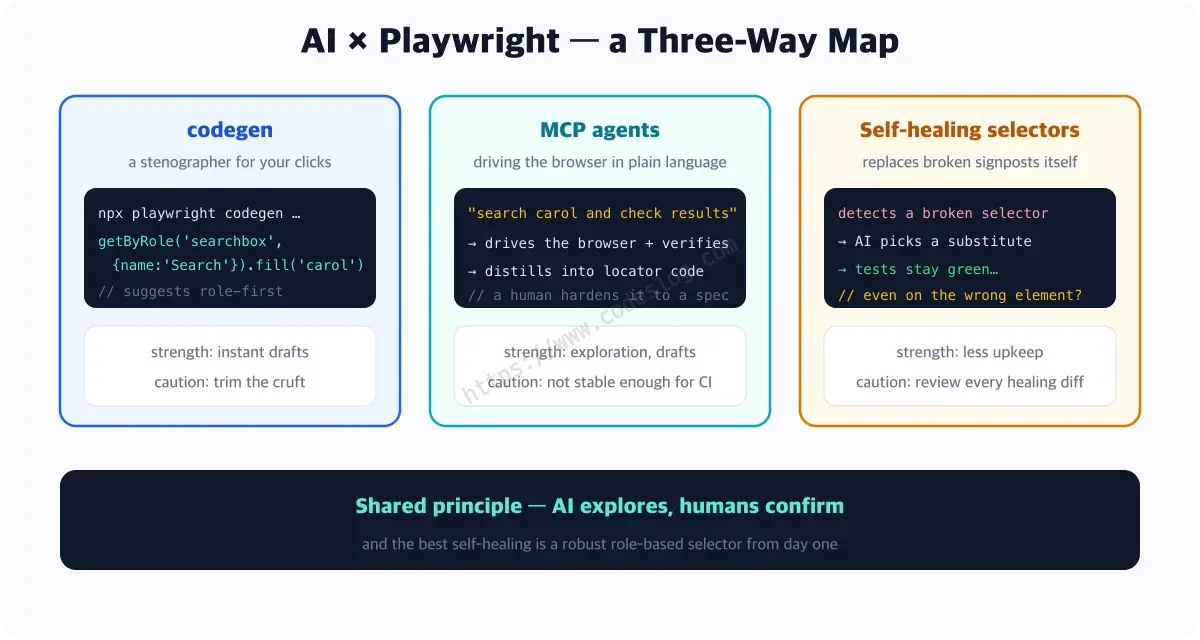
codegen has been part of Playwright from day one. It opens a browser for you, and as you click and type, it transcribes everything into code alongside you. The most daunting part of writing your first test is usually “how do I even point at this button in code?” — codegen takes that off your plate.
No AI involved yet — it’s just a recorder. Still, there’s a reason it opens this piece: the AI tools we’ll cover later work by refining the code codegen produces. Starting from the beginning makes sense.
Trying it out takes one line.
npx playwright codegen localhost:5173A browser opens, and clicks and input are recorded as code in real time. Searching in the demo app produces this:
// what codegen recorded
await page.getByRole('searchbox', { name: '검색' }).click()
await page.getByRole('searchbox', { name: '검색' }).fill('carol')
codegen also proposes role-based locators first, the same principle as the locator part. It’s excellent for drafting, but stray clicks and fragile selectors can slip in, so clean it up before you keep it.
Recording assertions — it’s not just clicks#
Many people know codegen only as an “action recorder,” but the toolbar at the top of the recorder window also has assertion recording buttons. Pick an icon, then click the element on the page you want to verify, and assertion code gets inserted right there.
There are three built in.
| Button | What it checks |
|---|---|
assert visibility | whether this element is visible on screen |
assert text | whether this element contains that text |
assert value | whether the input field holds that value |
This matters because a recording without assertions isn’t a test. A file that’s just a string of clicks and keystrokes only tells you “it ran to the end without erroring” — even if something completely wrong is on screen, it’s green. It’s the same gap we’ve talked about since Part 1: having a test versus a test that actually guards something.
There’s a fourth toolbar button too —
Assert snapshot(since 1.49). It captures the page’s entire accessibility tree and drops it intotoMatchAriaSnapshot(). It’s easy to miss because the documentation for it lives on the aria snapshots page, not the codegen docs. We’ll unpack what an “accessibility tree” actually is shortly, in the MCP section.
The second thing worth knowing is reusing a logged-in session. If you’re trying to record a screen behind a login and have to sign in every single time, you’ll burn out fast.
# log in once, then save the session to a file
npx playwright codegen https://example.com --save-storage=auth.json

# start already logged in from now on
npx playwright codegen --load-storage=auth.json https://example.com
auth.json contains your actual cookies and tokens. The official docs are explicit about it: put this file in .gitignore and keep it local only. Commit it by accident and you’ve effectively handed over the account — keep it out of the repository.
The rest of the options you can look up when you actually need them — feel free to skip past this table on a first read.
| Option | What it does |
|---|---|
--device "iPhone 11" | record as a mobile device screen |
--color-scheme dark | record in dark mode |
--viewport-size "1280, 720" | record at a specific resolution |
--target | change the output language (TypeScript by default; Python, Java, and others are also supported) |
--test-id-attribute | specify the test-ID attribute your project uses |
That’s everything you can do without AI. Now it’s actually AI’s turn.
MCP agents — driving the browser with words#
This time, without writing a single line of code, we’ll move the browser by talking to it.
One term first. MCP (Model Context Protocol) is a connection standard that hands AI a set of tools to use. On its own, AI only trades text back and forth — it can’t open a browser by itself. MCP is the agreed-upon protocol for exchanging commands like “open a browser” or “click this,” and a program that speaks that protocol is called an MCP server. Think of it like the USB standard — as long as the spec matches, any AI tool can plug into the same server.
Playwright MCP is the one that handles browsers. Connect it, and an AI can open a page, find elements, click them, and check the results.
Connecting it takes one line. Register the server with an agent tool (Claude Code, etc.) —
# e.g. connect Playwright MCP to Claude Code
claude mcp add playwright -- npx @playwright/mcp@latest
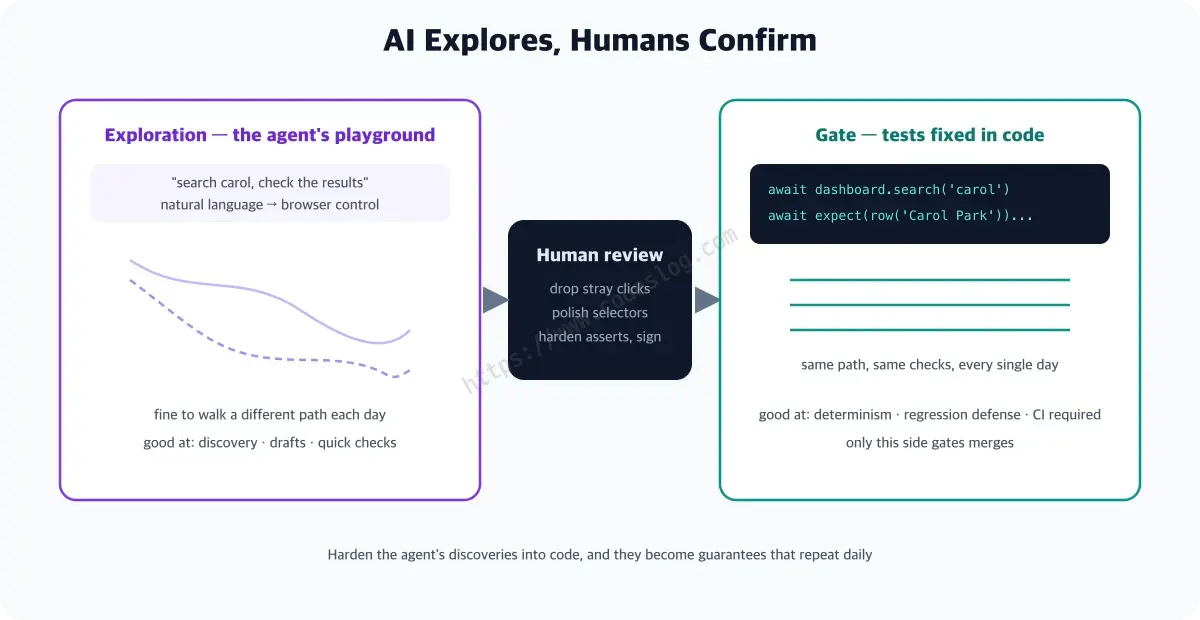
Tell it “open the dashboard, search carol, and confirm only Carol Park remains in the results,” and the agent operates the browser, verifies the outcome, and writes up the process as locator code. A person then polishes that code into a spec file — AI explores, humans confirm.
AI reads the accessibility tree, not the screen#
This is where a lot of people get it wrong. “AI operating a browser” usually conjures an image of it looking at a screenshot and clicking coordinates. Playwright MCP doesn’t work that way.
The official README states it plainly in the first paragraph — this server lets LLMs interact with web pages through structured accessibility snapshots, without screenshots or a vision model. The feature list is just as direct: it “uses Playwright’s accessibility tree, not pixel-based input.” Coordinate-based tools aren’t entirely absent, but you have to opt in deliberately with --caps=vision. The default is off.
So what actually reaches the AI? First, we captured our demo app with Playwright’s ariaSnapshot(), with bob typed into the search box. This default snapshot is also what toMatchAriaSnapshot() compares against in tests.
- region "사용자 검색":
  - heading "사용자 검색" [level=2]
  - text: 검색
  - searchbox "검색": bob
  - button "검색어 지우기": ✕
  - list:
    - listitem: Bob Lee [email protected]
(The demo app’s UI is in Korean, so the accessible names in these snapshots are Korean too — 사용자 검색 means “User Search,” 검색 means “Search,” and button "검색어 지우기" is the clear-search button. They’re real measured output, so they’re left untranslated.)
Does this look familiar? It’s role and accessible name — the exact same information we used to find elements with getByRole('button', { name: '검색어 지우기' }) back in the accessibility queries part. Screen readers read this tree, and our tests query it.
What Playwright MCP hands the model is a little different, though: it calls the same function with mode: 'ai'. Here’s the same screen captured in ai mode (Playwright 1.63; only this region of the full page is shown).
- region [ref=e6]:
  - heading "사용자 검색" [level=2] [ref=e7]
  - text: 검색
  - searchbox "검색" [active] [ref=e8]: bob
  - button "검색어 지우기" [ref=e9]: ✕
  - list [ref=e10]:
    - listitem [ref=e11]: Bob Lee [email protected]
Every element now carries a numbered tag like [ref=e9]. That’s how the AI points at things — more on that shortly. ([active] marks the element that currently has focus, and the region’s name was dropped because it just repeats the heading right below it.) Beyond that, the skeleton is the same: the button is still button "검색어 지우기". The gap really opens up once accessibility breaks.
Does bad accessibility block AI too? It depends on the tool#
Telling you this in the abstract won’t land, so we actually broke something. We swapped the clear button for the kind of div-button that shows up all the time when AI is left to generate UI.
// looks identical on screen
<div className="clear-btn" onClick={clearQuery}>✕</div>
Start with the default snapshot that tests use:
- region "사용자 검색":
  - heading "사용자 검색" [level=2]
  - text: 검색
  - searchbox "검색": bob
  - text: ✕          # ← the button disappeared
  - list:
    - listitem: Bob Lee [email protected]
The spot that used to be button "검색어 지우기" is now just text: ✕. From this snapshot alone, there’s no telling whether it’s clickable or what it’s called. When we first published this article, we concluded right here that “AI can’t use it either.” But retaking it with the snapshots agent tools actually hand over told a different story.
Here’s the same screen captured three ways, side by side (October 2, 2026; Playwright 1.63, Chrome DevTools MCP 1.9.0, Chrome 154).
| Captured with | Real <button> | div button |
|---|---|---|
| Playwright default snapshot (tests) | button "검색어 지우기": ✕ | text: ✕ |
| Playwright MCP (ai mode) | button "검색어 지우기" [ref=e9]: ✕ | generic [ref=e9]: ✕ |
| Chrome DevTools MCP | uid=3_0 button "검색어 지우기" | uid=3_0 StaticText "✕" |
Playwright MCP didn’t drop the div — it kept it as a nameless chunk (generic) and even gave it a numbered tag. Chrome DevTools MCP passed it along as plain text with no hint that it’s clickable (StaticText; this tool calls its numbered tags uid). Yet with both MCP servers, clicking ✕ by its number actually cleared the search. These two tools, at least, didn’t block the way.
One caveat: we picked the number ourselves. We didn’t measure whether a model, told only “clear the search,” would pick out this nameless ✕. If it does, it won’t be because it read a name — it’ll be a guess that “an ✕ next to a search box is usually a clear button.”
There are two more ways ai mode carries extra on-screen information. One is the cursor. An element styled with CSS
cursor: pointer(the hand you see on hover) gets one more marker, as ingeneric [ref=e9] [cursor=pointer]: ✕. Because the marker comes from the CSS value rather than from any click behavior, a real<button>— whose default cursor is the arrow — doesn’t get it.The other is hidden elements. Even when hidden with
aria-hidden="true", an element that’s visible on screen stays in, marked[aria-hidden]. When we putaria-hiddenon the results list, it remained aslist [aria-hidden]only in ai mode, and vanished entirely from both the default snapshot and Chrome DevTools MCP. The Playwright team says it’s included on purpose, because it’s visually visible (PR #42268; the marker appears from 1.63).
In short, the tree an agent receives depends on the tool. The same div button shows up as plain text in one tool and as a tagged chunk in another. But one thing held across all three: the div button never got the name “검색어 지우기” (clear search) anywhere, while the real <button> showed up as button "검색어 지우기" everywhere. What stays steady no matter the tool is the semantic side.
For people, the picture is clear regardless of the tool. This div can’t be reached with Tab — press Tab in the search box and focus skips right past the ✕. Screen readers don’t announce it as a button either, so it won’t turn up in a list of buttons or with the jump-to-next-button key. A screen reader like NVDA, which announces clickable elements as “clickable,” might say that for this ✕ — but it can’t give the user the name “clear search.”
So do teams that put off accessibility get the bill the moment they adopt AI automation? Depending on the tool, yes or no. But no bill doesn’t mean no debt. Whether or not an agent manages to click that ✕, the people who can’t find it as a button are still there. Teams that have followed this series and kept role and name in order, on the other hand, don’t need to be picky about tools — the button shows up as a button whichever way you capture it.
It’s a little bittersweet that we now have one more reason to write accessible code — “for people” should have been reason enough on its own. Still, more reasons never hurt.
So how does AI point at “this button”#
Reading the tree makes sense, but then what? If it’s not using coordinates, how does it actually say “click this button”?
The answer is the numbered tag you saw above. An ai-mode snapshot attaches a short marker like [ref=e9] to every element that’s visible and can receive a click. When the AI operates an element, it passes this number as the tool’s target argument.
# a line from the snapshot (with its ref)
- button "검색어 지우기" [ref=e9]: ✕

# the tool call the agent makes
browser_click(element: "검색어 지우기 버튼", target: "e9")
element is a human-readable description of “what and why,” while target does the actual pointing (in older versions this argument was called ref). Notice there’s no coordinate anywhere — the same instruction works no matter where the button moves on screen or what color it turns. It’s also what let the nameless div get clicked in the experiment above: it had no name, but it still got a number.
So can we hand testing over entirely — not yet#
At this point it’s tempting to think “great, let’s just hand all testing to the agent” — but one property gets in the way.
The agent walks a slightly different path each time, even with the same instructions. Today it might click straight into the search box; tomorrow it might tab over first, then type. It still did what you asked, so it’s not wrong exactly — but that’s a problem for a test. If something passes yesterday and fails today, you can’t tell whether the code actually broke or the agent just took a different route. The technical term for this is weak determinism — determinism means the same input always produces the same result.
So we split the roles.
| Aspect | Good fit | Poor fit |
|---|---|---|
| AI agent | exploring an unfamiliar screen, drafting scenarios, quickly checking “does this even work” | the final gate that blocks a PR |
| Code-fixed test | the same check running every time, CI gates | early exploration when you don’t yet know what to check |
A merge gate earns trust by being “the same check today as yesterday.” So for now, the safe split is: let the agent explore, and harden the gate in code. The earlier “AI drafts, humans confirm” principle repeats itself here in the browser.
Self-healing selectors — Playwright doesn’t have them#
Self-healing refers to AI finding a similar element and carrying on when a selector breaks. If you’ve watched a whole suite go red just because one button’s class name changed, this sounds pretty tempting.
But the short answer up front — Playwright doesn’t have this. Search around and you’ll find plenty of articles mentioning self-healing and Playwright in the same breath, which makes it easy to assume it’s a built-in feature. It isn’t. A feature request for it did actually get filed (issue #33586), and a maintainer closed it the same day, replying that it’s “out of scope for Playwright.” The concept doesn’t appear anywhere in the docs either.
The tools that actually advertise self-healing are separate products — Healenium, Katalon, mabl — and most of them are commercial (Healenium is the exception, with a free open-source core and a paid Pro tier).
There are two things that are easy to confuse with it.
One is when a locator actually finds its element. A Playwright locator doesn’t grab an element ahead of time — it looks it up again at the exact moment you run an action like click or fill. This is called lazy evaluation. It’s why a re-render doesn’t leave you holding a stale reference and failing — but convenient as that is, it’s a completely different thing from “finding a replacement when a selector breaks.”
The other is that the phrase “self-healing tests” does show up once in the Playwright MCP README. But the context is a list of use cases for agent loops — it’s not describing a Playwright feature.
If you do bring in one of these tools, weigh the risk alongside the benefit. At its core, self-healing means “pick something similar to what it was originally looking for, and keep going.” When it guesses right, maintenance drops. But when it picks the wrong element, the test still ends up green — the gate reports a pass, while what actually got verified is a different thing entirely. That’s why any recorded healing event needs a human to check the diff, and the moment that check gets skipped, the suite starts quietly losing its meaning.
Which brings us back to the locator part’s conclusion. Playwright’s answer to this problem isn’t self-healing — it’s “use a locator that doesn’t break in the first place.” The official recommended order stays the same: getByRole() first, then text, labels, and placeholder, with getByTestId() last.
And as we saw in the previous section, snapshots differ from one agent tool to another, but role and name showed up intact in every one of them. That’s exactly the layer a locator built on role and name relies on. The best self-healing is a selector that never needed healing in the first place.
One-page summary#
- codegen (
npx playwright codegen URL): records clicks and input as locator code in real time — great for drafts, polish before keeping - codegen also records assertions (visibility, text, value) — a recording without assertions is just an execution log, not a test
- Reuse logged-in screens with
--save-storage/--load-storage— but that file is a bundle of cookies and tokens, so.gitignoreit without fail - MCP agents read the accessibility tree, not screenshots (coordinate tools are opt-in via
--caps=vision) — but what reaches the model differs by tool. Playwright MCP sends amode: 'ai'snapshot that adds numbered refs, click hints, and hidden-but-visible elements - Each agent tool receives a different tree — the
divbutton wastext: ✕in the default snapshot, a namelessgenericin Playwright MCP, andStaticTextin Chrome DevTools MCP, and both MCP servers could still click it by number (measured directly). Either way the name “clear search” is gone, and keyboard and screen-reader users still can’t find it as a button - Exploration and gates play different roles — agents have weak determinism and can walk a different path each run, so code-fixed tests stay the safe choice for CI gates
- Self-healing isn’t a Playwright feature (a maintainer closed the request as “out of scope”) — it’s the domain of separate commercial tools, and carries the risk of a quietly-wrong element still turning up green
- The best self-healing is a robust role-based selector, from day one
From the director’s chair#
The flashier the tool, the more verification matters. Next time takes that risk head-on — the traps in AI-generated code.
Watching AI click through a page for you is uncanny — right down to occasionally pressing the wrong button and announcing “done!” with a confidence that’s almost human. That’s why we stay in the director’s chair.
Level up: you can put codegen and agents to work as drafting tools, while keeping confirmation in your own hands.
Next up: the traps in AI-generated code — missing accessibility and edge cases
Ran into an unfamiliar term? The glossary has every one of them, explained in a line.
Leave a comment