This is Part 15 of the “Frontend Testing, Done Right” series. Browse the full series · Glossary
Whether a button has a name, you can tell by looking at that button. But whether its text contrasts enough with the background, whether the page declares a language, whether an id is duplicated — you can’t tell from one element. You have to look at the whole screen, and at the state it’s actually rendered in. That’s tiring to do by eye every time, which is exactly why you want an automated checking engine.
axe is that engine. It sweeps a rendered page whole and automatically flags accessibility violations — insufficient contrast, unnamed buttons, invalid ARIA, that sort of thing. Many of you have run it as a browser extension (axe DevTools); this article is about putting it inside Playwright E2E so it runs automatically, every time. A few lines is all it takes.
If you’ve been following the series — after query-level accessibility, today is page level: the second safety net. Coming from a search, the code is self-contained (Playwright basics in the intro part).
Practice code: frontend-testing-lab — this part’s snapshot is pinned to the
step-15tag.
What we cover today#
- What kind of engine axe-core is, and how it works
- Integrating @axe-core/playwright and gating violations as test failures
- Narrowing and widening the scan (tags, include, exclude)
- What automated checks catch, what they don’t, and the “needs review” in between
What is axe-core#
I’ve been saying “axe,” but the precise name is axe-core. It’s an open-source accessibility checking engine made by Deque, an accessibility consultancy. And here’s the important bit — the axe DevTools browser extension, Google Lighthouse’s accessibility score, and countless CI accessibility checks all use this one engine underneath. What we’re bolting on today is that same engine. Learn it once and you read the results the same way no matter which tool wraps it.
How it works tells you its character. axe-core looks not at the HTML source, but at what the browser actually rendered. It takes the rendered DOM tree with computed styles applied (the final color, size, and visibility after all the CSS) and checks it against roughly 100 rules, one by one. That’s why a color faded by CSS gets caught, and so does an ARIA attribute that JavaScript injected later. Neither is something you could ever tell from the source.
So what’s the @axe-core/playwright we’ll install? It’s a thin adapter that injects the axe-core engine into the page Playwright opened, runs it, and hands the results back. The engine runs inside the browser; we receive its results in the Node-side test and assert on them.
Each rule is grouped under tags. wcag2a·wcag2aa·wcag21aa·wcag22aa point at a WCAG (the web accessibility standard) version and level; best-practice marks conventions that aren’t in the standard but are recommended. We’ll use these tags to dial the scan’s scope in a moment.
Scanning the whole page#
One line to install, a few to use. (the actual test in repo e2e/dashboard.spec.ts)
npm i -D @axe-core/playwrightimport { test, expect } from '@playwright/test'
import AxeBuilder from '@axe-core/playwright'
test('has no accessibility violations', async ({ page }) => {
await page.goto('/')
await page.getByText('Alice Kim').waitFor() // scan after loading completes
const results = await new AxeBuilder({ page }).analyze() // sweep the whole page
expect(results.violations).toEqual([]) // must be zero — failures print the details as a diff
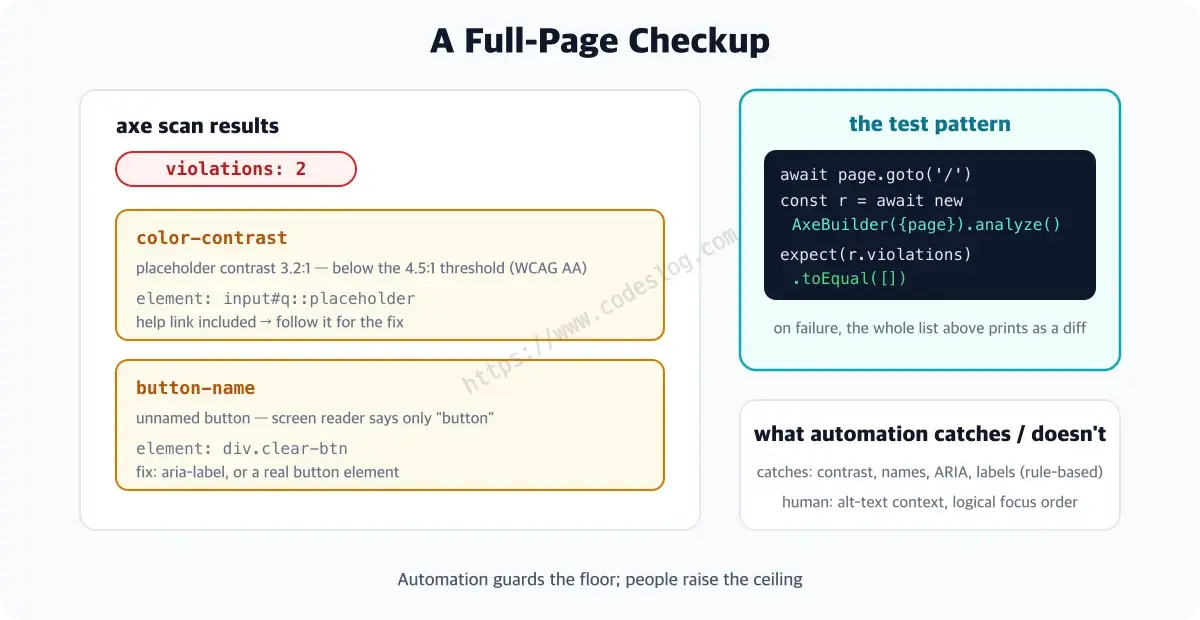
})Pick the code apart and it’s two lines. new AxeBuilder({ page }).analyze() injects the engine into the current page and scans the whole thing, and expect(results.violations).toEqual([]) nails down that the violations array must be empty to pass. There’s a reason for toEqual([]): a failure prints the entire violation list as a diff — which rule, which element, where. (When the array grows, so does the diff, and it can get heavy to read — more on that at the failure scene shortly.)
Run it and it ends like this:
Running 1 test using 1 worker
  ✓  1 [chromium] › e2e/dashboard.spec.ts:16:1 › has no accessibility violations (712ms)
  1 passed (2.1s)
Narrowing and widening the scan#
The default is “the whole page, all rules.” In practice you’ll want to adjust that. AxeBuilder chains methods before .analyze() to change the scope.
Narrow the rules with tags — when you only care about a certain WCAG level.
new AxeBuilder({ page }).withTags(['wcag2a', 'wcag2aa']).analyze()
// 'wcag2a'·'wcag2aa' = check only WCAG A and AA rules
Scan or skip a specific area — a CSS selector sets the scope. Third-party widgets (ads, maps, chatbots — iframes you can’t fix) are practical to exclude. No reason to let someone else’s violations turn your test red.
new AxeBuilder({ page })
  .include('main')                 // only the main content
  .exclude('.third-party-widget')  // this element (and its children) excluded
  .analyze()
Turn off specific rules — for known false positives, or rules your team deliberately exempts.
new AxeBuilder({ page }).disableRules(['color-contrast']).analyze()Do this sparingly. Once you drop a rule with disableRules, its violations vanish for good — only when you’re sure it’s a false positive, and leave the reason in a comment.
What it catches#
Rule-based violations: poor contrast, unnamed controls, invalid ARIA, unlabeled inputs, missing language, duplicate ids, and so on. Where the previous part’s role queries look at “does this button have a name” one element at a time, axe catches the ones that cut across the page like these. It catches, in numbers, the contrast problems eyes would excuse forever as “subtle is the design.” Put it in CI (next chapter, together) and such regressions get stopped before deploy.
But axe results aren’t only violations. The results split four ways.
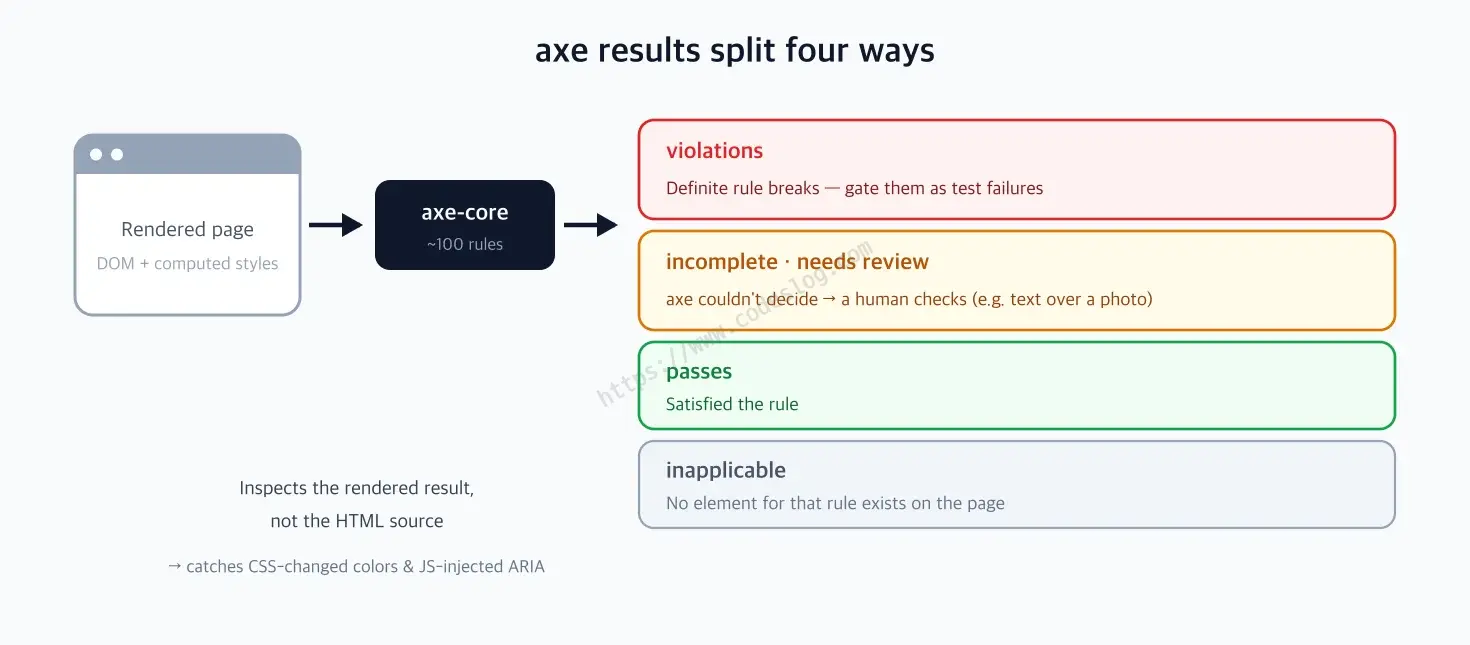
What we gated above is the violations among these. The one to watch is incomplete (needs review) — items axe tried to apply a rule to but couldn’t decide automatically. The classic case is text over a background image: if the background is a photo rather than a solid color, there’s no single color to compute contrast against. So it’s set aside as “please look at this,” not “violation.” Reading only results.violations misses these, so if you take accessibility seriously, log results.incomplete too and skim it now and then.
Talk is cheap — let’s watch violations get caught.
Let’s break it on purpose#
I changed the email text in the list from gray to a lighter gray — one line, the kind of “hm, a bit softer?” change that sails through review.
small { color: #b0b0b0; } /* was #595959 */The axe test goes straight to red.
  ✘  1 [chromium] › e2e/dashboard.spec.ts:16:1 › has no accessibility violations (707ms)

    Error: expect(received).toEqual(expected) // deep equality
    - Expected  -   1
    + Received  + 128
    - Array []
    + Array [
    +   Object {
    +     "id": "color-contrast",
    +     "impact": "serious",
    +     "help": "Elements must meet minimum color contrast ratio thresholds",
    +     "helpUrl": "https://dequeuniversity.com/rules/axe/4.12/color-contrast...",
    +     "nodes": Array [
    +       Object {
    +         "failureSummary": "Fix any of the following:
    +   Element has insufficient color contrast of 2.16
    +   (foreground color: #b0b0b0, background color: #ffffff,
    +   font size: 10.0pt, font weight: normal).
    +   Expected contrast ratio of 4.5:1",
    +         "html": "<small>[email protected]</small>",
    +         "target": Array [ "li:nth-child(1) > small" ],
    ...
Plenty to read. The rule broken (color-contrast) and its severity (serious), a how-to-fix docs link (helpUrl), the exact offending element (<small>[email protected]</small>) and its selector. The showstopper is the failureSummary — current ratio 2.16, required 4.5:1. Not “feels a bit light” but numbers. There’s also a reason one color change produced a 128-line diff: all five rows of the list got flagged as separate violation nodes. Following the failure output alone gets you to the fix. Few checking tools have error messages this kind.
The limits of automation#
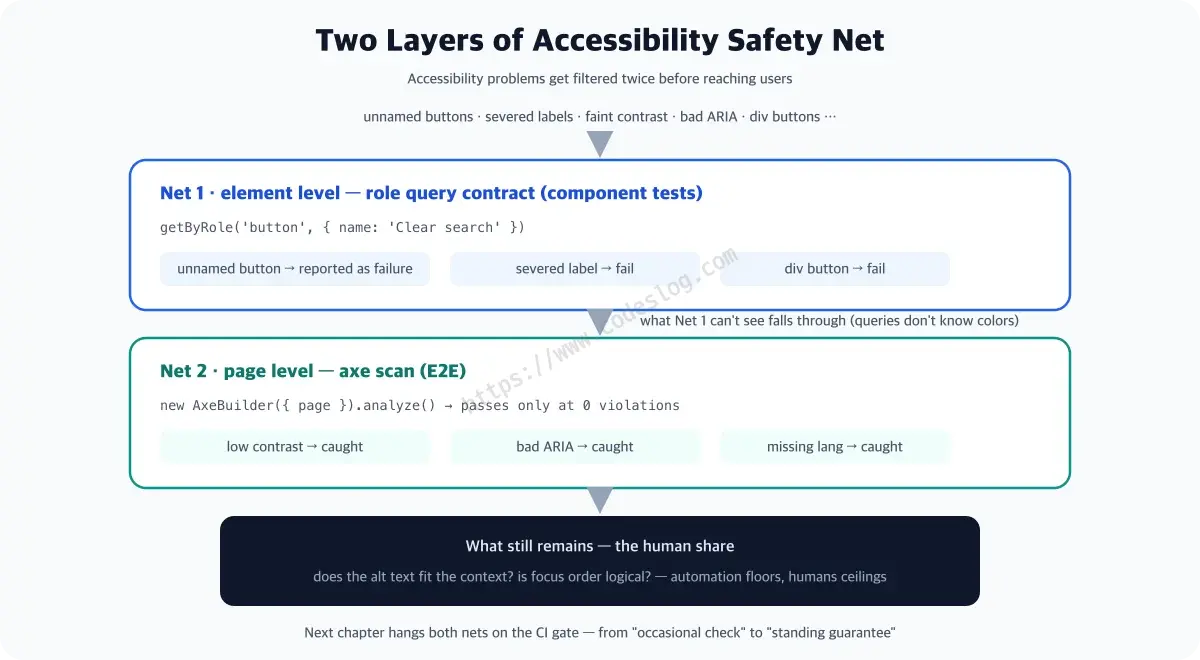
axe is no panacea. “Is this alt text right for the context?” and “is the focus order logical?” still need humans. Automated checks guard accessibility’s floor; the ceiling is raised by people.
Role query contracts + today’s axe scan = two layers of accessibility safety net. Add the CI gate soon and accessibility shifts from “occasional check” to “standing guarantee.”
Attach axe for the first time and violations may pour out. It feels like getting all your postponed health-checkup results in one envelope — but it’s normal. Fix them one by one and the green light arrives sooner than you think.
One-page summary#
- axe-core = Deque’s open-source accessibility checking engine — the one browser extensions, Lighthouse, and CI all use. It checks the rendered page (DOM + computed styles), not the source, against ~100 rules
- @axe-core/playwright is the adapter that injects and runs that engine in the page — wait for loading, then
new AxeBuilder({ page }).analyze()→expect(results.violations).toEqual([]) - The
toEqual([])bonus: failures print every violation (rule, element, help link, contrast ratio) as a diff - Scoping:
withTags(level),.include()/.exclude()(areas, skip third-party widgets),disableRules(false positives — sparingly) - Results split four ways — violations · incomplete (needs review) · passes · inapplicable. incomplete is what axe couldn’t decide, so a human skims it
- Automation guards the floor of accessibility — context judgment (alt-text fitness, focus order) stays human
With both nets hung#
Accessibility now guards itself. Next: visual regression testing for the breakage your eyes had to find.
Level up: you can automatically filter page-wide accessibility violations.
Next up: visual regression testing — screenshot comparison
Bumped into an unfamiliar term? The glossary has them all, one line each.
Leave a comment