Introduction#
When running a static blog, “scheduled publishing” and “build limits” often become problems at the same time. In particular, building on every commit can easily hit build limits on platforms like Cloudflare Pages.
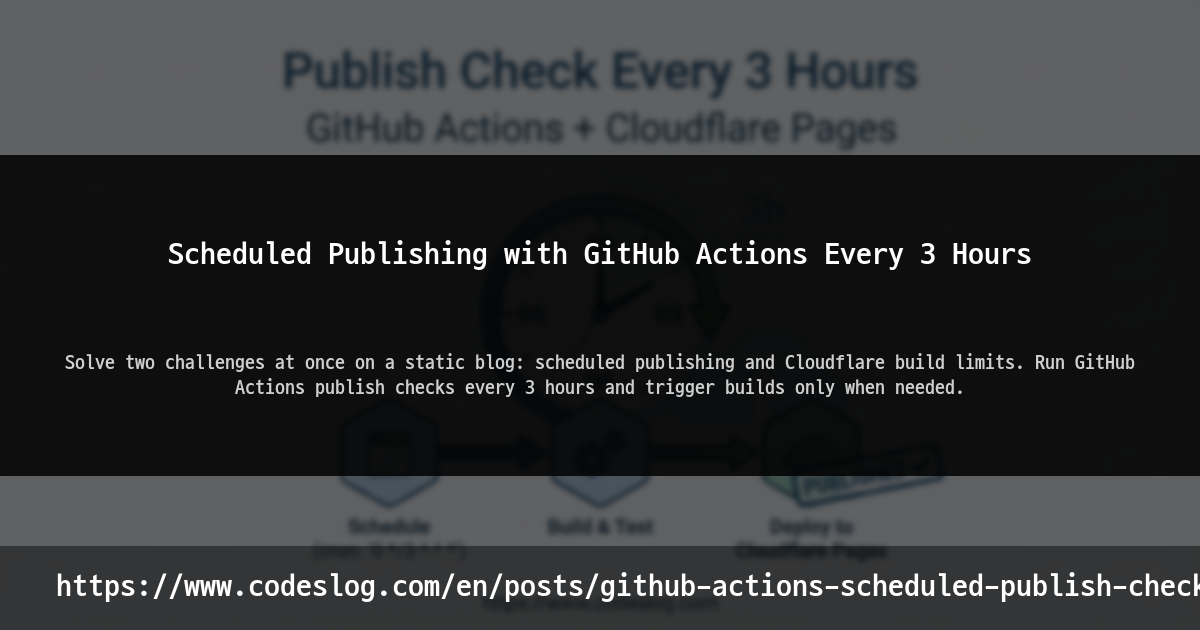
In this post, I’ll walk you through the approach I’m actually using: running a publish check with GitHub Actions every 3 hours to handle scheduled publishing. The key idea is “check only at set intervals, and publish only when needed.”
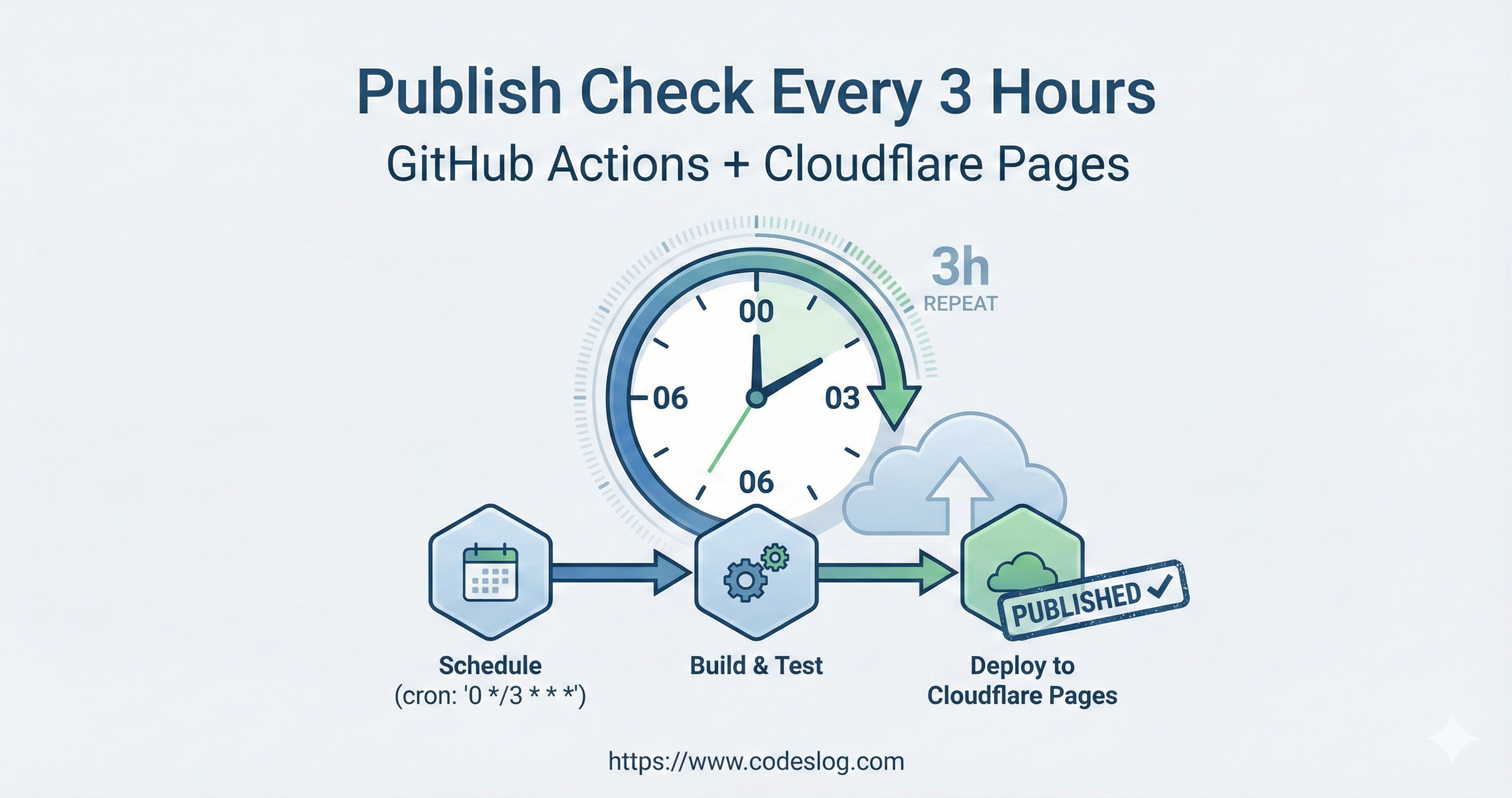
Image: Generated with Nanobanana AI
Why a 3-Hour Check Cycle Was Necessary#
1) To Handle Scheduled Publishing Reliably#
Static sites fundamentally don’t automatically publish posts as time passes. A rebuild has to run for the publish status to change. So to do “scheduled publishing,” a build must be triggered at the right time.
2) To Avoid Cloudflare Build Limits#
If you frequently refine posts or prepare multiple drafts, build counts can increase rapidly. A setup where every commit triggers a build exhausts your quota quickly. That’s why I switched to checking the status every 3 hours and only building when necessary.

Photo: Unsplash by Matias Argandona
How It Works#
Here’s the overall flow:
- Every 3 hours, GitHub Actions runs (UTC-based)
- Checks the repository for posts scheduled for publishing
- If conditions are met, runs the publish script
- Commits and pushes changes → Cloudflare builds
This way, “scheduled publish checks” happen periodically, but actual publishing only occurs when the conditions are right.
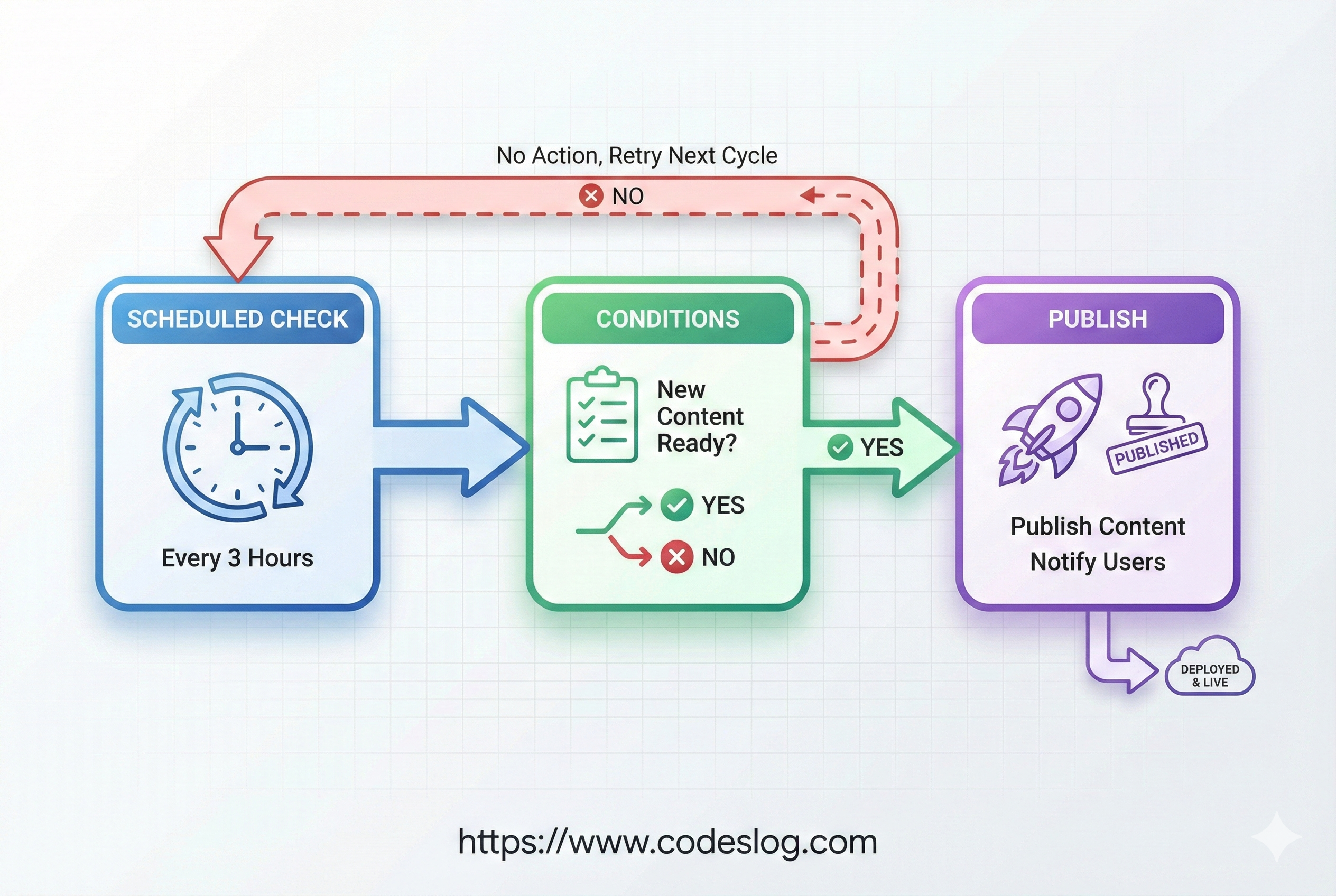
Image: Generated with Nanobanana AI
When Visibility Is Decided in a Static Site Build#
Static site generators like Hugo evaluate draft and date at build time. That means if the following conditions are met at the moment a build runs, the post is generated as a public page:
draft: falsedateis in the past relative to the current time
So “scheduled publishing” only works at build time. Without a build, even if the scheduled time passes, the page won’t be generated. In other words, scheduled publishing = build timing design.

Image: Generated with Nanobanana AI
Designing the Publish Conditions#
The core of my approach is the “publish conditions.” For example:
- Is there a post that has been switched to
draft: false? - Is the scheduled time (
date) in the past relative to the current time? - Has it already been deployed in a previous commit?
The actual publish script only runs when these conditions are met. This way, unnecessary builds are minimized.
The condition check is handled by running .github/scripts/check-scheduled-posts.sh in the workflow. If this script returns true, it proceeds to the publish step.
Actual Check Logic Summary (My Workflow)#
The script checks two things: scheduled posts and new comments.
Scheduled Post Check
- Only targets posts with
draft: false datemust be in the past relative to current UTC time- Only includes posts whose publish time arrived within the last 6 hours (Excludes old posts to prevent unnecessary builds)
- Only targets posts with
New Comment Check (Summary) Only a simple check is performed to reflect comment updates. The detailed structure and operations are explained in a previous post. → Building a Dynamic Comment System on a Static Site: Giscus + GraphQL API
In other words, the build is triggered if either “scheduled publishing” or “comment updates” condition is met.
GitHub Actions Schedule Configuration#
GitHub Actions supports periodic execution via schedule. I’ve configured it to run every 3 hours, and also added workflow_dispatch so it can be triggered manually when needed. (UTC-based)
on:
  schedule:
    - cron: "0 */3 * * *"
  workflow_dispatch:
Since it runs near the top of each hour, it aligns well with scheduled publishing. However, GitHub Actions execution times can be delayed, so it’s safer to set the scheduled time with a few minutes of buffer. Note that the cron above is UTC-based, so in Korean Standard Time (KST), it runs at 3-hour intervals (e.g., 09:00, 12:00, 15:00).
Note: It’s safest to run schedule workflows from the workflow file on the default branch.
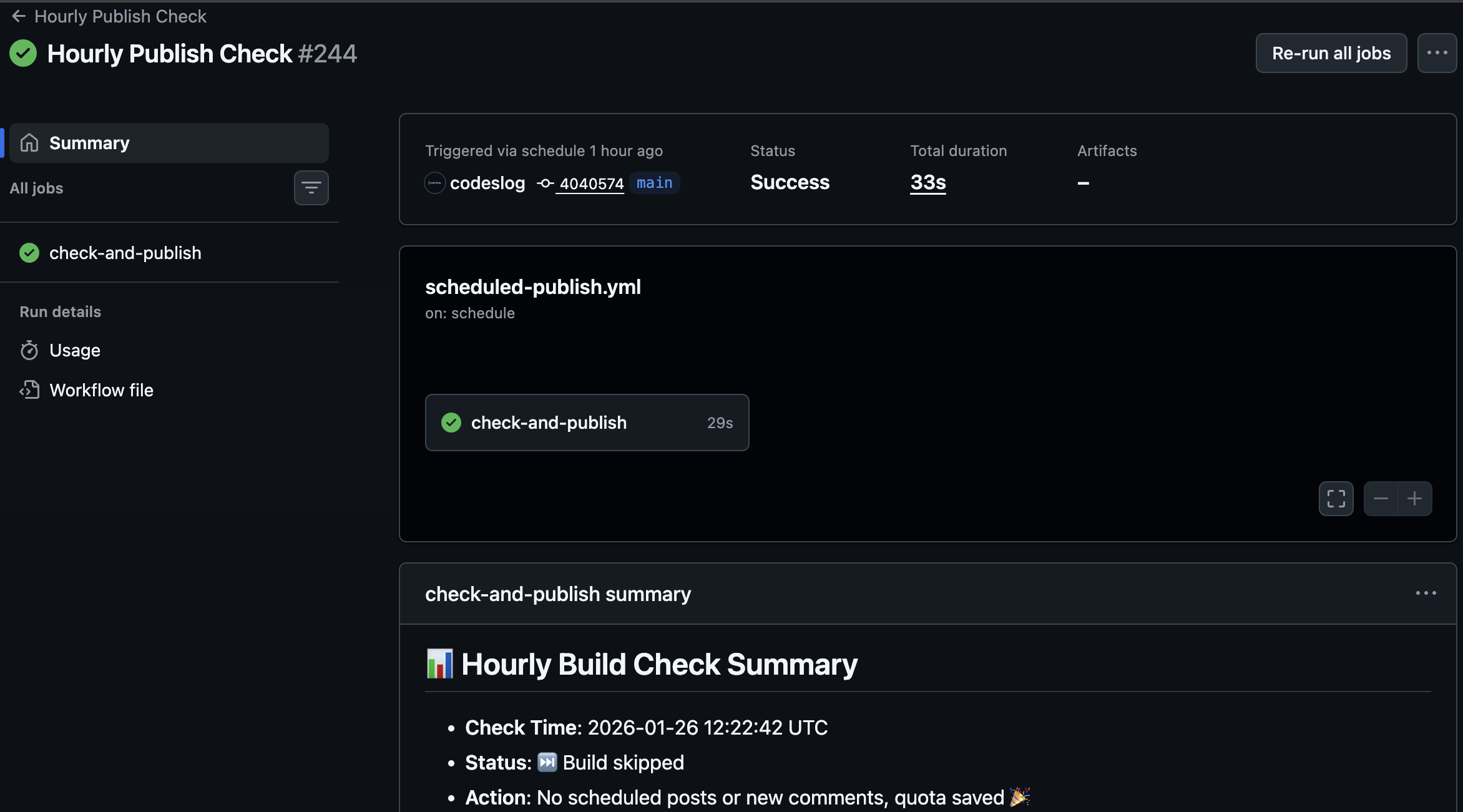
Screenshot: scheduled-publish.yml
Key Points of the Actual Workflow#
The workflow I use (scheduled-publish.yml) has four main stages:
- Checkout + remote sync
- Scheduled publish condition check (
check-scheduled-posts.sh) - Trigger build with empty commit if conditions are met
- Output summary report
Here’s a summary of the key structure:
jobs:
  check-and-publish:
    steps:
      - uses: actions/checkout@v4
      - run: git fetch origin main && git pull --rebase origin main
      - run: .github/scripts/check-scheduled-posts.sh
      - if: steps.check.outputs.should_build == 'true'
        run: |
          git commit --allow-empty -m "chore: trigger build for scheduled posts"
          git push
Thanks to this setup, no build occurs when there are no scheduled posts.
Benefits I’ve Gained from This Approach#
1) Scheduled Publishing Works Reliably#
Thanks to the “check at set intervals” structure, scheduled publishing is automated.
2) Build Limit Management#
Since publishing only happens when needed, I was able to significantly ease the Cloudflare build limit pressure.
3) Simpler Operations Rhythm#
Just write a post and switch to draft: false, and it gets automatically published in the next 3-hour cycle. This reduces operational burden. I’ve been applying this automation approach to other blog features as well. Like the multilingual language switcher UX improvement, I prefer structures that run on their own once set up, without ongoing maintenance.
GitHub/Cloudflare Free Tier Usage (as of 2026-01)#
When planning your operations strategy, clearly understanding the free tier limits is the most important thing. Here’s a summary based on official documentation.
GitHub Actions (Free Tier Summary)#
- Public repos: Free when using default GitHub-hosted runners
- Private repos: Free minutes/storage depending on plan
- GitHub Free (personal): 2,000 min/month, 500MB storage
- Per-minute multipliers: Linux 1x, Windows 2x, macOS 10x
Public repos are free with default runners, but larger runners may incur charges. Check the reference links below for detailed criteria.
Cloudflare Pages (Free Tier Summary)#
- Build limit: 500 builds/month
- Build timeout: 20 minutes
- Concurrent builds: Counted at the account level
Cloudflare Pages Free plan limits are summarized based on the official Limits documentation.
The core strategy of this post is to keep within the 500-build limit by “building only when needed.”
Reference Links (Official Documentation)#
[1] GitHub Actions billing and usage (public repo free, plan-specific free minutes/storage, larger runner charges)
    https://docs.github.com/en/actions/concepts/billing-and-usage

[2] GitHub Actions product billing (free minutes/storage table by plan)
    https://docs.github.com/en/enterprise-cloud@latest/billing/concepts/product-billing/github-actions

[3] Cloudflare Pages limits (Free plan 500 builds, 20-minute timeout, concurrent builds counted per account)
    https://developers.cloudflare.com/pages/platform/limits/
Scheduled Publishing Tip: “Exact Times” Can Cause Delays#
GitHub Actions is schedule-based, but delays of a few minutes can occur. Especially if you set the scheduled time to exactly on the hour, the schedule might have already passed by the time it runs, causing the post to be published in the next 3-hour cycle.
Here are the workarounds I use:
Set the scheduled time 5-10 minutes earlier than the target Example: If you want to publish at 12:00, set
date: 11:50.Use
workflow_dispatchfor manual triggering when needed If precise timing matters, trigger a build manually right after the scheduled time.(Optional) Set a tighter schedule interval If you have build limit headroom, you can reduce from 3 hours to 1 hour. However, you’ll need to recalculate build count and cost implications.
I found it more practical to design around reliable publishing rather than “exact timing.”
Cloudflare Build Trigger Method#
When scheduled publishing is needed, the workflow creates an empty commit to trigger a Cloudflare Pages build. Even without actual changes, a build occurs, making it suitable for scheduled publishing.
git commit --allow-empty -m "chore: trigger build for scheduled posts"
git push
Since it’s recorded in the repository, it’s also easy to track when and why a build was triggered.
Strategies to Avoid Exceeding Free Limits#
GitHub Actions Strategies#
Stick to Linux runners macOS/Windows have higher per-minute multipliers, consuming free minutes faster. It’s safer to stick to Linux when possible.
Minimize schedules + conditional execution Running only when conditions are met, as in this setup, significantly reduces minute consumption.
Reduce unnecessary artifacts/cache Repository storage also counts toward the free limit, so don’t retain artifacts beyond what’s needed.
Cloudflare Pages Strategies#
Consolidate build triggers Unifying trigger methods (deploy hooks, empty commits, etc.) prevents duplicate builds.
Align publishing and build schedules Schedule publish times to match the build cycle so that “multiple posts are included in a single build.”
Prevent build failures Manage image optimization and caching proactively to stay within the build timeout (20 minutes).
Cloudflare API Key (Token) Integration#
The current workflow triggers Cloudflare Pages builds via empty commits, so a Cloudflare API key isn’t strictly required. However, in the following cases, using an API token or Deploy Hook can be clearer:
- When you want to trigger a build from an external event without a GitHub commit
- When you want fine-grained control over build triggers
Method A) Using Deploy Hooks (Simplest)#
Cloudflare Pages Deploy Hooks trigger a build with a single URL call. Since there’s no separate authentication, the URL itself must be kept secret. Therefore, storing this URL in GitHub Secrets is the safe approach.
curl -X POST "$CLOUDFLARE_DEPLOY_HOOK_URL"Method B) Using Cloudflare Pages API (Token-Based)#
To use the Pages API, create an API Token and grant Cloudflare Pages permissions at the Edit level. Store this token in GitHub Secrets.
Example (Secrets names):
CLOUDFLARE_API_TOKENCLOUDFLARE_ACCOUNT_IDCLOUDFLARE_PROJECT_NAME
curl "https://api.cloudflare.com/client/v4/accounts/$CLOUDFLARE_ACCOUNT_ID/pages/projects/$CLOUDFLARE_PROJECT_NAME/deployments" \
  --request GET \
  --header "Authorization: Bearer $CLOUDFLARE_API_TOKEN"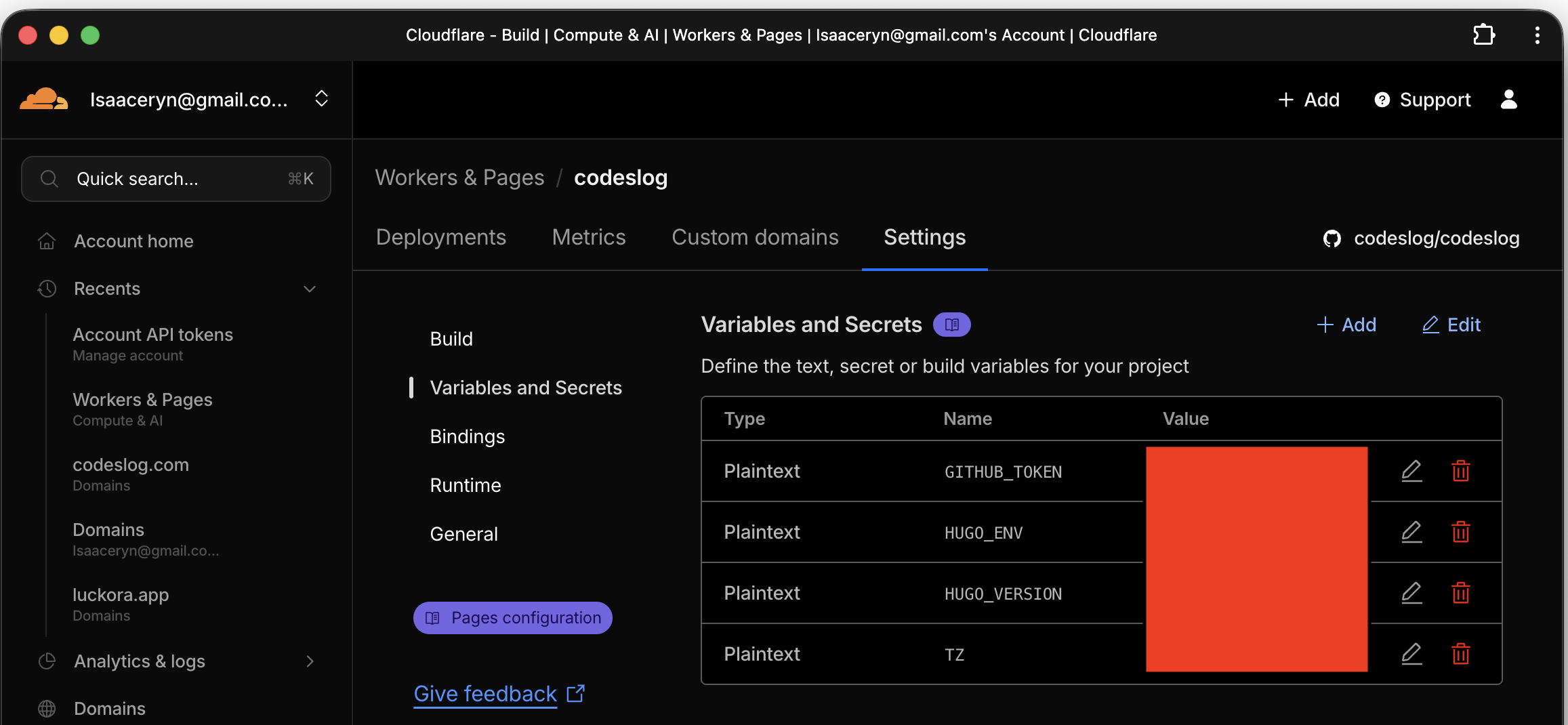
Screenshot: Cloudflare API tokens
Storing Keys in GitHub Secrets#
In GitHub Actions, store keys only in Secrets and use them as environment variables in the workflow. You can register them via the UI or the gh CLI.
gh secret set CLOUDFLARE_API_TOKEN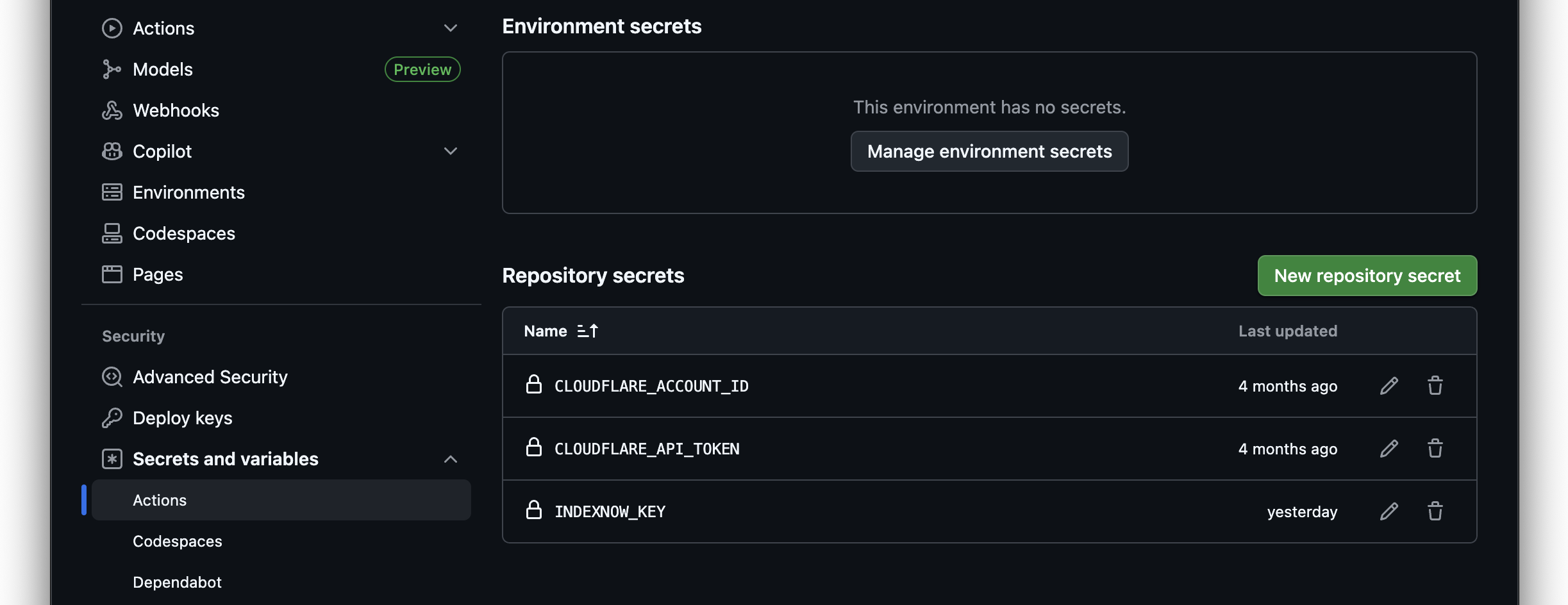
Screenshot: GitHub Actions secrets
Caution: Never output tokens or hook URLs to logs via echo. Secrets are masked by default, but directly printing them can lead to security incidents.
Future Improvements I’m Considering#
Currently, only the “publish check” is automated. Going forward, I’m also considering:
- Pre-deployment automated validation (links, alt text, metadata length) — As I experienced with the code block accessibility improvement, relying on manual checks inevitably leads to things being missed.
- Failure notifications (Slack/Discord alerts)
Wrapping Up#
Running a publish check every 3 hours with GitHub Actions practically solves the scheduled publishing problem for static blogs. At the same time, it helps address operational issues like Cloudflare build limits.
In static site operations, “automation” turned out to be not a luxury but a survival strategy. If you’re dealing with similar challenges, this approach might help.