Introduction#
Running a blog in both Korean and English revealed an interesting problem.
When sharing blog links internationally, visitors often land on the Korean page. Those who can’t read Korean are confused, right? Similarly, when Korean readers click on English post links shared in Korean communities, they face the same issue.
While there’s a language switcher button in the header, new visitors often struggle to find it. This isn’t user-friendly, and from an accessibility perspective, it’s not ideal either.
“How can we kindly guide users to view content in their preferred language?”
This question led me to build a banner that detects browser language and automatically suggests the appropriate language version. Beyond just working, I made sure all users can use it comfortably, designed to meet WCAG 2.2 AA.
This article shares the entire implementation process: from language detection to WCAG 2.2 AA compliance, keyboard navigation, and screen reader support.
Designing the Feature#
Core Requirements#
1. Smart Language Detection
- Auto-detect browser language (
navigator.language) - Korean user + English page → Suggest Korean version
- Non-Korean user + Korean page → Suggest English version
2. Non-Intrusive UX
- Small banner that doesn’t obscure much content
- Fixed at bottom (minimal content interference)
- Display after 1-second delay (doesn’t interfere with page loading)
- Smooth slide-up animation
3. Respect User Choice
- Don’t show again when “Continue” is selected
- Save choice in localStorage
- Close anytime with ESC key
4. Accessibility
- Designed to meet WCAG 2.2 AA
- Screen reader support
- All features accessible via keyboard only
- Touch target minimum 24x24px (implemented as 44x44px)
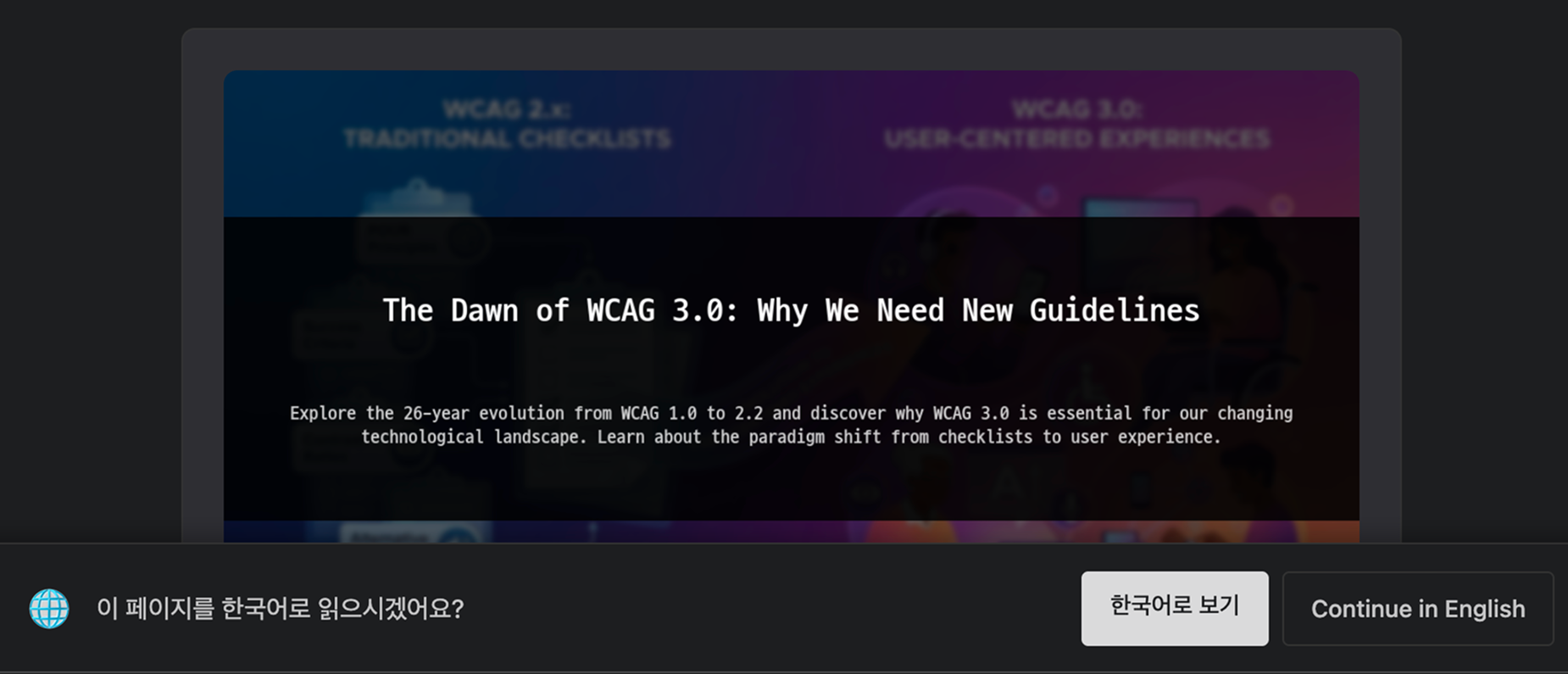
Language switching layer at the bottom of the webpage
Technology Stack Selection#
Frontend:
- Vanilla JavaScript (lightweight without frameworks)
- CSS3 (theme integration with CSS variables)
- HTML5 (semantic markup)
Hugo Integration:
- Utilize
<link rel="alternate" hreflang>tags - Language switching based on Hugo’s translationKey
Accessibility:
- ARIA attributes (role, aria-label, aria-live)
- Semantic HTML
- Keyboard focus management
Browser Language Detection#
Using the Navigator API#
You can detect the user’s browser language with JavaScript’s navigator.language API.
function isKoreanUser() {
  const userLang = navigator.language || navigator.userLanguage;
  return userLang.startsWith('ko');
}

function isKoreanPage() {
  const htmlLang = document.documentElement.lang;
  return htmlLang === 'ko' || htmlLang.startsWith('ko-');
}

// When to show the banner
const shouldShowBanner =
  (isKoreanUser() && !isKoreanPage()) ||  // Korean user on English page
  (!isKoreanUser() && isKoreanPage());     // Non-Korean user on Korean page
Key Points:
navigator.languagereturns formats likeko-KR,en-USstartsWith('ko')captures all Korean variants (ko,ko-KR,ko-KP, etc.)- Works only on client-side, not server-side
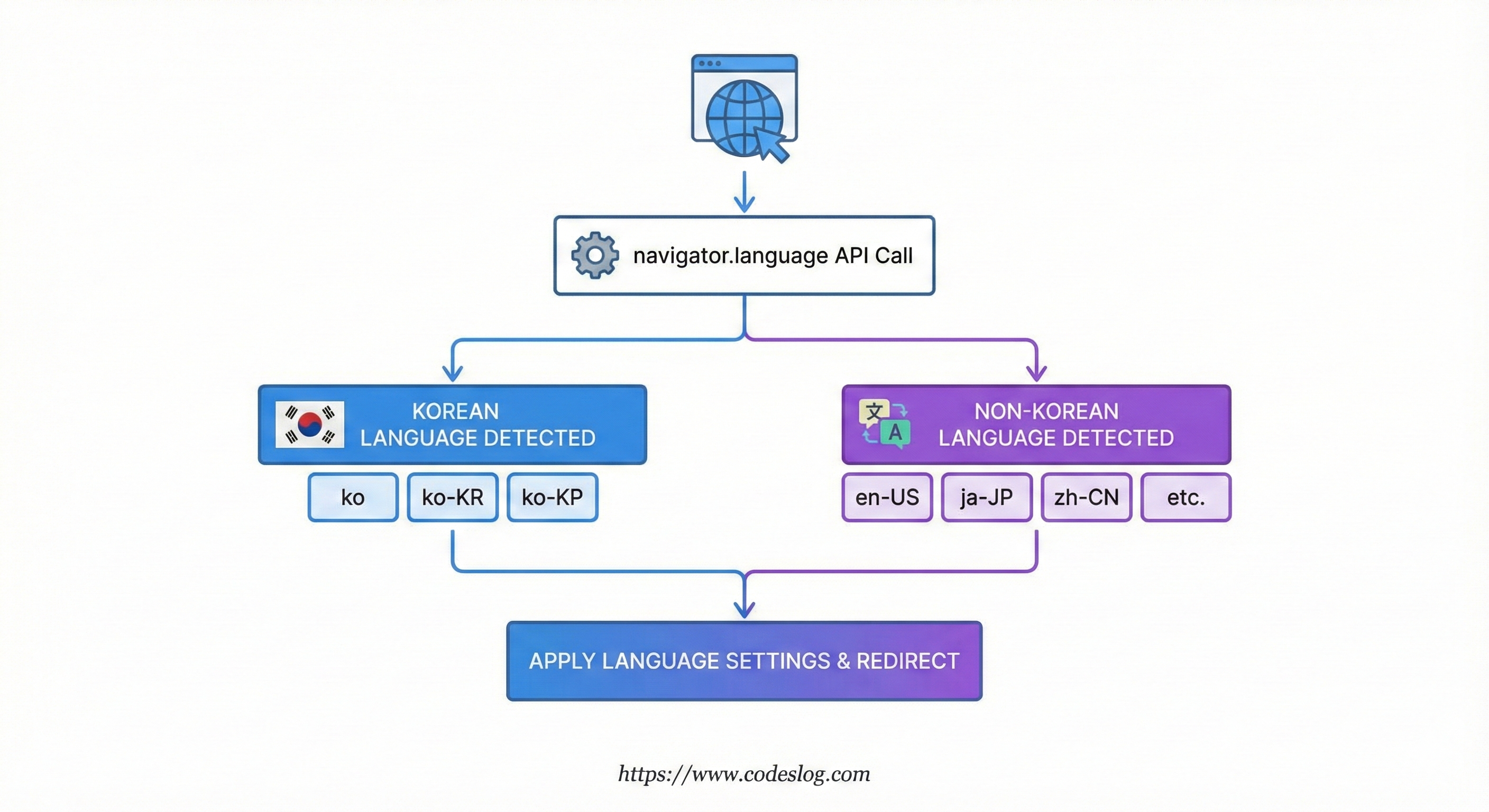
Created with: Nanobanana
Finding Alternative Language URLs#
Once you detect the language, you need to know where to guide the user. Finding the correct URL for the alternative language version of each page is crucial.
Hugo automatically generates <link rel="alternate" hreflang> tags for multilingual pages. Using these tags, you can easily find the alternative language URL for the current page.
In my blog, Korean is the default language, so:
- Korean:
https://www.codeslog.com/posts/my-post/(root path) - English:
https://www.codeslog.com/en/posts/my-post/(with language code)
Hugo generates hreflang tags like this:
<link rel="alternate" hreflang="ko" href="https://www.codeslog.com/posts/language-switcher-banner/" />
<link rel="alternate" hreflang="en" href="https://www.codeslog.com/en/posts/language-switcher-banner/" />
Read these tags with JavaScript to find alternative language URLs:
function getAlternateLanguageUrl() {
  const alternateLinks = document.querySelectorAll('link[rel="alternate"][hreflang]');

  for (const link of alternateLinks) {
    const hreflang = link.getAttribute('hreflang');
    const href = link.getAttribute('href');

    // If on Korean page, find English link
    if (isKoreanPage() && hreflang.startsWith('en')) {
      return href;
    }

    // If on English page, find Korean link
    if (!isKoreanPage() && hreflang.startsWith('ko')) {
      return href;
    }
  }

  // If no alternate link exists, try URL pattern conversion
  const currentPath = window.location.pathname;
  return isKoreanPage()
    ? `/en${currentPath}`
    : currentPath.replace(/^\/en\//, '/');
}
Important:
Post files for both languages (index.ko.md, index.en.md) must have identical translationKey values for Hugo to generate hreflang links. If the translationKey values differ, Hugo won’t recognize the pages as translations of each other, and the links will be missing.
# index.ko.md
translationKey: "my-post"

# index.en.md
translationKey: "my-post"  # Must be identical!
Implementing the Banner UI#
HTML Structure Design#
Rather than just creating a visually appealing banner, we need to build one that all users can understand and interact with. Using semantic HTML and appropriate ARIA attributes allows screen reader users to understand the banner’s purpose and functionality clearly.
const banner = document.createElement('div');
banner.id = 'language-switcher-banner';
banner.className = 'language-switcher-banner';
banner.setAttribute('role', 'region');
banner.setAttribute('aria-label', isKoreanPage() ? '언어 제안' : 'Language suggestion');
banner.setAttribute('aria-live', 'polite');
banner.setAttribute('tabindex', '-1');

banner.innerHTML = `
  <div class="banner-content">
    <span class="banner-icon" aria-hidden="true">🌐</span>
    <p class="banner-message">
      Would you like to read this page in Korean?
    </p>
    <div class="banner-actions">
      <a href="${alternateUrl}"
         class="banner-button banner-button-primary"
         lang="ko">
        Switch to Korean
      </a>
      <button type="button"
              class="banner-button banner-button-secondary"
              data-action="dismiss"
              aria-label="Dismiss language suggestion and continue in English">
        Continue in English
      </button>
    </div>
  </div>
`;
Accessibility Points:
role="region": Defines the banner area as a landmarkaria-label: Informs screen readers of the banner’s purposearia-live="polite": Announces to screen readers when banner appears (without interruption)lang="ko": Specifies link text language (for correct pronunciation)aria-labelon button: Clearly explains button actionaria-hidden="true": Hides decorative emoji from screen readers
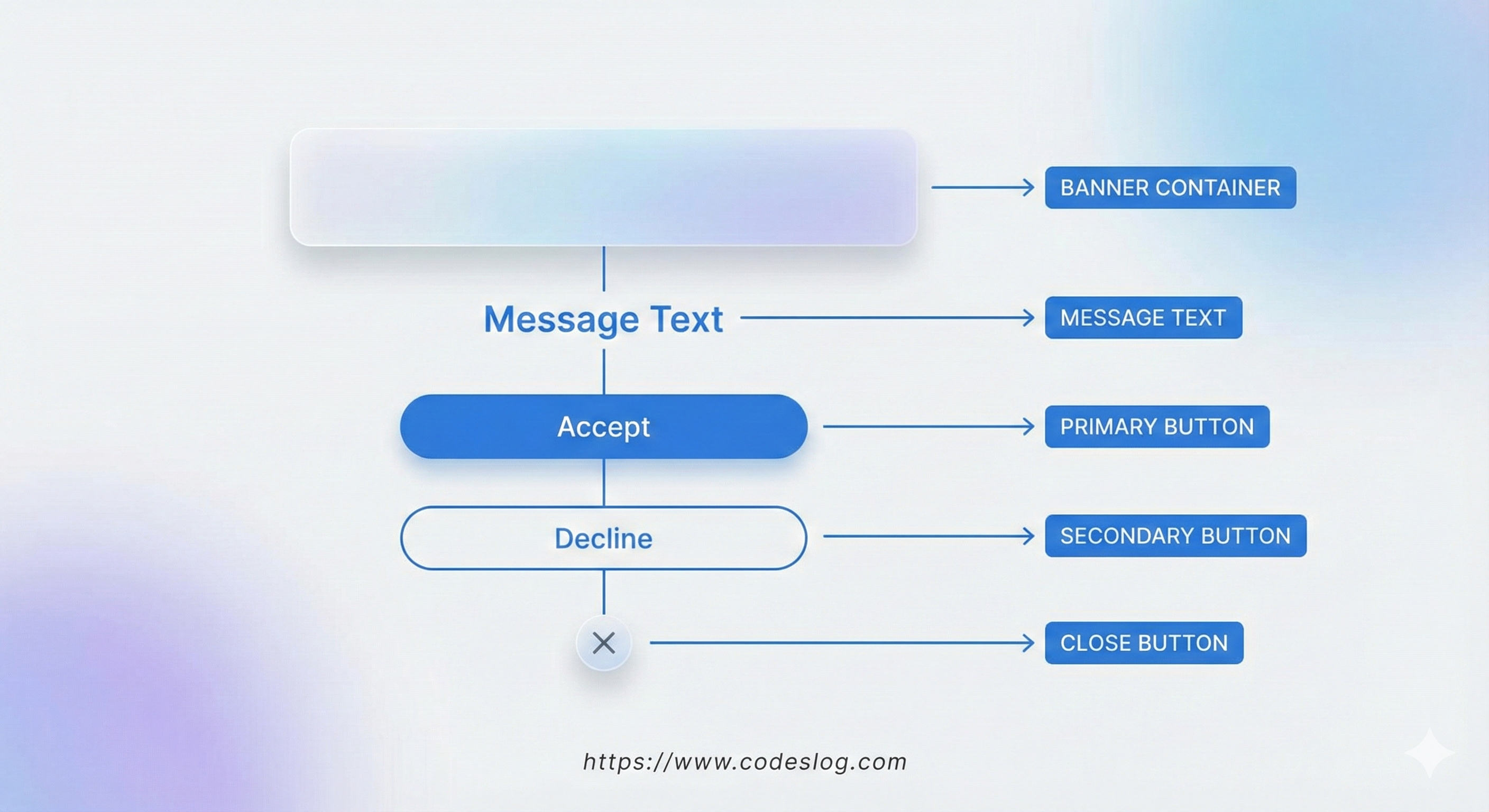
Visual breakdown of banner components
CSS Styling#
The banner should seamlessly fit the user’s theme preference (light/dark mode). Using CSS variables instead of hardcoded colors ensures the banner automatically adapts to the appropriate colors when the theme changes.
.language-switcher-banner {
  position: fixed;
  bottom: 0;
  left: 0;
  right: 0;
  z-index: 1000;
  background: var(--theme);
  border-top: 1px solid var(--border);
  box-shadow: 0 -4px 12px rgba(0, 0, 0, 0.1);
  padding: 1rem;
  transform: translateY(100%);
  transition: transform 0.3s ease-in-out;
}

.language-switcher-banner.is-visible {
  transform: translateY(0);
}

.banner-content {
  max-width: 900px;
  margin: 0 auto;
  display: flex;
  align-items: center;
  gap: 1rem;
  flex-wrap: wrap;
}

/* WCAG 2.5.8: Exceeds minimum touch target size */
.banner-button {
  min-height: 44px;
  min-width: 44px;
  padding: 0.5rem 1rem;
  border-radius: 4px;
  font-size: 0.875rem;
}

/* Keyboard focus indicator */
.banner-button:focus-visible {
  outline: 3px solid var(--primary);
  outline-offset: 2px;
}
Responsive Design:
@media (max-width: 768px) {
  .banner-content {
    flex-direction: column;
    align-items: flex-start;
  }

  .banner-icon {
    display: none; /* Hide icon on mobile */
  }

  .banner-actions {
    width: 100%;
  }

  .banner-button {
    flex: 1;
    text-align: center;
  }
}
Achieving Perfect Accessibility#
Web accessibility isn’t just about legal compliance. It’s about ensuring that keyboard-only users, screen reader users with visual impairments, people with motor disabilities, and many others can use the web equally. Accessibility must be included from the beginning of design, not added later.
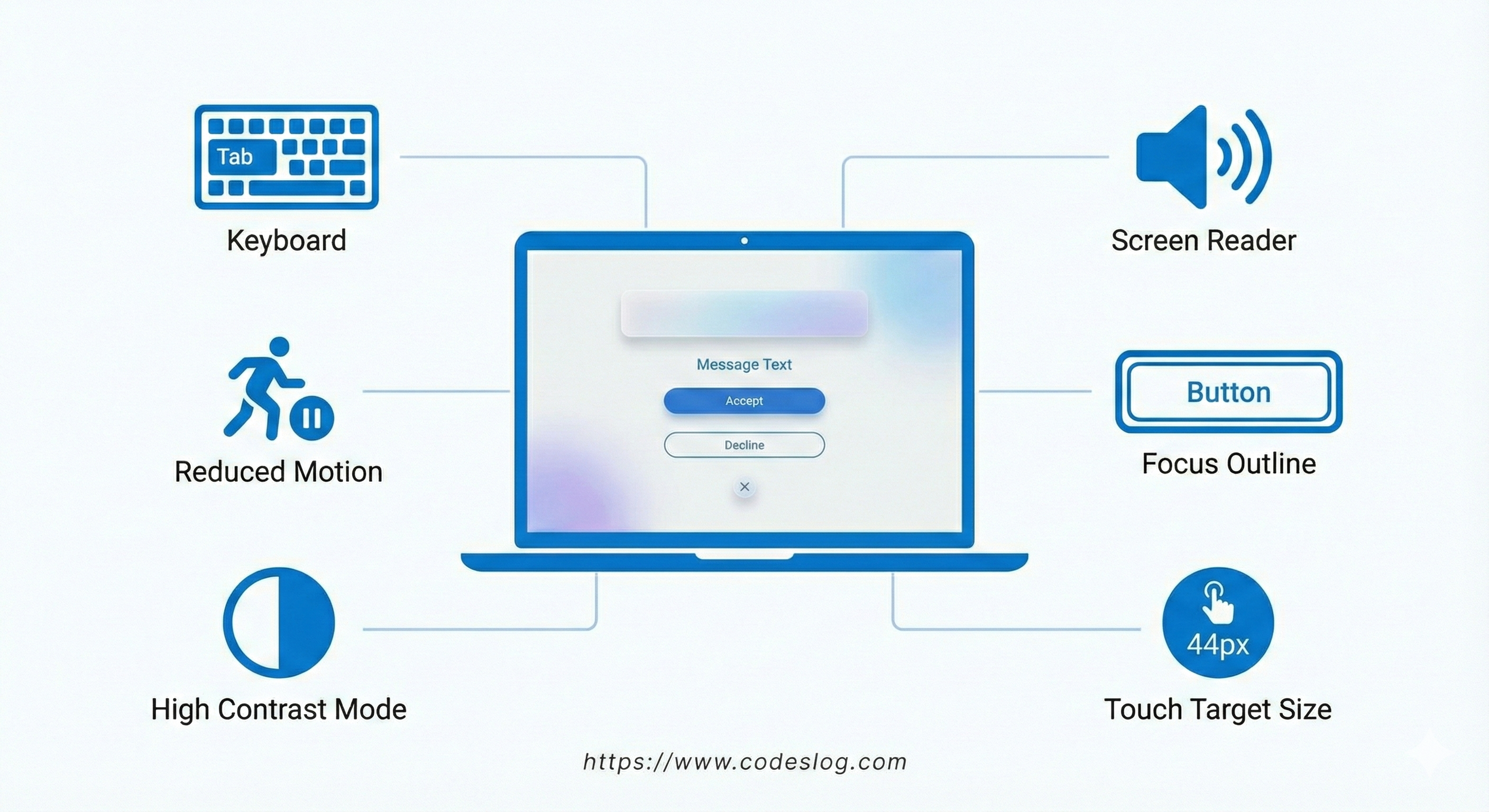
Summary of accessibility checks applied
1. Screen Reader Support#
ARIA Live Regions:
banner.setAttribute('aria-live', 'polite');When the banner appears, screen readers automatically read the announcement. polite announces after finishing current content without interruption.
Clear Labels:
banner.setAttribute('aria-label', isKoreanPage() ? '언어 제안' : 'Language suggestion');Screen reader users immediately understand the banner’s purpose.
Button Descriptions:
<button aria-label="Dismiss language suggestion and continue in English">
  Continue in English
</button>
aria-label supplements information that button text alone might not convey.
2. Keyboard Navigation#
Initial focus management:
When the banner appears, focus moves to the primary action so users can act immediately. We do not trap focus; normal tab order remains.
const primaryAction = banner.querySelector('.banner-button-primary');
primaryAction?.focus();
Close with ESC Key:
document.addEventListener('keydown', (e) => {
  if (e.key === 'Escape') {
    dismissBanner();
  }
});
Keyboard-only users can close the banner anytime.
3. Visual Focus Indicators#
Clear Outline:
.banner-button:focus-visible {
  outline: 3px solid var(--primary);
  outline-offset: 2px;
}

.language-switcher-banner:focus-within {
  box-shadow: 0 -4px 16px rgba(0, 0, 0, 0.15);
}
Keyboard users can clearly see where focus currently is.

Example of tab navigation and focus states
4. Touch Target Size#
WCAG 2.2 2.5.8 Target Size (Minimum) requires at least 24x24px. I used 44x44px for better usability.
.banner-button {
  min-height: 44px;
  min-width: 44px;
}
Users with motor impairments or mobile users can easily tap.
5. Respecting User Preferences#
Reduced Motion:
@media (prefers-reduced-motion: reduce) {
  .language-switcher-banner {
    transition: none;
  }
}
Animation is disabled when users with vestibular disorders enable reduced motion settings.
High Contrast Mode:
@media (prefers-contrast: high) {
  .banner-button-primary {
    border-width: 2px;
  }
}
High contrast support for users with low vision.
Remembering Choices with localStorage#
Once a user has selected “continue in this language,” asking the same question on the next page would be poor UX. Respecting user choices and remembering them so we never ask again is crucial. That’s where localStorage comes in.
const STORAGE_KEY = 'language-preference-asked';

function dismissBanner() {
  const banner = document.getElementById('language-switcher-banner');
  if (!banner) return;

  banner.classList.remove('is-visible');

  setTimeout(() => {
    banner.remove();
  }, 300);

  // Save to localStorage
  try {
    localStorage.setItem(STORAGE_KEY, 'true');
  } catch (e) {
    console.warn('Failed to save language preference:', e);
  }
}

function init() {
  // Check if already asked
  try {
    if (localStorage.getItem(STORAGE_KEY) === 'true') {
      return; // Don't show banner
    }
  } catch (e) {
    console.warn('Failed to read language preference:', e);
  }

  // ... Banner display logic
}
Error Handling:
In private browsing mode or with certain security settings, localStorage access may be blocked. We handle errors with try-catch so the banner continues to work in these environments. If storage fails, the banner still displays and closes without issues.
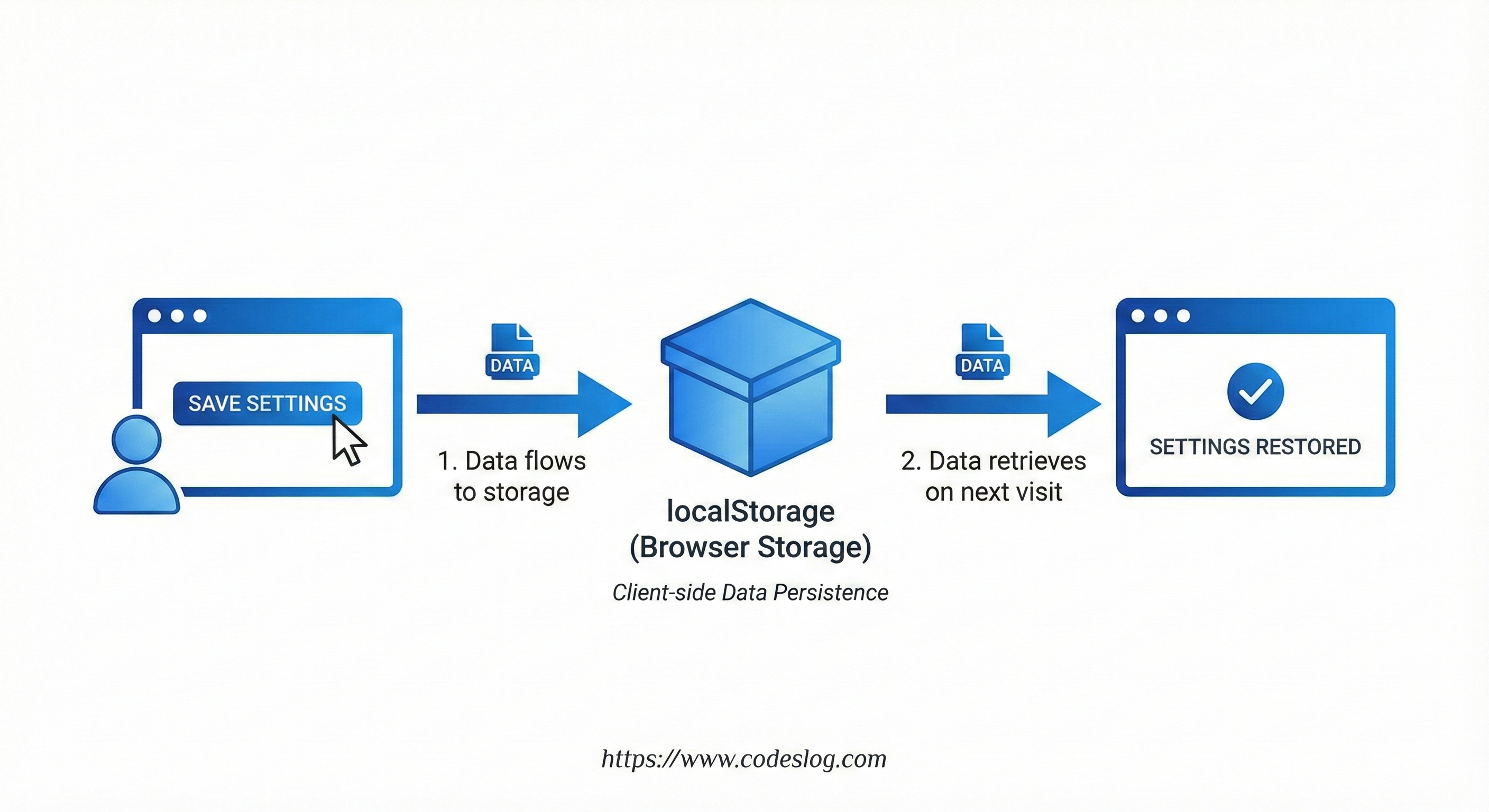
Flow for storing choice and suppressing repeat prompts
Performance Optimization#
No matter how good the banner’s functionality is, it shouldn’t slow down page loading or harm user experience. I applied several optimizations to make it light and fast while not interfering with critical page rendering.
1. Deferred Loading#
<script src="{{ "js/language-switcher-banner.js" | relURL }}" defer></script>Loading scripts with defer doesn’t interfere with page rendering.
2. 1-Second Delay Display#
setTimeout(() => {
  showBanner();
}, 1000);
If the banner appeared immediately after page load, users would be interrupted right when they start reading content. A 1-second delay allows users to settle on the page and recognize the content before the banner appears, making the experience much more natural.
3. Small Bundle Size#
- JavaScript: ~5KB (minified)
- CSS: ~3KB (minified)
- Total of 8KB, very lightweight
4. Preventing Duplicate Execution#
if (localStorage.getItem(STORAGE_KEY) === 'true') {
  return; // Don't show banner
}
Skips unnecessary JavaScript execution for users who’ve already made a choice.
Hugo Integration#
1. Add CSS#
layouts/partials/extend_head.html:
<!-- Language Switcher Banner Styles -->
<link rel="stylesheet" href="{{ "css/language-switcher-banner.css" | relURL }}" />
2. Add JavaScript#
layouts/partials/extend_footer.html:
<!-- Language Switcher Suggestion Banner -->
<script src="{{ "js/language-switcher-banner.js" | relURL }}" defer></script>
3. Verify translationKey#
For the banner to work properly, Hugo must be able to connect each language page. Ensure multilingual pages have matching translationKey:
# index.ko.md
translationKey: "my-post"

# index.en.md
translationKey: "my-post"
If these values differ, Hugo recognizes the pages as separate articles and won’t generate hreflang links. As a result, the banner can’t find the alternative URL.
WCAG 2.2 Compliance Status#
The banner is designed to meet WCAG 2.2 AA:
| Guideline | Level | Status | Implementation |
|---|---|---|---|
| 1.3.1 Info and Relationships | A | ✅ | Semantic HTML, ARIA attributes |
| 1.4.1 Use of Color | A | ✅ | Underlines, icons, clear text |
| 1.4.3 Contrast | AA | ✅ | 4.5:1+ color contrast |
| 2.1.1 Keyboard | A | ✅ | Tab, Shift+Tab, ESC support |
| 2.1.2 No Keyboard Trap | A | ✅ | No focus trap; ESC to close banner |
| 2.4.3 Focus Order | A | ✅ | Logical focus order |
| 2.4.7 Focus Visible | AA | ✅ | 3px outline, focus-within |
| 2.5.8 Target Size (Minimum) | AA | ✅ | Minimum 24x24px (implemented as 44x44px) |
| 3.2.4 Consistent Identification | AA | ✅ | Consistent button labels |
| 4.1.2 Name, Role, Value | A | ✅ | ARIA, meaningful labels |
| 4.1.3 Status Messages | AA | ✅ | aria-live=“polite” |
Badge representing WCAG 2.2 AA alignment
Future Improvements#
The current implementation works well, but there are areas for enhancement:
1. Geographic Location Detection#
Currently only detects browser language, but Cloudflare Workers’ cf-ipcountry header could be more accurate.
// Future improvement
const userCountry = request.headers.get('cf-ipcountry');
if (userCountry === 'KR') {
  // Korean IP → Suggest Korean
}
2. More Language Support#
My blog currently (as of January 2026) only supports Korean/English, but the implementation can be extended to 3+ languages:
const supportedLanguages = ['ko', 'en', 'ja', 'zh'];
const userLang = navigator.language.split('-')[0];
const suggestedLang = supportedLanguages.includes(userLang)
  ? userLang
  : 'en'; // Default
3. A/B Testing#
I currently have Google Analytics set up and am conducting some tests. I plan to make several attempts to improve usability in the future. You can add Google Analytics events to measure banner effectiveness:
// Banner shown
gtag('event', 'language_banner_shown', {
  from_lang: currentLang,
  to_lang: suggestedLang
});

// Language switch clicked
gtag('event', 'language_switched', {
  from_lang: currentLang,
  to_lang: suggestedLang
});
4. Cookie Consent Integration#
If GDPR compliance is required, you can integrate with cookie consent banner:
if (!hasConsentForStorage()) {
  // Use sessionStorage instead of localStorage
  sessionStorage.setItem(STORAGE_KEY, 'true');
}Conclusion#
For multilingual blogs, language switching UX is crucial. Kindly guiding users to view content in their preferred language, implemented in a way that all users can access, is essential.
Key principles from this implementation:
- Non-Intrusive Design - Display only when needed without interfering with content
- Respect User Choice - Provide options without forcing
- Accessibility First - Design considering all users from the start
- Performance Conscious - Lightweight and fast operation
Accessibility is not “nice to have” but essential. Users who only use keyboards, screen reader users, and users with motor impairments should all be able to use it comfortably.
If your multilingual blog or website needs this feature, I hope this article helps!