Ever opened someone else’s repository after a while and found a bunch of unfamiliar files sitting there? Next to README.md there’s a CLAUDE.md, an AGENTS.md shows up too, and some repos even have a DESIGN.md. They’re all .md files, but what are they actually for?
They’re all documents written to be read by AI — not by people.
Just a few years ago, the only markdown files in a repository were the README and maybe a license. But now that AI coding tools have become part of everyday work, projects need to tell AI, too, “here’s how we do things around here.” Instead of repeating the same explanation in chat every time, teams started writing it down in files. That’s how we ended up with the files you’re looking at now.
This post goes through those files one by one — who reads each one, what goes in it, and where it lives. I’ve also rounded up where to find well-written examples.
If markdown syntax itself is new to you, you might want to start with Markdown Syntax Done Right first. This post is written so you can follow along without knowing the syntax, but it’ll go a lot smoother once you know what
#and-do.
Why Does AI Speak in Markdown, of All Things?#
Before we get into individual files, there’s something worth stopping on. There are so many document formats out there — why markdown, specifically? It’s no accident that chatbot answers come out in markdown, or that every instruction file meant for AI ends in .md. There are three reasons.
First, AI has read more markdown than almost anything else. Large language models train on internet text, and a huge share of GitHub READMEs, documentation, and developer forum posts is written in markdown. For a model, it’s close to a native language.
Second, it expresses structure in very few characters. Write the same structure — headings, lists, tables, code blocks — in HTML, and the opening and closing tags multiply the character count several times over. Since the amount of text an AI reads and writes (tokens) is directly tied to cost and speed, a format that expresses the same structure in fewer characters wins.
Third, it works everywhere. Chat interfaces render markdown, and even where there’s no rendering, it still reads fine as plain text. Worst case, you just see a few stray symbols — that’s the failure mode you’re protected by.
So the direction has flipped. Until recently, markdown was how you wrote documents for people to read. Now, markdown is also how you write documents for AI to read. The files quietly accumulating in your repository are exactly that.
The Markdown Files AI Tools Read — One by One#
Let’s go through the AI-facing markdown files you run into in repositories these days. Mapping out the whole landscape first will make it easier to follow.
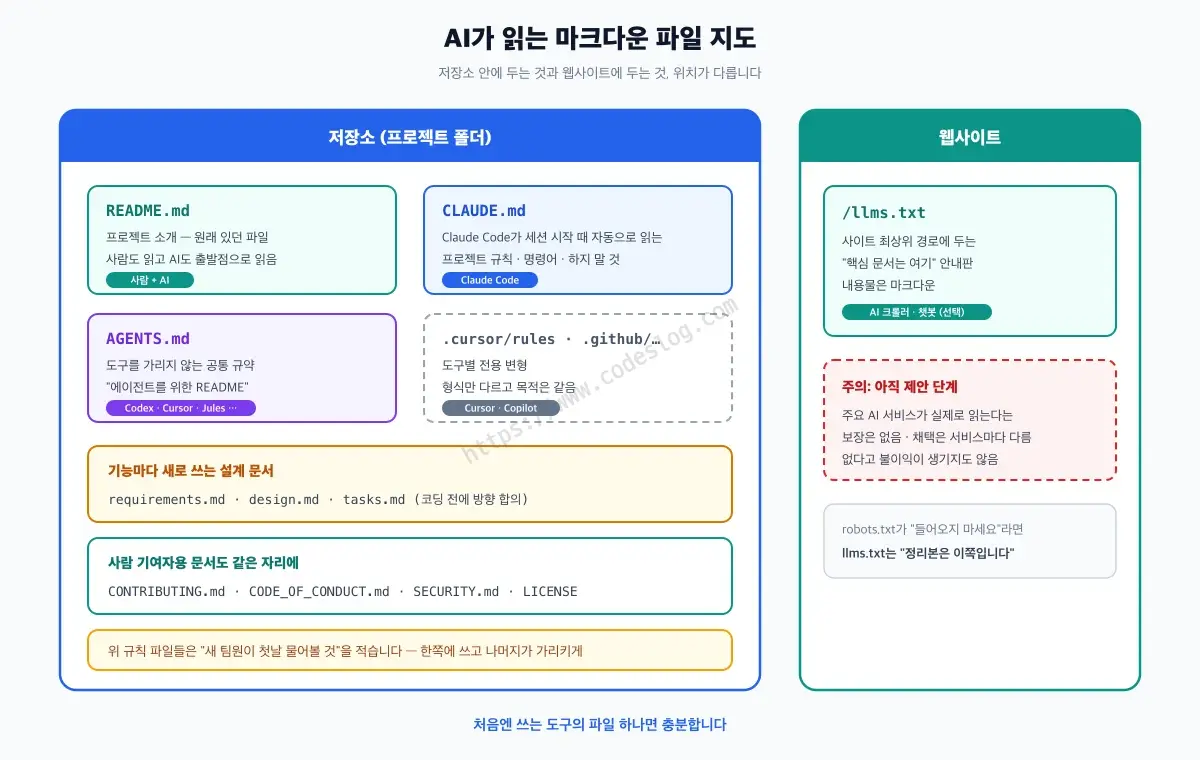
README.md — the Old-Timer That Was Already There#
It’s not a new file, but it picked up an extra job. It was already there to introduce a project to people, and now AI coding tools read the README as their starting point for understanding a project, too. It’s become the first document that tells AI what a project actually does. If the README is thin, both people and AI end up lost.
CLAUDE.md — the Working Instructions for Claude Code#
CLAUDE.md is the file Anthropic’s AI coding tool, Claude Code, automatically reads at the start of a session. Put it in a project root and it becomes that project’s rules; put it in your home directory (~/.claude/CLAUDE.md) and it becomes your personal rules across every project.
What goes in it? Whatever you’d tell a new teammate on their first day. Which command builds the project, what you should never do, what the code style looks like. This blog’s own CLAUDE.md has a rule like “Hugo is managed with asdf, don’t install it via brew” — writing down a trap you fell into once means the next AI session starts already knowing about it. That’s how the same mistake stops repeating.
AGENTS.md — a Shared Instruction File That Doesn’t Care Which Tool You Use#
The catch with CLAUDE.md is right there in the name — it’s Claude-only. If your team mixes people using Cursor and people using Codex, do you need a separate instruction file for every tool?
AGENTS.md is the answer to that. It’s a vendor-neutral convention, introduced as “a README for agents.” More than 20 tools read this file, including OpenAI Codex, Cursor, VS Code, GitHub Copilot, and Google Jules. What goes in it is the same kind of content as CLAUDE.md — build and test commands, coding conventions, things to watch out for.
As for scale: according to the official site, over 60,000 open source projects use it. As of 2026, the convention is maintained by the Agentic AI Foundation under the Linux Foundation — not one company’s experiment, but something settling into an industry-wide standard.
So should you make both? Here’s the thing to know: Claude Code does not read AGENTS.md. It only reads CLAUDE.md. Manage the two separately and they’ll start drifting apart.
The officially recommended fix is to write the content in one file and have the other pull it in. Put the actual content in AGENTS.md, and leave CLAUDE.md with just a one-line import.
@AGENTS.md

## Claude Code Only

Use plan mode when editing anything under `src/billing/`.
@filename is the syntax that pulls in that whole file. You can append Claude-specific rules below it. And if there’s nothing to append, a symlink (ln -s AGENTS.md CLAUDE.md) works too, so both names point at the exact same file.
This blog switched to that setup while writing this very post. All the convention text now lives in AGENTS.md, and CLAUDE.md just has one @AGENTS.md line and a comment saying “edit AGENTS.md instead.” Two files, one place to maintain.
Tool-Specific Files — .cursor/rules and copilot-instructions.md#
There are also tool-specific variants serving the same purpose. Cursor reads rule files in the .cursor/rules/ folder, and GitHub Copilot reads .github/copilot-instructions.md. The format differs slightly, but the essence — “instructions for AI about this project” — is the same. If your team has standardized on one tool, managing just that tool’s file is enough.
requirements.md, design.md, tasks.md — Documents You Agree On Before Writing Code#
Everything so far has been a standing rule — “here’s how we work on this project.” These three are different: you write them fresh for every feature you build.
Here’s the backstory. Tell an AI “build me a login feature” and code starts pouring out right away. Then you find out it built email login when you wanted social login, or the session approach doesn’t fit your architecture. Two hundred lines, thrown out, start over. To prevent that, an approach emerged where you agree on a document before you build — this is called spec-driven development.
The documents usually come in three, and the order is the order of the questions.
| File | Question it answers | What goes in it |
|---|---|---|
requirements.md | What, and why | User stories, definition of done |
design.md | How will we build it | Architecture, data flow, error handling, test strategy |
tasks.md | In what order | Broken-down task list, deliverable for each task |
Of these, design.md is the one people revise the most by hand. Requirements are usually clear-cut, and the task list falls out of the design — but design has multiple valid options, so it needs a human call. Here’s what it actually looks like in practice.
# Design — Sign-up

## Architecture

- Auth: Supabase Auth (email + magic link)
- Session: verified via cookies in server components, no client-side state
- Profile: `profiles` table, foreign key to `auth.users.id`

## Data Flow

1. Enter email → request magic link from Supabase
2. Click the emailed link → session exchange at `/auth/callback`
3. On first login, create a `profiles` row, then go to onboarding
4. Otherwise, return to the page the user was on

## Error Handling

| Situation | User sees | Logged as |
|---|---|---|
| Link expired | "This link has expired. Want us to resend it?" + resend button | info |
| Email already registered | Redirected to the sign-in screen (doesn't reveal registration status) | info |
| No response from Supabase | "Please try again in a moment" | error + alert |

## Accessibility

- `<label>` linked to the email input, `autocomplete="email"`
- Error messages linked to the input via `aria-describedby`
- Send confirmation announced via `aria-live="polite"` (no screen transition)

## Test Strategy

- Unit: session-exchange branches in the callback handler
- E2E: three flows — first sign-up, returning login, expired link
- Accessibility: axe check on the sign-up flow, complete it keyboard-only
Write this first and you create a point where a human can confirm “is this the right direction” before AI writes any code. One line in that doc — “don’t store the session on the client” — already decides half of what the resulting code will look like.
Folding accessibility into the design stage isn’t an afterthought either; it’s deliberate. Writing it down up front is a lot cheaper than bolting it on later. There’s a real difference between hearing “this doesn’t have a label” after the feature ships, and writing one line before you build it.
File names vary by tool. AWS Kiro splits this into
requirements.md,design.md, andtasks.md, placed under.kiro/specs/{feature-name}/. GitHub’s Spec Kit calls themspec.md,plan.md, andtasks.md(the design equivalent isplan.md). You don’t need a tool at all — writing one by hand and having AI read it already helps.
DESIGN.md — the File That Hands Screen Design Over to AI#
There’s a spot here that’s easy to mix up, so let’s clear it first. There’s another file with an almost identical name that’s completely different.
| Aspect | design.md (what we just covered) | DESIGN.md (what we’re covering now) |
|---|---|---|
| Holds | Technical design for a single feature | Visual identity for the whole product |
| Example fields | Architecture, data flow, error handling | Colors, typography, spacing, components |
| Origin | One of Kiro’s three spec files | A format spec published by Google Labs |
| Written | Fresh, per feature | Once, then reused |
Here’s the problem it addresses. Ask AI to build a screen, and the result tends to look the same every time — rounded corners, a purple gradient, a card layout you’ve seen a dozen times before. Functionally correct, but it doesn’t look like your product. And explaining “our primary color is this, buttons look like that” every single time gets old fast.
DESIGN.md is the idea of handing that over as a single file instead. The structure is interesting: YAML on top holds values for the machine to read, and markdown below holds reasoning for a human to read. AI uses the values as-is, and falls back on the reasoning when a call is ambiguous.
---
version: "alpha"
name: Book Club
colors:
  primary: "#1A1C1E"
  secondary: "#6C7278"
  tertiary: "#B8422E"
typography:
  h1:
    fontFamily: Public Sans
    fontSize: 3rem
  body-md:
    fontSize: 1rem
rounded:
  sm: 4px
  md: 8px
spacing:
  sm: 8px
  md: 16px
components:
  button-primary:
    backgroundColor: "{colors.tertiary}"
    textColor: "#FFFFFF"
---

## Overview

The goal is to keep people reading for long stretches. The screen should feel
close to paper, with minimal decoration. Eye-catching color is reserved for
one place: the primary action button.

## Colors

`tertiary` (#B8422E) is the accent color. Use it once per screen at most.
Body text always sits on `primary` over a white background.

## Do's and Don'ts

- Don't use the accent color for body text — contrast falls below 4.5:1 on white
- Don't stack shadows on cards. One level of depth, max
- Don't put an icon alone inside a button. Always pair it with a label
The spec defines the order for the markdown body: Overview → Colors → Typography → Layout → Elevation & Depth → Shapes → Components → Do’s and Don’ts. You don’t have to fill in every section — just keep whatever sections you do have in that order.
There’s a reason this file is welcome from an accessibility standpoint. You can write “don’t use this color for body text, it fails contrast” right next to the token itself. AI has no way to know from a color name alone whether it passes contrast requirements. Writing down the combinations to avoid, up front, is a lot cheaper than catching a pile of contrast failures after the fact.
This spec was published in April 2026 and is still in alpha. The spec itself says it may change as it matures, so if you adopt it now, keep in mind the format could shift.
llms.txt — the Signpost a Website Puts Up for AI#
Everything up to now has lived inside a repository. llms.txt, by contrast, is a file a website hosts. It’s a convention where you lay out, in markdown at the site’s root path (/llms.txt), “here are our core documents, and here’s where to find them.” It was proposed in 2024, with the idea of stripping away a webpage’s ads, menus, and scripts and handing AI just the substance.
The name echoes robots.txt, but it points the opposite direction. Where robots.txt says “don’t come in here,” llms.txt says “if you’re going to read this, here’s the clean version.”
One thing worth being clear about: llms.txt is still a proposed convention. Jeremy Howard put out the first draft in September 2024, and it’s still being refined enough that a v2 revision landed as recently as August 2026. There’s no guarantee major AI services actually fetch this file, and adoption varies by service. If you run a documentation site, it’s worth setting up — but claims that skipping it hurts your visibility in AI search don’t have any grounding right now.
At a Glance#
| File | Who reads it | Where it lives | What goes in it |
|---|---|---|---|
| README.md | People + AI | Repository root | Project intro, getting started |
| CLAUDE.md | Claude Code | Repository root, ~/.claude/ | Project rules, commands, things to avoid |
| AGENTS.md | Codex, Cursor, Jules, etc. | Repository root | Same kind of content as CLAUDE.md (shared convention) |
| .cursor/rules | Cursor | .cursor/ folder | Cursor-specific rules |
| copilot-instructions.md | GitHub Copilot | .github/ folder | Copilot-specific rules |
| design.md, etc. | People + AI | Per-feature folder | Technical design for one feature (fresh each time) |
| DESIGN.md | AI coding tools | Repository root | Visual identity — colors, typography, spacing |
| llms.txt | AI crawlers/chatbots | Website /llms.txt | List of the site’s core documents |
The top four are rules you write once and keep using; design.md is a design document you write fresh for every feature — that’s the difference. You don’t need to make all of these from day one. Whichever file your tool uses is plenty to start with.
Where to Find Examples — Sharing Sites and Collections#
When you’re staring at a blank file and don’t know where to start, the fastest fix is looking at something someone else already wrote well. Here’s where to look, by type.
AGENTS.md Examples — Code Search on the Official Site#
agents.md has a “browse 60k+ examples” link. Rather than a separate gallery, it’s a GitHub code search that lets you skim real repositories’ AGENTS.md files directly. The site also links specific cases like openai/codex and apache/airflow, so you can see how larger projects handle it.
Search around and you’ll find curation lists like
awesome-agents.md, but the well-known one of those stopped updating and was archived after October 2025. The official site’s code search is more current right now.
CLAUDE.md Examples — awesome-claude-code#
On the Claude Code side, awesome-claude-code is effectively the standard collection. It’s past 50,000 stars and still updated regularly — even in just the last month, there were commits on more than ten separate days. It’s not only CLAUDE.md examples but slash commands, hooks, and workflows too, so you can see how other people actually use the whole toolkit in one place.
DESIGN.md Examples — getdesign.md and awesome-design-md#
Looking at other people’s design files is especially useful here — you don’t need a good eye for color if you can take something well-made and adjust it.
getdesign.md is a gallery that collects DESIGN.md files. Pick a style you like and grab it as-is. The same team’s awesome-design-md repository holds more than 70 files reverse-engineered from real brands’ design systems — Stripe, Apple, Spotify, Figma, and more. It’s past 100,000 stars, which says something about how much appetite there was for a fix to “everything AI builds looks the same.”
For the format itself, check the spec repository.
README Design — readme.so and Profile Template Collections#
If you want to make a good-looking README, readme.so is convenient. It’s a free web editor — pick the sections you need (installation, usage, license…), fill them in, and your markdown is done. It’s open source too.
For GitHub profile READMEs (the special-cased public repository named exactly after your account, which puts README.md at the top of your profile), collections like Awesome-Profile-README-templates or the profile README generator can help. You can add tech-stack badges, visitor counters, and similar flourishes in a few clicks.
Badges themselves come from shields.io — a service that turns things like build status or version numbers into a single image link, and it’s where most of those colorful little tags you see in READMEs come from.
One thing worth adding: stacking up rows of badges is a spot to be careful about accessibility. Badges are images, and screen readers only get the alt text — string ten of them in a row and a reader is exhausted before they even reach the project description. Keep only what you need, and fill in the alt text.
Markdown Files That Live in a GitHub Repository for People#
Now that we’ve covered the AI-facing files, let’s touch on the human-facing files that were already there. GitHub maintains a “community profile” checklist for evaluating public repositories, and these are what goes into it.
| File | What goes in it | Where it shows up |
|---|---|---|
README.md | Project intro, install/usage instructions | Repository’s front page |
CONTRIBUTING.md | How to contribute, PR rules, dev environment | Linked automatically when opening an issue or PR |
CODE_OF_CONDUCT.md | Community behavior guidelines | Repository sidebar |
SECURITY.md | Vulnerability-reporting channel and policy | Security tab |
LICENSE | Usage terms | Repository sidebar |
CHANGELOG.md | Version-by-version change history | Root, by convention (not an official GitHub item) |
.github/ISSUE_TEMPLATE/ | Issue templates | When opening a new issue |
Of these, CONTRIBUTING.md does the most actual work. When someone tries to open an issue or PR, GitHub surfaces a link to this document first. Write down things like “run tests this way, format commit messages like this,” and you’ll repeat yourself a lot less during review.
Three locations are recognized — the repository root, the .github/ folder, and the docs/ folder. If it exists in more than one, .github takes priority, then root, then docs. If you don’t want the root cluttered, stash it in .github/.
You might have noticed already — CONTRIBUTING.md and AGENTS.md do almost the same job. One tells human contributors, the other tells AI agents, “here’s how we work on this project.” More and more repositories keep both these days and have them reference each other — like printing the new-hire handbook in a human edition and a robot edition.
Try It Yourself — Five Minutes Is Enough#
Reading about it only gets you so far, so let’s build one. If you’re using an AI coding tool, try creating a file like this in your project root. Name it to match your tool (CLAUDE.md for Claude Code, AGENTS.md for everything else).
# Project Working Instructions

## Project Overview

A membership-based book club web app. Next.js (App Router) + Supabase.

## Common Commands

- Dev server: `npm run dev`
- Tests: `npm test`
- Build check: `npm run build`

## Rules

- Components go in `src/components/`, pages go in `src/app/`
- Styling is Tailwind only (don't create new CSS files)
- Write commit messages in English

## Don'ts

- No direct commits to `main`
- Don't modify or print `.env` files
There’s no trick to it. Think of it as writing down what a new teammate would ask on their first day, and the content comes naturally. Then, every time AI gets something wrong, add one more line to “Don’ts.” This blog’s own convention file grew the same way — not written as a perfect guide from day one, but built up one line at a time, each time something went wrong.
If you run a blog or documentation site, here’s roughly what an llms.txt looks like.
# Codeslog

> A tech blog covering web accessibility and frontend development.

## Key Documents

- [Frontend Testing Series](https://www.codeslog.com/series/...): 22 posts from testing basics to CI
- [WCAG 3.0 Series](https://www.codeslog.com/series/...): a walkthrough of the next accessibility standard
First line # for the site name, > for a one-line description, then a list of key links below. The structure is the convention.
Who Reviews the Markdown AI Writes#
Now that the files are made, one last thing before we wrap up. These files tell AI what to build, but a person still has to check whether what AI produces is actually right. That’s especially true for the parts that are easy to miss.
AI writes markdown syntax accurately. Headings, lists, and table structure come out clean, generally. The problem is the parts that need judgment. What alt text actually fits the context of an image, whether link text describes its destination, whether an image is decorative or informative — only someone who knows the screen can tell. It does happen that AI-generated alt text is grammatically fine but describes something that isn’t actually in the picture.
Markdown compiles down to semantic HTML. ## becomes <h2>, a table becomes a <table> with <th> cells. Syntax gives you the structure for free, but nobody fills in the content inside it for you. I went into this in more depth in the accessibility section of Markdown Syntax Done Right.
So the approach I use is writing accessibility items into the rule file itself. Add lines like these to the file you just made (CLAUDE.md or AGENTS.md, whichever), and you don’t have to repeat the instruction every time.
## Accessibility Rules

- Write alt text describing what's actually visible in the image. Leave it empty for decorative images
- Don't use the filename as alt text
- Make link text describe its destination (no "here" or "read more")
- Don't skip heading levels (#, ##, ###)
- Don't leave the top-left header cell of a table empty
This blog’s own convention file has similar items in it, and it’s cut down a lot on issues caught at the draft stage. Of course, the final check is still a person’s job. Rule files and automated checks are the qualifying round — the final round is still ours.
Teaching AI accessibility also comes down to a markdown file — that’s exactly what the files in this post do.
One-Page Summary#
- The
.mdfiles piling up in your repository are documents written to be read by AI. Instead of explaining the same thing in chat every time, you write it down once. - Why AI writes in markdown: it’s abundant in training data, expresses structure in fewer characters, and works everywhere.
- CLAUDE.md (Claude Code) and AGENTS.md (shared convention, managed under the Linux Foundation) are standing project instructions — “what a new teammate needs on day one.”
- Claude Code does not read AGENTS.md. If you keep both, put the content in AGENTS.md and add a single
@AGENTS.mdline to CLAUDE.md. - design.md (lowercase) is technical design written fresh for each feature; DESIGN.md (uppercase, the Google spec) is visual identity — colors, typography. Similar names, different files.
- llms.txt is the signpost a website gives AI to its core documents — still a proposal, not a requirement.
- Examples: agents.md’s code search, awesome-claude-code, getdesign.md, and README examples at readme.so.
- The human-facing GitHub files are README, CONTRIBUTING, CODE_OF_CONDUCT, SECURITY, and LICENSE — any of root,
.github/, ordocs/works. - Manage the accessibility of what AI produces by writing it into the rule file as an item, and let a person do the final check.
질문으로 다시 보기#
What's the difference between CLAUDE.md and AGENTS.md?
Do I need to make an llms.txt?
Where do I put CONTRIBUTING.md?
What is design.md, and how is it different from CLAUDE.md?
Are DESIGN.md and design.md the same file?
Keep Reading#
- Markdown Syntax Done Right — Common Traps and Accessibility — nine syntax rules, traps like broken line breaks and bold text, editor recommendations, and why markdown is essentially semantic HTML
References#
AI-facing files
- AGENTS.md official site — links to real examples from 60,000 repositories
- Claude Code memory (CLAUDE.md) official docs
- awesome-claude-code — collection of CLAUDE.md files, commands, and workflows
- DESIGN.md format spec — Google Labs, alpha
- getdesign.md · awesome-design-md — DESIGN.md gallery and brand-specific collection
- Kiro spec docs — the requirements/design/tasks three-file structure
- GitHub Spec Kit — a toolkit for spec-driven development
- llms.txt proposal
README and GitHub documentation
- readme.so — a README editor built from selectable sections
- Awesome-Profile-README-templates — a collection of profile README examples
- shields.io — badge generator
- GitHub docs: setting guidelines for repository contributors
Leave a comment