Have you ever asked an AI to “put this in a table” and gotten back text littered with pipes (|) and dashes (-)? It looked like a clean table right there in the chat window — but the moment you copied it into a messaging app, it turned into a mess of symbols.
Those symbols are Markdown. These days you run into it everywhere — GitHub READMEs, technical blogs, note-taking apps like Notion, even the replies an AI chatbot sends you.
It takes about ten minutes to learn. Then, without fail, something trips you up not long after — you hit Enter and the line doesn’t break, or your bold text shows up with the literal asterisks still attached. This post covers nine basic syntax rules and three pitfalls that tend to follow right after. At the end, we’ll also look at why writing good Markdown turns out to be an accessibility habit in disguise.
What Is Markdown — “Easy-to-Write Plain Text” That’s Survived Two Decades#
Markdown is a syntax for marking up plain text with a handful of symbols. John Gruber created it in 2004, so it’s now more than twenty years old. Instead of clicking a button to make text bold the way you would in Word, you wrap the text in two asterisks.
**Write it like this** and it comes out bold.There’s one core idea behind all of it: it should still be readable before it’s rendered. Even without converting the sentence above, you can tell at a glance what’s emphasized. Write the same thing in HTML and you get <strong>Write it like this</strong> — and now the tags start crowding out the content.
The file extension is .md. You can open it in Notepad, VS Code, or any other editor, and GitHub renders it automatically into something clean-looking. That’s a big part of why it’s used so widely.
- GitHub READMEs — the introduction you see on a repository’s front page is all Markdown.
- Technical blogs — this very post was written in Markdown and converted to HTML.
- Note apps like Notion and Obsidian — their internal syntax either is Markdown or imports and exports it.
- Developer docs — most open-source documentation sites today are built on Markdown.
There isn’t one single, fixed standard. CommonMark is a spec that cleaned up the ambiguities in the original Markdown, and GFM (GitHub Flavored Markdown), which adds tables, checkboxes, and more on top, is by far the most widely used variant in practice. As a beginner, you don’t need to worry about the distinction.
The Markdown Syntax You Actually Need#
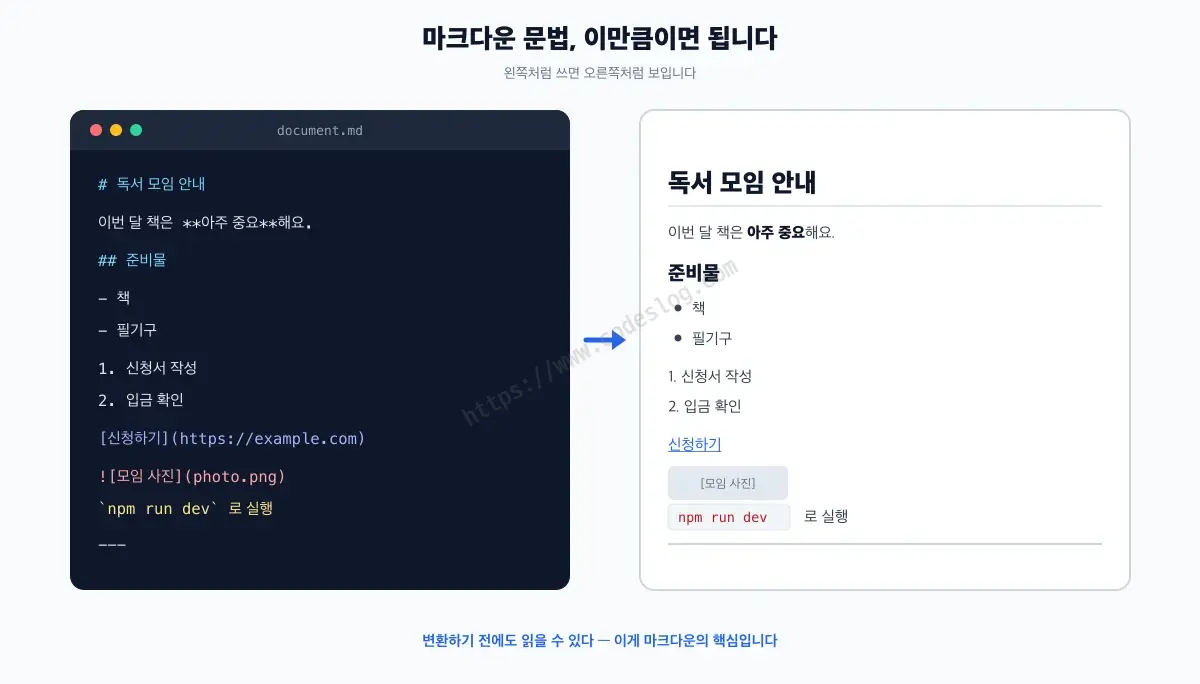
You don’t need to memorize the entire spec. These nine rules are enough to write a README or a blog post. Read the table as: write it the way the left column shows, and it renders the way the right column shows.
| Format | Write it like this | Renders like this |
|---|---|---|
| Heading | # Big heading / ## Medium heading | Headings of different sizes (number of # = level) |
| Bold | **important** | important |
| Italic | *emphasis* | emphasis |
| List | - item | Bulleted list |
| Numbered list | 1. first | Numbered list |
| Link | [link text](https://url) | A clickable link |
| Image |  | An embedded image |
| Code | `code` | code on a gray background |
| Horizontal rule | --- | A horizontal line dividing content |
For multi-line code, wrap it in three backticks. Add a language name right after the opening fence and you get syntax highlighting too.
```javascript
const greeting = "Hello";
console.log(greeting);
```
Blockquotes start with >, and tables split columns with | the way you just saw. That’s basically all of it. People say you can learn it in ten minutes and use it for ten years — and that’s not an exaggeration.
When Markdown Doesn’t Render the Way You Expect — Three Common Pitfalls#
The syntax is easy, but sooner or later the output surprises you anyway. Here are three problems almost every beginner runs into, organized by symptom. Every result shown here was tested directly through this blog’s own Markdown renderer.
My line break disappears and everything runs together#
This is usually the first thing that trips people up. You hit Enter, but on screen the text just sticks to the line before it.
This is the first line
This is the second line
This isn’t a bug — it’s the rule. Markdown treats a single Enter as just a space. It’s meant to let you wrap your source text onto separate lines for readability without it affecting the output, but the first time you hit it, it feels like a betrayal.
If you want a new paragraph, add one empty line. If you want to break the line without starting a new paragraph, add two trailing spaces or a backslash (\) at the end of the line — that becomes a <br>. Use it for things like addresses or lines of a poem, where the line break itself carries meaning.
Bold text shows up with the asterisks still attached#
This one is specific to CJK languages — Korean, Japanese, and Chinese — and English writers essentially never run into it. Korean grammatical particles attach directly to the word before them with no space, so a parenthetical note immediately followed by a particle (something like **draft(초안)**을, where 을 is the particle) breaks the closing emphasis marker, and the asterisks show up literally on screen.
Under CommonMark’s rules, a closing ** doesn’t actually close emphasis if the character right before it is punctuation and the character right after it is a letter, with no space between them. English rarely triggers this, since words are separated by spaces — but Korean, where particles attach with zero space, hits exactly this condition all the time.
The simplest fix is to move the punctuation outside the emphasis markers — **draft**(초안)을. If a Markdown renderer supports CJK extensions, as this blog’s does, inserting a backslash and a space right at the boundary (**draft(초안)**\ 을) marks the boundary without adding a visible space to the output.
I added --- and got a heading instead of a horizontal line#
This is the horizontal-rule pitfall. If there’s text directly above it, --- doesn’t become a horizontal rule at all.
That's everything for today
---
Instead of a horizontal line, the line above gets promoted whole into a heading (<h2>). Markdown has an older syntax where underlining text with --- turns it into a heading, and that’s exactly what fires here. When I tested it myself, that sentence even showed up in the table of contents as a heading.
The fix is to add one empty line above it. If you’d rather avoid the ambiguity altogether, use *** or ___ instead — both render as a plain horizontal rule even with text right above them.
As a side note, the block wrapped in
---at the very top of a post isn’t a horizontal rule at all — it’s front matter. It’s where metadata like the title, date, and tags lives, and blogging engines or documentation tools read it separately. The exact same symbol means something completely different depending on where it sits.
Markdown Editor Recommendations — What Should You Actually Use?#
I mentioned you can write Markdown in plain Notepad, but once you’re actually using it, you’ll want to see how the output looks right away. Here are five tools with different personalities. If you’re just starting out, the best move is to begin with whatever tool you’re already using.
| Tool | Best for | Price | One-line pitch |
|---|---|---|---|
| VS Code | Developers | Free | Already installed. Preview with Ctrl/Cmd+Shift+V |
| Obsidian | Long-term note-taking | Free | Saves plain .md files on your own machine, links notes together |
| Typora | Distraction-free writing | $14.99 one-time | Formats as you type, WYSIWYG-style |
| MarkText | A free Typora alternative | Free, open source | Similar feel, installable app |
| StackEdit / Dillinger | Quick, no-install use | Free | Opens right in your browser |
If you’re a developer, VS Code is more than enough. No extra installation needed — open a .md file, press Ctrl+Shift+V (Cmd+Shift+V on Mac), and a preview pane opens next to it. This blog’s posts are written that way too.
If you’re planning to build up notes over years, I’d recommend Obsidian. Unlike Notion, your files are saved as plain .md on your own computer, so your writing survives even if the service shuts down someday. That’s arguably the real reason to use Markdown in the first place. It’s free for both personal and commercial use, and the paid license is more of a way to support development than something you need.
Typora costs $14.99 as a one-time purchase (not a subscription), covers up to three devices, and offers a 15-day free trial. If you want a similar feel for free, MarkText is the alternative. Old posts claiming MarkText’s development has stalled still turn up in search results, but it shipped release 0.19.1 in June 2026 and kept getting bug-fix commits through July. It’s an actively maintained project.
Markdown and Accessibility — Every Symbol Is Semantic HTML#
So far, this has all been about the “how.” Now it’s time for the “why it matters.” Since this blog focuses on accessibility, I’m going to spend a bit more time on this part — it’s worth it.
When Markdown gets converted, it becomes HTML. But not just any HTML — it becomes HTML with meaning baked in.
| Write this | You get this HTML | What it tells assistive technology |
|---|---|---|
## Heading | <h2> | “A new section starts here” |
- item | <ul><li> | “This is a list, with this many items” |
1. item | <ol><li> | “This is an ordered procedure” |
> quote | <blockquote> | “This is quoted from someone else” |
| table | | <table><th> | “This is a header cell in a table” |
 | <img alt="description"> | The sentence read aloud in place of the image |
Assistive technology here means software or devices — screen readers, for instance — that help users with disabilities interact with content. Screen reader users don’t scan a page top to bottom. They press the H key to jump heading by heading, building a mental map of the document first, then jump straight to the section they need. The ## symbol is what builds that map.
Here’s why that matters: hand-written HTML often doesn’t turn out this way. Someone wants bigger text, so they reach for <div class="big-text">. They want something that looks like a list, so they add a bullet-shaped background image to a <div>. Visually it looks the same, but to a screen reader, it’s just an undifferentiated blob of text. Markdown can’t do that even if you wanted it to. Its constraints double as a safety net.
Three Things Still Left to the Human#
The syntax builds the structure, but it doesn’t fill in the content. Most of what actually fails an accessibility audit lives right here.
1. Image descriptions (alt text) — whatever you write inside the square brackets becomes the alt text, exactly as written.
 ← this is what a meaningful description looks like
 ← the worst case. Reads the filename aloud
 ← if it's meant to be decorative... this needs careThe second case is more common than you’d think. Editors auto-fill the filename, and people just leave it there. A screen reader reads that out literally as “chart dot p n g.” This maps to KWCAG 5.1.1 (Provide Appropriate Alternative Text), equivalent to WCAG 1.1.1 (Level A), and it’s exactly the kind of thing automated audit tools catch reliably — so it gets flagged immediately in any formal accessibility review.
The third case needs a bit more explanation. For purely decorative images, an empty alt attribute is the correct answer — reading it aloud would only get in the way. But there’s a hidden trap here.
alt=""and noaltattribute at all are completely different things. An empty alt is an explicit signal meaning “this is decorative, skip it” — the screen reader passes over it silently. But if the alt attribute is missing entirely, the screen reader has nothing to read, so it reads the file path aloud instead. That’s the difference between silence and noise.The catch is that
doesn’t always get converted toalt="". By spec, it should produce an empty alt — but some renderers or themes decide “the value is empty, so let’s just drop the attribute.” While writing this post, I actually checked this blog’s own theme, and it turned out to behave exactly that way. Leaving an image intentionally blank for decoration was, ironically, turning into an accessibility error.So when you’re working with decorative images, I’d recommend checking the rendered HTML once. Inspect the image with dev tools and you’ll see right away whether
alt=""is there or missing. If it’s missing, writing<img src="..." alt="">directly instead of relying on Markdown is the safer bet.
2. Link text — write [the official Markdown syntax guide](url) instead of Click [here](url). Screen readers have a feature that lists every link on a page in isolation, and if that list reads “here, here, learn more, click” over and over, it carries zero information. This is KWCAG 6.4.3 (Appropriate Link Text), equivalent to WCAG 2.4.4 (Level A).
3. Heading levels — jumping straight from # to ### punches a hole in the document map. The most common cause is using heading symbols just to make text bigger. If the size looks wrong, that’s a job for CSS, not for adding or dropping # characters. This relates to KWCAG 6.4.2 (Provide Headings).
As a side note, in the automated audit tool axe, skipped heading levels (
heading-order) and empty table headers (empty-table-header) are classified as “best practice,” not WCAG violations. Missing image alt text and missing link text, on the other hand, are clear WCAG Level A violations. That’s a useful way to prioritize when you’re short on time — though best-practice issues still have a real impact on the actual user experience.
A Common Trap When Writing Tables#
When building comparison tables, a lot of people habitually leave the top-left cell blank. Don’t do that.
<!-- This produces an empty <th></th> header cell -->
|  | Free | Paid |
|---|---|---|
| Price | $0 | $10/month |

<!-- Fill the top-left cell with a label describing the rows -->
| Category | Free | Paid |
|---|---|---|
| Price | $0 | $10/month |
Markdown tables convert the entire first row into <th> header cells, so leaving one blank creates a nameless header cell. This falls under KWCAG 7.3.2 (Table Structure), equivalent to WCAG 1.3.1. This blog made the exact same mistake once, fixed it, and then wrote a hard rule about it into our own writing conventions.
One thing worth knowing as a limitation of Markdown: Markdown tables can only express column headers, not row headers (scope="row"). If you need a complex table with headers on both axes, the right move is to drop Markdown and write the HTML <table> by hand. The same goes for the lang attribute that marks a language change within a document — Markdown alone can’t do that either. It’s not a silver bullet.
One-Page Summary#
- Markdown is a syntax for marking up plain text with symbols.
.mdextension, opens anywhere. - Nine syntax rules (headings, bold, italic, lists, numbered lists, links, images, code, horizontal rules) cover you in practice.
- Three pitfalls: a single Enter isn’t a line break · bold breaks around CJK particles ·
---needs a blank line above it. - For an editor, start with VS Code if you’re a developer, or Obsidian if you’re building up notes.
- Markdown converts to semantic HTML, so structure comes for free — but alt content, link text, and heading levels are still on you.
alt=""(a decorative signal) and no alt attribute at all (reads the file path) are different things. Check the rendered HTML.- Don’t leave a table’s top-left header cell empty. Complex tables that need row headers should be written in HTML.
질문으로 다시 보기#
What is Markdown?
Why do I sometimes see literal asterisks (**) instead of bold text?
Why does my line break disappear when I hit Enter once?
What Markdown editor should I use?
Does writing in Markdown automatically make my content accessible?
Can I add row headers (scope=row) to a Markdown table?
Keep Reading#
Once you’ve got the syntax down, the natural next step is those files that keep showing up in repositories these days — things like CLAUDE.md, AGENTS.md, and DESIGN.md. They’re all written in the same Markdown you just learned, except they’re documents meant to be read by AI, not humans.
Leave a comment