Introduction#
As a web developer, you’ve probably encountered code like this:
<div class="header">
  <div class="nav">
    <div class="nav-item">Home</div>
    <div class="nav-item">About</div>
  </div>
</div>
<div class="main">
  <div class="article">
    <div class="title">Title</div>
    <div class="content">Content...</div>
  </div>
</div>
<div class="footer">...</div>
Looks fine on the surface, right? But there’s a serious problem hidden in this code. Screen reader users cannot understand the structure of this page at all. Neither can search engines.
Actually, when I first started working as a developer about 15 years ago, I had a similar experience. I was assigned to renovate an existing website, and when I opened the code, I found <table> tags nested within each other. I remember working on it with tears in my eyes as a complete beginner 😂 Back then, using tables for layout was quite common.
Looking back now, whether it was table hell back then or div hell today… the essence is the same. When you build structures with meaningless tags, someone will eventually suffer.

Photo: Pankaj Patel / Unsplash
In this article, we’ll explore what semantic HTML is, why it matters, and how to use it correctly with practical examples.
What is Semantic HTML?#
Meaningful Markup#
Semantic means “relating to meaning.” Semantic HTML refers to HTML where tags themselves describe the meaning of the content.
<!-- Non-semantic: No meaning -->
<div class="header">Site Title</div>

<!-- Semantic: Has meaning -->
<header>Site Title</header>
Both may look visually identical. But the information they convey to browsers, screen readers, and search engines is completely different.
<div>: “There’s something here” (no meaning)<header>: “This is the header area” (clear meaning)
Why is Semantic HTML Important?#

Photo: John Schnobrich / Unsplash
1. Accessibility#
Screen readers understand page structure through semantic tags:
<nav>: “This is the navigation”<main>: “This is the main content”<aside>: “This is supplementary information”
Users with visual impairments can navigate directly to desired content based on this information.
2. SEO (Search Engine Optimization)#
Search engines like Google use semantic tags to determine content importance:
- Content inside
<article>→ Core content - Content inside
<aside>→ Supplementary information <h1>→ Page topic
3. Maintainability#
When you look at your own code 6 months later:
<!-- What is this? -->
<div class="wrapper">
  <div class="inner">
    <div class="content-area">...</div>
  </div>
</div>

<!-- Immediately understandable -->
<main>
  <article>
    <section>...</section>
  </article>
</main>
Complete Guide to Core Semantic Tags#
Document Structure Tags#
<header> - Header Area#
Represents the introductory section of a page or section.
<!-- Page header -->
<header>
  <h1>Codeslog</h1>
  <nav>...</nav>
</header>

<!-- Article header -->
<article>
  <header>
    <h2>Semantic HTML Guide</h2>
    <p>Published: Dec 23, 2025</p>
  </header>
  <p>Body content...</p>
</article>Note: <header> doesn’t have to be just one per page! You can use it within each <article> and <section>.
<nav> - Navigation#
Groups primary navigation links.
<nav aria-label="Main menu">
  <ul>
    <li><a href="/">Home</a></li>
    <li><a href="/about">About</a></li>
    <li><a href="/posts">Posts</a></li>
    <li><a href="/contact">Contact</a></li>
  </ul>
</nav>Tip: If you have multiple <nav> elements on a page, distinguish them with aria-label.
<nav aria-label="Main menu">...</nav>
<nav aria-label="Footer links">...</nav>
<main> - Main Content#
Wraps the core content of the page. Use only one per page.
<body>
  <header>...</header>
  <nav>...</nav>

  <main>
    <!-- The core content of this page -->
    <article>...</article>
  </main>

  <footer>...</footer>
</body>
<footer> - Footer Area#
Contains closing information for a page or section.
<footer>
  <p>© 2025 Codeslog. All rights reserved.</p>
  <nav aria-label="Footer links">
    <a href="/privacy">Privacy Policy</a>
    <a href="/terms">Terms of Service</a>
  </nav>
</footer>
Content Structure Tags#
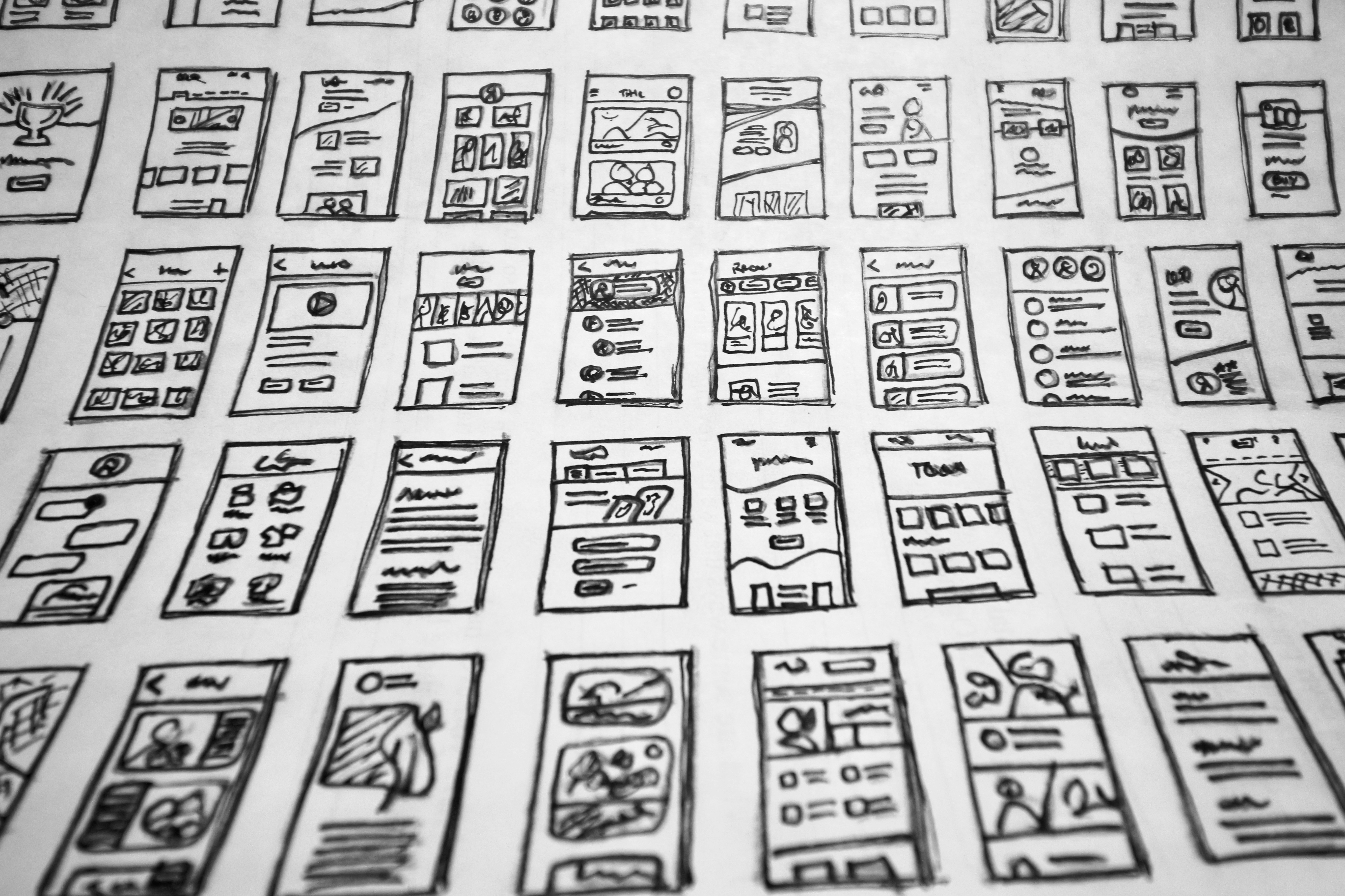
Photo: Hal Gatewood / Unsplash
<article> - Independent Content#
Represents self-contained content. Blog posts, news articles, and comments fall into this category.
<article>
  <header>
    <h2>Introduction to React Hooks</h2>
    <time datetime="2025-12-23">December 23, 2025</time>
  </header>

  <p>React Hooks allow you to use state in functional components...</p>

  <footer>
    <p>Author: Isaac</p>
  </footer>
</article>
Key criterion: “Can this content be extracted and distributed independently via RSS feed or elsewhere?”
<section> - Thematic Grouping#
Represents a group of content with a theme. Usually includes a heading (<h2>, etc.).
<article>
  <h1>Semantic HTML Guide</h1>

  <section>
    <h2>What is Semantic HTML?</h2>
    <p>...</p>
  </section>

  <section>
    <h2>Core Tags Overview</h2>
    <p>...</p>
  </section>
</article>
<aside> - Supplementary Content#
Content that is related to the main content but can be separated.
<main>
  <article>
    <h1>JavaScript Async Processing</h1>
    <p>Promise and async/await...</p>

    <aside>
      <h3>💡 Did you know?</h3>
      <p>Promise was introduced in ES6.</p>
    </aside>
  </article>

  <aside>
    <h2>Related Posts</h2>
    <ul>...</ul>
  </aside>
</main>
article vs section vs div#
Confused about when to use these three? Here’s a simple guideline:
| Situation | Tag to Use |
|---|---|
| Independently distributable content | <article> |
| Thematic content group (with heading) | <section> |
| Styling-only grouping | <div> |
<!-- Blog post list page -->
<main>
  <h1>Recent Posts</h1>

  <!-- Each post is independent → article -->
  <article>
    <h2>Post Title 1</h2>
    <p>Summary...</p>
  </article>

  <article>
    <h2>Post Title 2</h2>
    <p>Summary...</p>
  </article>
</main>

<!-- Post detail page -->
<article>
  <h1>Post Title</h1>

  <!-- Thematic grouping → section -->
  <section>
    <h2>Introduction</h2>
    <p>...</p>
  </section>

  <section>
    <h2>Main Content</h2>
    <p>...</p>
  </section>
</article>
Text-Level Semantics#
Heading Tags <h1> ~ <h6>#
You must maintain the hierarchy!
<!-- ❌ Wrong: Skipping levels -->
<h1>Title</h1>
<h3>Subtitle</h3>  <!-- Skipped h2 -->

<!-- ✅ Correct -->
<h1>Title</h1>
<h2>Subtitle</h2>
<h3>Sub-subtitle</h3>
Photo: Aaron Burden / Unsplash
<time> - Date/Time#
Displays dates in machine-readable format.
<time datetime="2025-12-23">December 23, 2025</time>
<time datetime="2025-12-23T14:30:00+09:00">2:30 PM</time>
<figure> and <figcaption> - Image and Caption#
Used to attach descriptions to images, diagrams, code blocks, etc.
<figure>
  <img src="chart.png" alt="2024 sales trend graph">
  <figcaption>Figure 1. Quarterly sales trends in 2024</figcaption>
</figure>
Other Useful Tags#
<!-- Emphasis (semantic) -->
<strong>Very important content</strong>  <!-- Strong emphasis -->
<em>Content to emphasize</em>            <!-- Mild emphasis -->

<!-- Styling only (non-semantic) -->
<b>Bold</b>    <!-- Don't use instead of strong -->
<i>Italic</i>  <!-- Don't use instead of em -->

<!-- Quote -->
<blockquote cite="https://example.com">
  This is a quote.
</blockquote>

<!-- Abbreviation -->
<abbr title="HyperText Markup Language">HTML</abbr>

<!-- Code -->
<code>const x = 1;</code>

<!-- Keyboard input -->
<kbd>Ctrl</kbd> + <kbd>C</kbd>
Practical Example: Structuring a Blog Page#
We’ve covered enough theory. Now let’s structure an actual blog page semantically.
Before: Div Hell#
<div class="wrapper">
  <div class="header">
    <div class="logo">Codeslog</div>
    <div class="nav">
      <div class="nav-item"><a href="/">Home</a></div>
      <div class="nav-item"><a href="/posts">Posts</a></div>
    </div>
  </div>

  <div class="content">
    <div class="post">
      <div class="post-title">Semantic HTML Guide</div>
      <div class="post-date">2025-12-23</div>
      <div class="post-body">
        <div class="section">
          <div class="section-title">Introduction</div>
          <div class="text">...</div>
        </div>
      </div>
    </div>

    <div class="sidebar">
      <div class="widget">
        <div class="widget-title">Recent Posts</div>
        <div class="widget-list">...</div>
      </div>
    </div>
  </div>

  <div class="footer">
    <div class="copyright">© 2025 Codeslog</div>
  </div>
</div>
After: Semantic HTML#
<body>
  <header>
    <a href="/" class="logo">Codeslog</a>
    <nav aria-label="Main menu">
      <ul>
        <li><a href="/">Home</a></li>
        <li><a href="/posts">Posts</a></li>
      </ul>
    </nav>
  </header>

  <main>
    <article>
      <header>
        <h1>Semantic HTML Guide</h1>
        <time datetime="2025-12-23">December 23, 2025</time>
      </header>

      <section>
        <h2>Introduction</h2>
        <p>...</p>
      </section>

      <section>
        <h2>Core Tags</h2>
        <p>...</p>
      </section>

      <footer>
        <p>Author: Isaac</p>
      </footer>
    </article>

    <aside>
      <section>
        <h2>Recent Posts</h2>
        <ul>...</ul>
      </section>
    </aside>
  </main>

  <footer>
    <p>© 2025 Codeslog. All rights reserved.</p>
  </footer>
</body>Improvements:
- ✅ Screen readers can understand the structure
- ✅ Search engines can identify main content
- ✅ Page structure is clear just by reading the code
- ✅ Reduced dependency on CSS classes
Semantic HTML and Accessibility#

Photo: Glenn Carstens-Peters / Unsplash
Landmark Roles#
Semantic tags automatically have ARIA landmark roles:
| HTML Tag | ARIA Role |
|---|---|
<header> | banner (when top-level) |
<nav> | navigation |
<main> | main |
<aside> | complementary |
<footer> | contentinfo (when top-level) |
<section> | region (when titled) |
<article> | article |
Screen reader users can quickly navigate using these landmarks:
“Go to navigation” → Jump to
<nav>“Go to main content” → Jump to<main>
Relationship with ARIA#
When using semantic HTML, ARIA attributes are rarely needed:
<!-- Unnecessary ARIA -->
<div role="navigation">...</div>

<!-- Semantic HTML is enough -->
<nav>...</nav>

<!-- Unnecessary ARIA -->
<div role="main">...</div>

<!-- Semantic HTML is enough -->
<main>...</main>
First rule of ARIA: If you can solve it with semantic HTML, don’t use ARIA!
Common Mistakes and Solutions#
1. Div Overuse#
<!-- ❌ -->
<div class="card">
  <div class="card-header">Title</div>
  <div class="card-body">Content</div>
</div>

<!-- ✅ -->
<article class="card">
  <header class="card-header">
    <h3>Title</h3>
  </header>
  <p class="card-body">Content</p>
</article>
2. Skipping Heading Levels#
<!-- ❌ Using h3 without h2 -->
<h1>Page Title</h1>
<h3>Subtitle</h3>

<!-- ✅ Use in order -->
<h1>Page Title</h1>
<h2>Subtitle</h2>
3. Using Semantic Tags for Styling#
<!-- ❌ Using blockquote just for indentation -->
<blockquote>
  This isn't a quote, I just need indentation
</blockquote>

<!-- ✅ Use CSS for styling -->
<p class="indented">
  This isn't a quote, I just need indentation
</p>
4. Using Sections Instead of Articles for Independent Content#
<!-- ❌ Using section for independent content -->
<main>
  <section>
    <h2>Post 1</h2>
    <p>...</p>
  </section>
  <section>
    <h2>Post 2</h2>
    <p>...</p>
  </section>
</main>

<!-- ✅ Independent content should use article -->
<main>
  <article>
    <h2>Post 1</h2>
    <p>...</p>
  </article>
  <article>
    <h2>Post 2</h2>
    <p>...</p>
  </article>
</main>
Semantic HTML Checklist#
Check this list when writing posts or doing code reviews:
Document Structure#
- Wrap page/section headers with
<header> - Wrap main navigation with
<nav> - Wrap core content with
<main>(1 per page) - Wrap footer with
<footer> - Separate supplementary content with
<aside>
Content Structure#
- Use
<article>for independent content - Use
<section>for thematic groups - Use
<div>only for styling purposes
Headings#
- Only one
<h1>per page - Maintain heading level order (h1 → h2 → h3)
- Include appropriate headings in all sections
Text#
- Use
<strong>for important content - Use
<em>for emphasis - Use
<time datetime="...">for dates/times - Use
<abbr title="...">for abbreviations
Images#
- Meaningful
altattribute on all<img>elements - Use
<figure>+<figcaption>for images needing descriptions
Conclusion#

Photo: Émile Perron / Unsplash
Semantic HTML isn’t difficult. The core principle is simple:
“Describe what the content is with the tag itself”
At first, you might wonder which tag to use. But after a few practice sessions, it becomes second nature.
Using semantic HTML provides:
- Better accessibility: Screen reader users can understand the page
- Improved SEO: Search engines better understand the content
- Maintainability: Code becomes self-documenting
- Future-proofing: Following web standards ensures better browser compatibility
Next time you’re about to use a <div>, pause and think:
“Is there a tag that better describes this content?”
Every line of code we write can open doors for someone. Let’s build a better web together! 🚀