I’d been happily shipping a React SPA for a while when an accessibility audit came back with this note:
“The page changed, but the screen reader said nothing.”
The page transition animated smoothly, the URL updated, the content changed… but as far as a screen reader user was concerned, nothing happened at all.
That’s the hidden trap of SPAs.
Traditional Websites vs. SPAs#
What happens when you click a link on a traditional multi-page site?
- The browser loads a new page
- The entire page re-renders
- The browser automatically moves focus to the top of the document
- The screen reader announces the new page’s title
The browser handled all of that for you. For free.
What about an SPA? The URL changes, but the page never actually reloads — JavaScript just updates the DOM. As far as the browser is concerned, no “navigation” happened, so there’s no reason to move focus.
The result: when a user clicks a link in the nav menu, focus stays right there on that link. The content has completely changed, but focus is still sitting up in the header.
Mouse users never notice. Keyboard and screen reader users get completely lost.
Why Does This Matter?#
Put yourself in a screen reader user’s shoes. They click the “About” link in the nav. Nothing changes audibly. They press Tab to start exploring again… and the nav links show up again. There’s no way to tell whether the page changed or focus just moved somewhere else.
Keyboard users hit the same wall. To reach the new page’s actual content, they have to Tab through every nav item in the header all over again. I’ve already covered the basics of keyboard navigation — tab order, skip links, and the like — in Keyboard Accessibility A to Z, so this post focuses specifically on the SPA-specific situation of routing. A skip link would help here, but if focus is still sitting on the old link, the skip link never gets re-triggered either.
This isn’t a feature gap. It’s an equity gap.
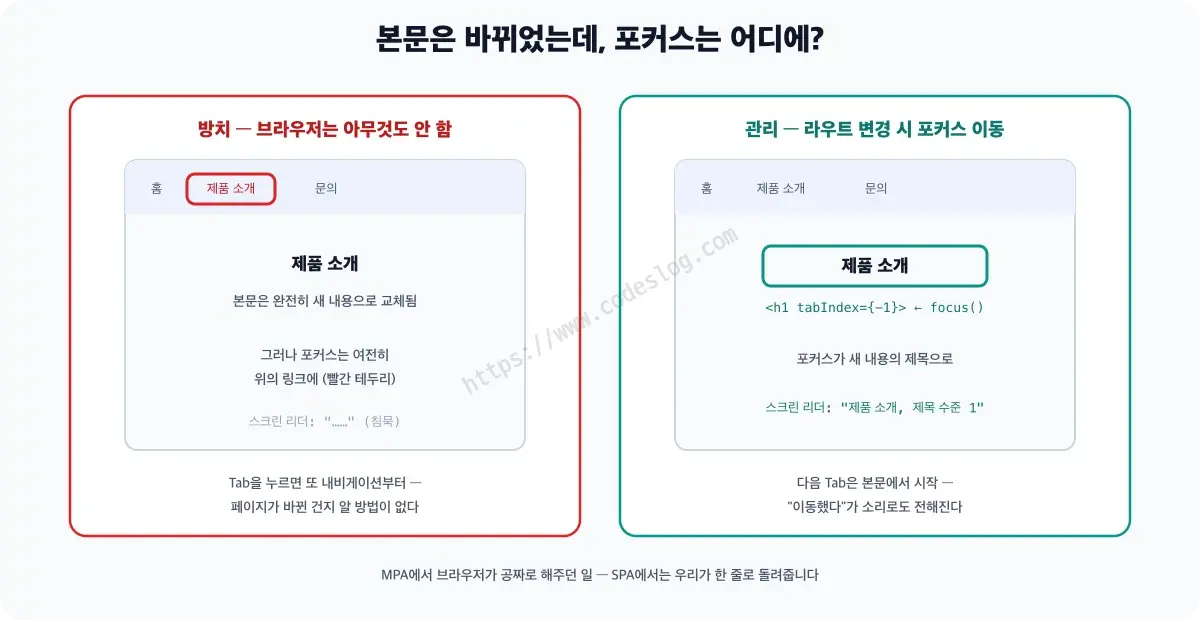
If you called out the browser on this, it would probably say: “But there was no navigation on my end.” Technically, it’s right. Which is exactly why this is on us to handle.
Managing Focus in React Router#
If you’re using React Router, you need to move focus yourself whenever the route changes.
The simplest approach is to focus the topmost element of the page component.
// In each page component
import { useEffect, useRef } from 'react';

function ProductPage() {
  const headingRef = useRef(null);

  useEffect(() => {
    // Move focus to the heading when the component mounts
    headingRef.current?.focus();
  }, []);

  return (
    <main>
      {/* tabIndex={-1}: not reachable by Tab, but focusable via JavaScript */}
      <h1 ref={headingRef} tabIndex={-1}>Product Overview</h1>
      <p>Content...</p>
    </main>
  );
}
tabIndex={-1} is the key piece here. <h1> isn’t focusable by default. Setting it to -1 keeps it out of the Tab order while still letting JavaScript focus it.
Handling Route Changes in One Place#
Repeating the same code in every page component gets tedious. It’s better to handle route changes in one place — wrap your route content in a single component.
If you go this route, remove the per-page approach above. If you leave each page’s <main> and its focus-handling useEffect in place and wrap it with this component too, you end up with two nested <main> elements — and the outer one immediately overwrites the focus the page just set on its h1. Pick one approach, not both.
// RouteChangeAnnouncer.jsx
import { useEffect, useRef } from 'react';
import { useLocation } from 'react-router-dom';

export default function RouteChangeAnnouncer({ children }) {
  const location = useLocation();
  const mainRef = useRef(null);

  useEffect(() => {
    // Move focus to the main content area whenever the route changes
    mainRef.current?.focus();
  }, [location.pathname]);

  return (
    <main ref={mainRef} tabIndex={-1}>
      {children}
    </main>
  );
}
Wrap the whole set of routes with it, inside the router.
<BrowserRouter>
  <Header />
  <RouteChangeAnnouncer>
    <Routes>{/* ... */}</Routes>
  </RouteChangeAnnouncer>
  <RouteAnnouncer />   {/* We'll build this next. Focus and announcements are separate concerns */}
</BrowserRouter>
You might be tempted to slap style={{ outline: 'none' }} on that <main> — a heavy outline flashing on every navigation is annoying. But strip it out inline and you take the outline away from mouse and keyboard users alike. Only the mouse user needed it hidden.
CSS can make that distinction for you.
/* Outline only when arriving via keyboard */
main:focus-visible {
  outline: 2px solid #6366f1;
  outline-offset: 2px;
}

/* Hide it right after a mouse or touch interaction */
main:focus:not(:focus-visible) {
  outline: none;
}
It’s easy to assume :focus-visible automatically filters out script-driven focus, but that’s not quite right. Among the heuristics the spec recommends to browsers is this one: if the previous focus indicator was showing, a script-moved focus should show one too (a recommendation, not a requirement). I tested it directly on Chrome 152 and that’s exactly what happens — navigating via a keyboard-activated link matches :focus-visible and draws the outline, while a mouse click doesn’t match. Keep that inline style from earlier around, though, and it overrides this heuristic entirely (inline styles win).
Next.js App Router: Announcements, Yes — Focus Movement, No#
“Doesn’t Next.js just handle this for you?” Half right. The other half is the problem.
Next.js ships a built-in Route Announcer. There’s a visually hidden region that a screen reader reads aloud whenever its content changes (an aria-live region — we’ll build one by hand later), and Next.js drops document.title into it on every page change, falling back to the <h1> if there’s no title. So a screen reader user hears the name of the new page, something like “Order History.”
But focus itself never actually moves. Up through version 15, Next.js did call focus() on the new segment’s top-level element after routing — but that element had no tabindex, so nothing happened. In version 16, the new scroll handler became the default and even that call was dropped; the code now carries a comment saying focus is intentionally left alone. Either way, the outcome is the same: you get the title announced, but the cursor is still sitting right where you clicked. If that link was in the footer, the user hears the announcement and then still has to Tab from the footer. Announcing and focusing are two separate jobs, and Next.js only covers the first one for you.
So you still need to wire up focus movement yourself.
If your root layout exports metadata, you can’t turn that file into a 'use client' component. In that case, split the focus-moving logic out into a small dedicated client component and keep the layout itself as a server component.
// app/layout.tsx
'use client';

import { usePathname } from 'next/navigation';
import { useEffect, useRef } from 'react';

export default function RootLayout({ children }: { children: React.ReactNode }) {
  const pathname = usePathname();
  const mainRef = useRef<HTMLElement>(null);

  useEffect(() => {
    mainRef.current?.focus();
  }, [pathname]);

  return (
    <html lang="en">
      <body>
        <header>...</header>
        <main ref={mainRef} tabIndex={-1}>
          {children}
        </main>
      </body>
    </html>
  );
}
Announcing Page Changes with aria-live#
Moving focus means the screen reader reads out whatever element now has focus. But it’s also worth explicitly announcing which page you landed on.
An aria-live region lets a screen reader automatically read out new content whenever the DOM changes. I’ve covered how live regions actually work — the difference between polite and assertive, why you need to leave an empty element in place ahead of time — separately in When aria-live Stays Silent — Getting ARIA Live Regions Right.
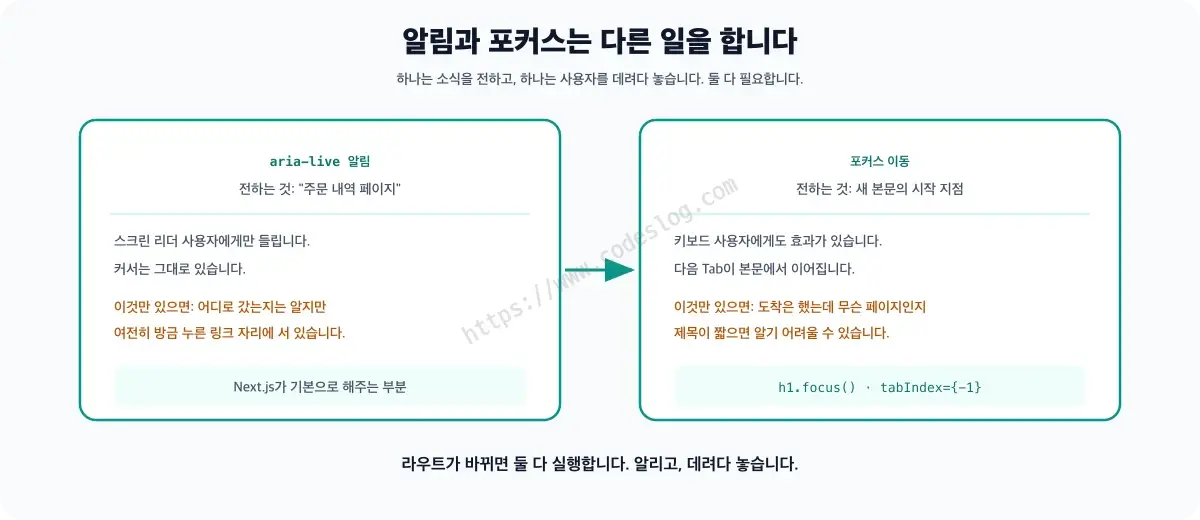
The RouteChangeAnnouncer from earlier handles moving focus; the RouteAnnouncer below handles the spoken announcement. Keep both inside the router and use them together — neither one substitutes for the other.
// RouteAnnouncer.jsx
import { useEffect, useRef } from 'react';
import { useLocation } from 'react-router-dom';

function RouteAnnouncer({ pageTitle }) {
  const location = useLocation();
  const announceRef = useRef(null);

  useEffect(() => {
    if (announceRef.current) {
      // Clear it first, then refill — that's what gets a screen reader to notice
      announceRef.current.textContent = '';
      const id = setTimeout(() => {
        // Check again in case it unmounted within the 100ms window
        if (announceRef.current) {
          announceRef.current.textContent = `Navigated to the ${pageTitle} page`;
        }
      }, 100);
      return () => clearTimeout(id);   // Timers can overlap if routes change back to back
    }
  }, [location.pathname, pageTitle]);

  return (
    <div
      ref={announceRef}
      role="status"
      aria-live="polite"
      aria-atomic="true"
      // Visually hidden, but still read by screen readers
      style={{
        position: 'absolute',
        width: '1px',
        height: '1px',
        overflow: 'hidden',
        clip: 'rect(0, 0, 0, 0)',
        whiteSpace: 'nowrap',
      }}
    />
  );
}
aria-live="polite" doesn’t interrupt whatever’s currently being read — it waits until the screen reader is free. For urgent alerts you’d reach for aria-live="assertive", but for a navigation announcement, polite is plenty.
And yes, you probably spotted the hack. Whenever a setTimeout shows up in an accessibility implementation, something feels off — and you’re right, it does to me too. Sometimes a screen reader doesn’t register a direct textContent change as a “change” at all, so clearing it and refilling it is, for now, the most reliable trick around. Not elegant. But it works.
Try It Yourself — A Demo Comparing No Focus Management vs. Managed Focus#
That covers what needs to happen on a route change. But “focus stays on the link” is one of those things that doesn’t quite land until you read it — you have to press Tab yourself to really get it.
Open the SPA focus management comparison demo, flip the toggle at the top between unmanaged and managed, and click through the navigation. A live readout at the bottom of the screen shows exactly where focus is at any moment.
One honest note: the demo interface is in Korean, but the controls are simple enough to follow — a toggle and a few nav links. And the log panel next to it isn’t real screen reader output; it’s a simulation I wrote by hand of what would and wouldn’t get announced in each case. For a real verdict, you’ll want to fire up VoiceOver or NVDA yourself.
What the Numbers Actually Show — Focus Really Does Stay on the Link#
Since this is hard to take on faith, I pressed a link in the demo with the keyboard and immediately logged document.activeElement. This is from September 15, 2026, on Chrome 152.
| Case | Focus before navigation | document.activeElement after | aria-live region |
|---|---|---|---|
| No focus management | a “소개” (About) | a “소개” (About) | Empty |
| Managed focus | a “연락처” (Contact) | h1 “연락처” (Contact) | “연락처 페이지로 이동했습니다” (Navigated to the Contact page) |
In both cases the content changed exactly as it should. The h1 matched too — “소개” (About) or “연락처” (Contact), depending on the page. The only things that differed were focus and the announcement — nothing else.
In the unmanaged case, focus is still sitting right on the link that was just clicked. To someone looking at the screen, the page obviously changed; to someone reading the screen through cursor position, nothing happened at all. The empty aria-live region is the same failure by a different name — nobody put a message in there, so there’s nothing to read.
This is a single measurement on Chrome 152. Safari, Firefox, and actual screen readers may behave differently. I read the values from
document.activeElementin the console rather than trusting the demo’s on-screen focus indicator, which doesn’t update the moment focus is lost and just keeps showing the last value. The aria-live region also fills in a beat later than focus does (about 100ms here), so if you’re testing this yourself, wait a moment before reading it.And the “no focus management” case is a deliberate control group, built to reproduce the common mistake on purpose. Of course focus doesn’t move there. This table isn’t really a discovery — it’s a way of making visible, exactly, what goes wrong when nobody manages focus at all.
That’s the story of what happens “when the page changes.” But the same problem shows up within a page too — whenever you open and close a modal or a dropdown.
Focus Restoration Pattern#
There’s an important pattern for modals, dropdowns, and similar UI elements: focus restoration. I’ve covered focus traps — the part that keeps Tab contained inside a modal — in Keyboard Accessibility A to Z.
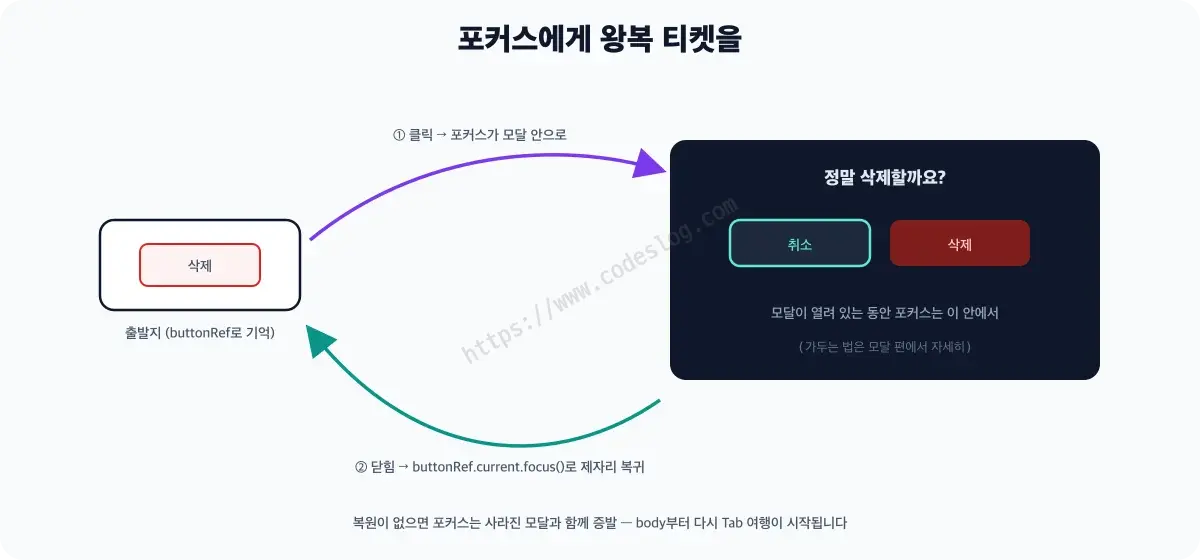
Say a user clicks a “Delete” button, which opens a confirmation modal. They click “Cancel” to close it… where should focus go?
Back to that “Delete” button.
import { useRef, useState } from 'react';

function DeleteButton({ itemId }) {
  const buttonRef = useRef(null);
  const [isModalOpen, setIsModalOpen] = useState(false);

  function openModal() {
    setIsModalOpen(true);
  }

  function closeModal() {
    setIsModalOpen(false);
    // Restore focus to the button once the modal closes
    setTimeout(() => {
      buttonRef.current?.focus();
    }, 0);
  }

  return (
    <>
      <button ref={buttonRef} onClick={openModal}>
        Delete
      </button>
      {/* Assumes ConfirmModal moves focus to the first element inside it when it opens */}
      {isModalOpen && (
        <ConfirmModal
          onCancel={closeModal}
          onConfirm={() => {
            deleteItem(itemId);
            closeModal();          // Focus goes back to its original spot after deleting too
          }}
        />
      )}
    </>
  );
}
The reason for setTimeout(..., 0) is timing — the modal is still being removed from the DOM. Try to set focus synchronously and the DOM might not have updated yet.
What happens if you skip restoration? When the modal disappears, focus vanishes along with the removed element. The browser resets focus to body. Modern browsers will pick up the next Tab from roughly where the removed element used to be (the sequential focus navigation starting point), but in the meantime, a screen reader user loses their sense of “where am I,” and Shift+Tab goes somewhere unexpected. Remember where focus came from when you open something, and send it back there when you close it — think of it as a round-trip ticket.
It’s Not Just Focus — Tab Titles and Loading States Matter Too#
Updating document.title#
Along with focus management, you also need to update the page title. In an SPA, the <title> tag doesn’t change on its own.
// Using React Helmet, or the Next.js Metadata API
import { Helmet } from 'react-helmet-async';

function ProductPage() {
  return (
    <>
      <Helmet>
        <title>Product Overview | My Service</title>
      </Helmet>
      <main>...</main>
    </>
  );
}
That updates the browser tab title too, and lets a screen reader user know which page they’re on.
Handling Loading States#
You also need to be careful when showing a skeleton UI while data loads. If you set focus while the skeleton is still showing, the screen reader ends up reading the skeleton element.
function ProductPage() {
  const { data, isLoading } = useFetchProduct();
  const headingRef = useRef(null);

  useEffect(() => {
    // Move focus only after loading finishes
    if (!isLoading && headingRef.current) {
      headingRef.current.focus();
    }
  }, [isLoading]);

  // aria-label is ignored on an element with no role. Loading is a 'state', not a 'name'.
  if (isLoading) {
    return (
      {/* .sr-only: the familiar utility class that hides content visually while keeping it for screen readers */}
      <div role="status">
        <span className="sr-only">Loading content</span>
        <SkeletonLoader aria-hidden="true" />
      </div>
    );
  }

  return (
    <main>
      <h1 ref={headingRef} tabIndex={-1}>{data.title}</h1>
    </main>
  );
}
Wrapping Up#
Focus management in an SPA isn’t optional — it’s baseline. For people who navigate the web without a mouse, and for people using screen readers, an SPA’s “fast page transitions” shouldn’t turn into a trap.
Here’s the core pattern, summarized:
- Move focus on route change: programmatically focus an element with
tabIndex={-1} - Announce the change with aria-live: insert a navigation message into a
role="status"region - Update document.title: keep the page title in sync
- Restore focus: return focus to the original element when closing modals and dropdowns
- Focus after loading completes: move focus once the data is actually ready
If an SPA is fast and smooth, it should be fast and smooth for every user. Focus management is what makes “every user” actually true.
I finally got to reply to that accessibility feedback with — “Now, the moment the page changes, the screen reader is the first to know.”
질문으로 다시 보기#
Why do screen readers stay silent after a route change in an SPA?
When should you use tabIndex={-1}?
More in this series#
- Form UX Done Right: Validation, Error Messages, and Accessibility All in One — form validation timing, where when you tell the user is everything
- Dark Mode Done Right: CSS Variable Design to Contrast Verification — the story of thinking you could just invert the colors
Browse the full Frontend × Accessibility series — a series that connects an accessibility lens to everyday frontend topics, from focus management to form UX and dark mode.