
들어가며#
최근 Hugo에 PaperMod 테마를 이용해서 블로그를 만들고 운영을 시작했습니다. 다른 사람이 만든 것을 그대로 사용하는건 빠르게 운영할 수 있다는 장점이 있지만, 모든 부분이 나에게 맞는 건 아니였습니다. 수많은 곳을 내 입맛과 취향에 맞춰서 수정하다가 보니 코드 블록에 문제가 좀 있더군요.
라인 넘버가 <table> 태그로 구현되어 있었습니다.
이게 접근성에 위배되는 건 아니지만, 시맨틱하지 않다는 생각이 들었습니다. 더 나아가, 스크린 리더 사용자 입장에서는 어떨까 고민하다가 CSS Counter를 사용한 더 나은 방법을 찾았습니다.
이 글에서는 왜 테이블 방식이 문제인지, 그리고 어떻게 접근성을 개선했는지를 기록으로 남깁니다.

사진: Unsplash의Bernd 📷 Dittrich
🔍 문제 분석: 왜 테이블이 문제일까?#
1. 시맨틱하지 않은 구조#
HTML의 <table> 요소는 표 형식의 데이터를 표현하기 위한 요소입니다. 하지만 코드 블록의 라인 넘버는 데이터가 아니라 시각적 장식에 가깝습니다.
WCAG(Web Content Accessibility Guidelines)에서는 HTML 요소를 본래의 목적에 맞게 사용하는 시맨틱 마크업을 권장합니다. 테이블을 레이아웃 용도로 사용하는 것은 구시대적인 방식이며, CSS가 발전한 지금은 더 이상 필요하지 않습니다.
2. 스크린 리더 사용자 경험#
스크린 리더는 <table> 태그를 만나면 **“표, 2개 열, 1개 행”**과 같은 정보를 읽어줍니다. 코드 블록을 읽을 때마다 이런 불필요한 정보가 들리는 건 좋은 경험이 아닙니다.
실제 스크린 리더 경험:
"표, 2개 열, 1개 행"
"셀 1, 1"
"1, 2, 3, 4, 5"
"셀 2, 1"
"const example = Hello World
console log example"
라인 넘버와 코드가 각각 별도의 셀로 인식되어 읽기 흐름이 끊깁니다.

사진: Unsplash의Muhammad Asim
3. DOM 구조의 복잡도#
테이블 기반 구조는 불필요하게 많은 DOM 노드를 생성합니다:
<table class="lntable">
  <tbody>
    <tr>
      <td class="lntd">
        <pre><code><span>1</span><span>2</span><span>3</span></code></pre>
      </td>
      <td class="lntd">
        <pre><code>실제 코드...</code></pre>
      </td>
    </tr>
  </tbody>
</table>
이는 성능에도 영향을 줄 수 있으며, CSS 스타일링도 복잡해집니다.
✅ 해결 방법: 접근성을 고려한 라인 넘버 구현#
최종적으로 구현한 방식은 다음과 같은 특징이 있습니다:
- 시맨틱한 HTML:
<span class="code-line">구조로 각 줄을 명확히 구분 - CSS Counter로 시각적 라인 넘버: 항상 표시되는 시각적 라인 넘버
- HTML 라인 넘버: 스크린 리더 사용자가 선택적으로 들을 수 있는 라인 넘버
- aria-hidden 토글: 사용자가 필요에 따라 라인 넘버 읽기를 켜고 끌 수 있음
- Syntax Highlighting 유지: Chroma의 신택스 하이라이팅 완벽 보존
- 복사 시 라인 넘버 제외: 드래그 복사, Copy 버튼 모두 라인 넘버 제외
1단계: Hugo 설정 변경#
먼저 Hugo의 기본 라인 넘버 기능을 비활성화합니다.
파일: config.yaml
markup:
  highlight:
    noClasses: false
    lineNos: false  # 테이블 기반 라인 넘버 비활성화
    codeFences: true
    guessSyntax: true
2단계: 커스텀 코드 블록 렌더러 작성#
Hugo의 render hook을 사용하여 코드 블록을 커스텀 렌더링합니다.
파일: layouts/_default/_markup/render-codeblock.html
{{- $lang := .Type -}}
{{- $code := .Inner -}}

{{- /* Highlight code with Chroma to get syntax highlighting */ -}}
{{- $highlighted := transform.Highlight $code $lang "lineNos=false,noClasses=false" -}}

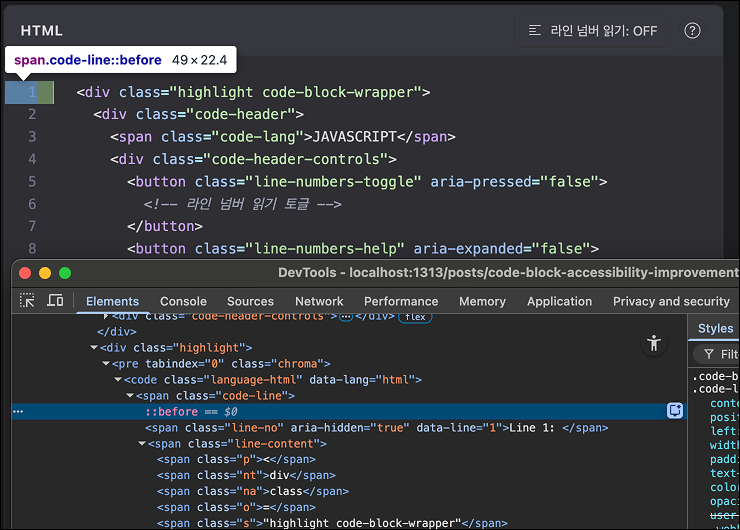
<div class="highlight code-block-wrapper">
  <div class="code-header">
    {{- if $lang }}
    <span class="code-lang">{{ $lang }}</span>
    {{- end }}
    <div class="code-header-controls">
      <button class="line-numbers-toggle" aria-pressed="false" aria-label="라인 넘버 읽기 토글">
        <svg class="icon-line-numbers" width="16" height="16" viewBox="0 0 16 16" fill="currentColor">
          <path d="M2.5 3.5a.5.5 0 0 1 0-1h11a.5.5 0 0 1 0 1h-11zm0 3a.5.5 0 0 1 0-1h6a.5.5 0 0 1 0 1h-6zm0 3a.5.5 0 0 1 0-1h6a.5.5 0 0 1 0 1h-6zm0 3a.5.5 0 0 1 0-1h11a.5.5 0 0 1 0 1h-11z"/>
        </svg>
        <span class="toggle-text">라인 넘버 읽기: OFF</span>
      </button>
      <button class="line-numbers-help" aria-label="라인 넘버 읽기 기능 도움말" aria-expanded="false">
        <svg class="icon-help" width="16" height="16" viewBox="0 0 16 16" fill="currentColor">
          <path d="M8 15A7 7 0 1 1 8 1a7 7 0 0 1 0 14zm0 1A8 8 0 1 0 8 0a8 8 0 0 0 0 16z"/>
          <path d="M5.255 5.786a.237.237 0 0 0 .241.247h.825c.138 0 .248-.113.266-.25.09-.656.54-1.134 1.342-1.134.686 0 1.314.343 1.314 1.168 0 .635-.374.927-.965 1.371-.673.489-1.206 1.06-1.168 1.987l.003.217a.25.25 0 0 0 .25.246h.811a.25.25 0 0 0 .25-.25v-.105c0-.718.273-.927 1.01-1.486.609-.463 1.244-.977 1.244-2.056 0-1.511-1.276-2.241-2.673-2.241-1.267 0-2.655.59-2.75 2.286zm1.557 5.763c0 .533.425.927 1.01.927.609 0 1.028-.394 1.028-.927 0-.552-.42-.94-1.029-.94-.584 0-1.009.388-1.009.94z"/>
        </svg>
      </button>
      <div class="line-numbers-help-tooltip" role="tooltip" aria-hidden="true">
        <h4>라인 넘버 읽기 기능</h4>
        <p>이 버튼은 스크린 리더 사용자를 위한 기능입니다.</p>
        <ul>
          <li><strong>OFF (기본값):</strong> 스크린 리더가 라인 넘버를 읽지 않습니다. 코드 내용만 읽습니다.</li>
          <li><strong>ON:</strong> 스크린 리더가 각 줄의 라인 넘버를 함께 읽습니다. (예: "Line 1: console.log...")</li>
        </ul>
        <p class="help-note">시각적으로는 항상 라인 넘버가 표시됩니다. 이 설정은 스크린 리더의 읽기 방식만 변경합니다.</p>
        <button class="help-close" aria-label="도움말 닫기">
          <svg width="12" height="12" viewBox="0 0 12 12" fill="currentColor">
            <path d="M11.25 1.81L10.19.75 6 4.94 1.81.75.75 1.81 4.94 6 .75 10.19l1.06 1.06L6 7.06l4.19 4.19 1.06-1.06L7.06 6z"/>
          </svg>
        </button>
      </div>
    </div>
  </div>
  {{ $highlighted | safeHTML }}
</div>
이 템플릿은:
- 언어 태그 표시
- 라인 넘버 읽기 토글 버튼
- 도움말 버튼과 툴팁
- Chroma의 신택스 하이라이팅 적용
3단계: JavaScript로 HTML 구조 변환#
Chroma가 생성한 HTML을 접근성 친화적인 구조로 변환합니다.
파일: assets/js/code-block-accessibility.js
/**
 * Code Block Accessibility Enhancement
 * Converts Chroma-generated code blocks to accessible structure
 * Implements line number toggle for screen readers
 */

document.addEventListener('DOMContentLoaded', function() {
  // Find all code block wrappers
  const codeBlocks = document.querySelectorAll('.code-block-wrapper');

  codeBlocks.forEach(wrapper => {
    const pre = wrapper.querySelector('pre');
    const code = pre?.querySelector('code');

    if (!code) return;

    // Get code content - preserve Chroma's syntax highlighting structure
    const lines = [];

    // Chroma generates <span class="line"><span class="cl">content</span></span> structure
    if (code.children.length > 0) {
      Array.from(code.children).forEach((child) => {
        if (child.tagName === 'SPAN' && child.classList.contains('line')) {
          // Get the inner <span class="cl"> which contains the highlighted code
          const clSpan = child.querySelector('.cl');
          if (clSpan) {
            // Preserve the innerHTML of .cl which has all the syntax highlighting
            lines.push(clSpan.innerHTML);
          } else {
            // Fallback: use the whole line's innerHTML
            lines.push(child.innerHTML);
          }
        }
      });
    } else {
      // Fallback: split by newlines
      const textContent = code.textContent || code.innerText;
      textContent.split('\n').forEach(line => {
        lines.push(line);
      });
    }

    // Remove last empty line if exists
    if (lines.length > 0 && !lines[lines.length - 1].trim()) {
      lines.pop();
    }

    // Create new structure with line numbers
    const newContent = lines.map((lineContent, index) => {
      const lineNumber = index + 1;
      return `<span class="code-line">` +
        `<span class="line-no" aria-hidden="true" data-line="${lineNumber}">Line ${lineNumber}: </span>` +
        `<span class="line-content">${lineContent}</span>` +
        `</span>`;
    }).join('');

    // Replace code content
    code.innerHTML = newContent;

    // Prevent line numbers from being copied when dragging/selecting
    code.addEventListener('copy', (e) => {
      const selection = window.getSelection();
      if (!selection.rangeCount) return;

      const container = document.createElement('div');
      for (let i = 0; i < selection.rangeCount; i++) {
        container.appendChild(selection.getRangeAt(i).cloneContents());
      }

      container.querySelectorAll('.line-no').forEach(el => el.remove());
      e.clipboardData.setData('text/plain', container.textContent);
      e.preventDefault();
    });

    // Setup toggle button functionality
    const toggleButton = wrapper.querySelector('.line-numbers-toggle');
    if (toggleButton) {
      toggleButton.addEventListener('click', function() {
        const isPressed = this.getAttribute('aria-pressed') === 'true';
        const newState = !isPressed;

        // Update button state
        this.setAttribute('aria-pressed', newState);

        // Update wrapper class
        if (newState) {
          wrapper.classList.add('line-numbers-visible');
        } else {
          wrapper.classList.remove('line-numbers-visible');
        }

        // Update button text
        const toggleText = this.querySelector('.toggle-text');
        if (toggleText) {
          toggleText.textContent = newState ? '라인 넘버 읽기: ON' : '라인 넘버 읽기: OFF';
        }

        // Toggle aria-hidden on line numbers
        const lineNumbers = wrapper.querySelectorAll('.line-no');
        lineNumbers.forEach(lineNo => {
          if (newState) {
            lineNo.removeAttribute('aria-hidden');
          } else {
            lineNo.setAttribute('aria-hidden', 'true');
          }
        });

        // Announce state change
        const announcement = document.createElement('div');
        announcement.setAttribute('role', 'status');
        announcement.setAttribute('aria-live', 'polite');
        announcement.className = 'sr-only';
        announcement.textContent = newState
          ? '라인 넘버가 스크린 리더에서 읽힙니다'
          : '라인 넘버가 스크린 리더에서 숨겨졌습니다';
        document.body.appendChild(announcement);
        setTimeout(() => announcement.remove(), 1000);
      });
    }
  });

  // Setup help button functionality
  setupHelpButtons();
});

/**
 * Setup help button functionality with accessibility support
 */
function setupHelpButtons() {
  document.querySelectorAll('.code-block-wrapper').forEach(wrapper => {
    const helpButton = wrapper.querySelector('.line-numbers-help');
    const tooltip = wrapper.querySelector('.line-numbers-help-tooltip');
    const closeButton = tooltip?.querySelector('.help-close');

    if (!helpButton || !tooltip) return;

    // Toggle tooltip on help button click
    helpButton.addEventListener('click', (e) => {
      e.stopPropagation();
      const isExpanded = helpButton.getAttribute('aria-expanded') === 'true';

      if (isExpanded) {
        closeTooltip();
      } else {
        openTooltip();
      }
    });

    // Close tooltip on close button click
    if (closeButton) {
      closeButton.addEventListener('click', (e) => {
        e.stopPropagation();
        closeTooltip();
      });
    }

    // Close tooltip when clicking outside
    document.addEventListener('click', (e) => {
      if (!wrapper.contains(e.target)) {
        closeTooltip();
      }
    });

    // Close tooltip on Escape key
    document.addEventListener('keydown', (e) => {
      if (e.key === 'Escape' && helpButton.getAttribute('aria-expanded') === 'true') {
        closeTooltip();
        helpButton.focus();
      }
    });

    function openTooltip() {
      helpButton.setAttribute('aria-expanded', 'true');
      tooltip.setAttribute('aria-hidden', 'false');
      if (closeButton) {
        setTimeout(() => closeButton.focus(), 100);
      }
    }

    function closeTooltip() {
      helpButton.setAttribute('aria-expanded', 'false');
      tooltip.setAttribute('aria-hidden', 'true');
    }
  });
}
4단계: CSS 스타일링#
파일: assets/css/extended/chroma.css (주요 부분만 발췌)
/* Code block wrapper */
.code-block-wrapper {
  position: relative;
  margin: 1.5rem 0;
}

/* Code header with controls */
.code-header {
  display: flex;
  justify-content: space-between;
  align-items: center;
  padding: 0.5rem 1rem;
  background: var(--code-bg);
  border: 1px solid var(--border);
  border-bottom: none;
  border-radius: 8px 8px 0 0;
}

.code-header-controls {
  display: flex;
  align-items: center;
  gap: 0.5rem;
  position: relative;
}

/* Line numbers toggle button */
.line-numbers-toggle {
  display: flex;
  align-items: center;
  gap: 0.5rem;
  padding: 0.25rem 0.75rem;
  background: transparent;
  border: 1px solid var(--border);
  border-radius: 4px;
  color: var(--content);
  font-size: 0.8125rem;
  cursor: pointer;
  transition: all 0.2s ease;
}

.line-numbers-toggle:hover {
  background: var(--theme);
  border-color: var(--primary);
}

.line-numbers-toggle[aria-pressed="true"] {
  background: var(--primary);
  color: var(--theme);
  border-color: var(--primary);
}

/* Code line structure */
.code-block-wrapper pre code {
  counter-reset: line;
  display: block;
}

.code-line {
  counter-increment: line;
  position: relative;
  display: block;
  padding-left: 4.5em;
  min-height: 1.5em;
}

/* Visual line numbers (CSS counter - always visible) */
.code-line::before {
  content: counter(line);
  position: absolute;
  left: 0;
  width: 3.5em;
  padding-right: 1rem;
  text-align: right;
  color: #939ab7;
  opacity: 0.6;
  user-select: none;
  border-right: 1px solid var(--border);
}

/* Screen reader line numbers (HTML, controlled by aria-hidden) */
.line-no {
  position: absolute;
  width: 1px;
  height: 1px;
  padding: 0;
  margin: -1px;
  overflow: hidden;
  clip: rect(0, 0, 0, 0);
  white-space: nowrap;
  border-width: 0;
}

/* Help tooltip styles */
.line-numbers-help-tooltip {
  position: absolute;
  top: calc(100% + 0.5rem);
  right: 0;
  width: 320px;
  max-width: calc(100vw - 2rem);
  padding: 1rem;
  background: var(--entry);
  border: 1px solid var(--border);
  border-radius: 8px;
  box-shadow: 0 4px 12px rgba(0, 0, 0, 0.15);
  z-index: 1000;
  opacity: 0;
  visibility: hidden;
  transform: translateY(-8px);
  transition: all 0.2s ease;
}

.line-numbers-help-tooltip[aria-hidden="false"] {
  opacity: 1;
  visibility: visible;
  transform: translateY(0);
}
5단계: Copy 버튼에서 라인 넘버 제외#
기존 PaperMod 테마의 Copy 버튼을 수정하여 라인 넘버를 제외합니다.
파일: layouts/partials/footer.html (Copy 버튼 부분만 수정)
copybutton.addEventListener('click', (cb) => {
    // Extract only code content, not line numbers
    const lineContents = codeblock.querySelectorAll('.line-content');
    let textToCopy = '';

    if (lineContents.length > 0) {
        const lines = Array.from(lineContents)
            .map(el => {
                const text = el.textContent || '';
                return text.replace(/\n$/, '');
            });

        if (lines.length > 0 && lines[lines.length - 1].trim() === '') {
            lines.pop();
        }

        textToCopy = lines.join('\n');
    } else {
        const container = codeblock.cloneNode(true);
        container.querySelectorAll('.line-no').forEach(el => el.remove());
        textToCopy = container.textContent;
    }

    navigator.clipboard.writeText(textToCopy);
    copyingDone();
});
✅ AI를 사용해 따라하기#
“이 기능 좋은데, 우리 블로그에도 적용하고 싶어요!” 하시는 분들을 위해 준비했습니다.
쉬운 꿀팁: 복잡한 설명 대신, AI에게 바로 물어보세요! 우리 블로그에서는 복사-붙여넣기만 하면 되는 프롬프트를 제공합니다. Claude Code, Cursor, ChatGPT, 혹은 어떤 AI 도구를 쓰시든 상관없어요. 아래 프롬프트를 그대로 복사해서 AI에게 전달하면 끝입니다.
Hugo 블로그의 코드 블록 접근성을 개선하고 싶어요. 다음 기능을 구현해주세요:

1. Hugo config.yaml에서 lineNos를 false로 설정
2. layouts/_default/_markup/render-codeblock.html 생성
   - 언어 태그 표시
   - 라인 넘버 읽기 토글 버튼 (aria-pressed)
   - 도움말 버튼 (aria-expanded)
   - 도움말 툴팁 (role="tooltip")
3. assets/js/code-block-accessibility.js 생성
   - Chroma의 <span class="line"><span class="cl">...</span></span> 구조를
     <span class="code-line"><span class="line-no" aria-hidden="true">...</ span><span class="line-content">...</span></span>로 변환
   - 라인 넘버 토글 기능 (aria-hidden 제어)
   - 도움말 버튼 토글 (Escape 키, 외부 클릭 처리, 포커스 관리)
   - 드래그 복사 시 라인 넘버 제외 (copy 이벤트)
4. assets/css/extended/chroma.css 스타일링
   - CSS Counter로 시각적 라인 넘버 (::before)
   - .line-no는 sr-only 스타일
   - 도움말 툴팁 스타일 (슬라이드 애니메이션)
5. layouts/partials/footer.html의 Copy 버튼 수정
   - .line-content만 추출하여 복사
   - trailing newline 제거

참고: https://www.codeslog.com/ko/posts/code-block-accessibility-improvement/
이게 전부입니다. AI가 알아서 필요한 파일들을 생성하고 수정해줄 거예요. 작업이 끝나면 로컬에서 테스트해보고, 문제없으면 배포하시면 됩니다!
수동 적용을 원하신다면: 위 프롬프트를 AI에게 주면 자동으로 생성되지만, 직접 손으로 적용하고 싶다면 이 포스트의 구현 단계별 코드를 참고하세요.
중요:
- 생성된 코드는 반드시 스크린 리더로 테스트하세요 (NVDA, VoiceOver 등)
- Copy 기능이 정상 작동하는지 확인하세요 (드래그 복사 + Copy 버튼)
📊 개선 효과#
1. 시맨틱한 HTML 구조#
변경 전 (테이블 기반):
<table class="lntable">
  <tbody>
    <tr>
      <td class="lntd">
        <pre><code><span class="lnt">1</span>
<span class="lnt">2</span></code></pre>
      </td>
      <td class="lntd">
        <pre><code class="language-javascript">const example = "Hello, World!";
console.log(example);</code></pre>
      </td>
    </tr>
  </tbody>
</table>
변경 후 (접근성 친화적 구조):
<div class="highlight code-block-wrapper">
  <div class="code-header">
    <span class="code-lang">JAVASCRIPT</span>
    <div class="code-header-controls">
      <button class="line-numbers-toggle" aria-pressed="false">
        <!-- 라인 넘버 읽기 토글 -->
      </button>
      <button class="line-numbers-help" aria-expanded="false">
        <!-- 도움말 버튼 -->
      </button>
    </div>
  </div>
  <pre><code>
    <span class="code-line">
      <span class="line-no" aria-hidden="true">Line 1: </span>
      <span class="line-content">const example = "Hello, World!";</span>
    </span>
    <span class="code-line">
      <span class="line-no" aria-hidden="true">Line 2: </span>
      <span class="line-content">console.log(example);</span>
    </span>
  </code></pre>
</div>
훨씬 의미있는 구조입니다! 라인 넘버는 aria-hidden으로 제어되며, 사용자가 선택할 수 있습니다.
2. 스크린 리더 경험 획기적 개선#
변경 전 (테이블 기반):
"표, 2개 열, 1개 행" → "셀 1, 1" → "1, 2, 3" → "셀 2, 1" → "const example..."변경 후 (라인 넘버 OFF - 기본값):
"const example = Hello World" → "console log example"변경 후 (라인 넘버 ON - 사용자 선택 시):
"Line 1: const example = Hello World" → "Line 2: console log example"이제 스크린 리더 사용자가 직접 선택할 수 있습니다!
- 기본값 OFF: 코드만 읽음 (대부분의 경우 적합)
- ON: 라인 넘버와 함께 읽음 (디버깅이나 협업 시 유용)
3. 복사 기능 완벽 지원#
드래그 복사:
copy이벤트를 인터셉트하여.line-no요소 제거- 라인 넘버 없이 코드만 복사됨
Copy 버튼:
.line-content의textContent만 추출- 각 줄의 trailing newline 제거하여 깔끔한 복사
4. Syntax Highlighting 유지#
Chroma가 생성한 <span class="line"><span class="cl">...</span></span> 구조를 그대로 보존:
.clspan의innerHTML을 추출하여 모든 syntax highlighting 클래스 유지- 색상, 굵기, 스타일이 모두 그대로 표시됨
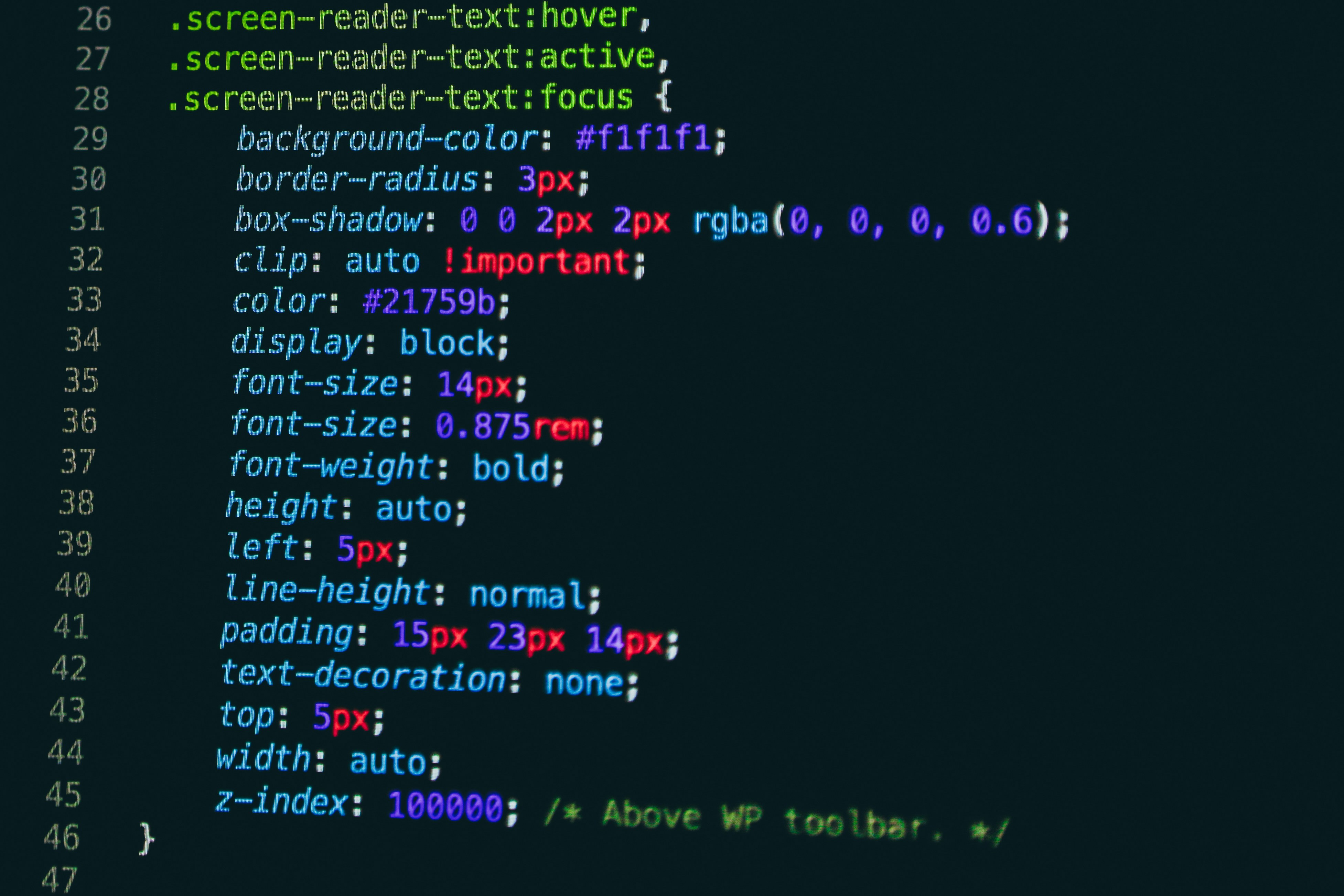
사진: Unsplash의Nick Karvounis
5. 사용자 경험 (UX) 개선#
도움말 기능:
- ? 버튼 클릭 시 기능 설명 툴팁 표시
- 키보드 접근성: Escape로 닫기, 포커스 관리
- 외부 클릭 시 자동 닫힘
접근성 피드백:
- 토글 버튼 상태 변경 시
aria-liveannouncement aria-pressed,aria-expanded속성으로 상태 전달- 버튼 텍스트도 상태에 따라 변경 (ON/OFF)
💡 이 작업의 의미#
“접근성은 선택의 자유를 주는 것”#
이번 작업을 통해 배운 가장 큰 교훈은 접근성은 한 가지 정답이 없다는 것입니다.
- 어떤 스크린 리더 사용자는 라인 넘버를 듣고 싶어 할 수 있습니다 (디버깅, 협업)
- 어떤 사용자는 라인 넘버 없이 코드만 듣고 싶어 할 수 있습니다 (일반적인 학습)
정답을 강요하지 말고, 선택권을 주는 것 - 이것이 진정한 접근성입니다.

접근성은 한 가지 정답이 아닌, 사용자가 선택할 수 있는 자유를 제공하는 것입니다. (제작: 나노바나나)
구현의 진화 과정#
이 기능은 여러 시행착오를 거쳐 완성되었습니다:
- 1차 시도: CSS Counter만 사용 → 스크린 리더가 전혀 읽지 못함
- 2차 시도: CSS
::after로 스크린 리더용 텍스트 →::after는 스크린 리더가 읽지 않음 - 최종: HTML에 라인 넘버 +
aria-hidden토글 → 사용자가 선택!
실패를 통해 배운 것들:
- CSS 가상 요소는 접근성 트리에 없음
aria-hidden은 강력하지만 조심히 사용해야 함- 사용자에게 선택권을 주는 것이 가장 좋은 해결책
Chroma와의 통합#
Chroma의 신택스 하이라이팅을 유지하면서 구조를 변경하는 것이 가장 어려웠습니다:
- Chroma는
<span class="line"><span class="cl">...</span></span>구조 생성 .clspan 안에 모든 highlighting 클래스가 있음- JavaScript로 DOM을 재구성하면서도
.cl의 innerHTML을 보존해야 함
결과적으로 Syntax Highlighting이 전혀 손실되지 않았습니다!
개발자로서의 책임#
웹접근성은 단순히 **“체크리스트를 통과하는 것”**이 아닙니다. **“모든 사용자에게 좋은 경험을 제공하는 것”**입니다.
개발 블로그를 운영하는 개발자로서, 제 블로그가 웹접근성의 모범 사례가 되었으면 합니다. 이런 작은 개선 하나하나가 누군가에게는 영감이 될 수 있다고 믿습니다.
마무리#
코드 블록 하나를 개선하는 작업이 이렇게 깊은 고민과 시행착오를 거쳤습니다. 테이블 구조 제거, CSS Counter, aria-hidden 토글, 도움말 기능까지 - 그 이면에는 시맨틱 HTML, 웹접근성, 사용자 경험에 대한 깊은 고민이 담겨 있습니다.
그리고 이제는 AI를 활용하면 이런 복잡한 작업도 쉽게 적용할 수 있습니다. 위의 프롬프트를 Claude Code나 Cursor에 붙여넣기만 하면, AI가 알아서 구현해줍니다.
작은 개선이지만, 이런 작은 개선들이 모여서 더 나은 웹을 만든다고 믿습니다.
여러분의 블로그나 시스템에도 이런 작은 개선 포인트가 숨어 있을지도 모릅니다. 작은 움직임이 모두를 위한 웹을 만들 수 있습니다.
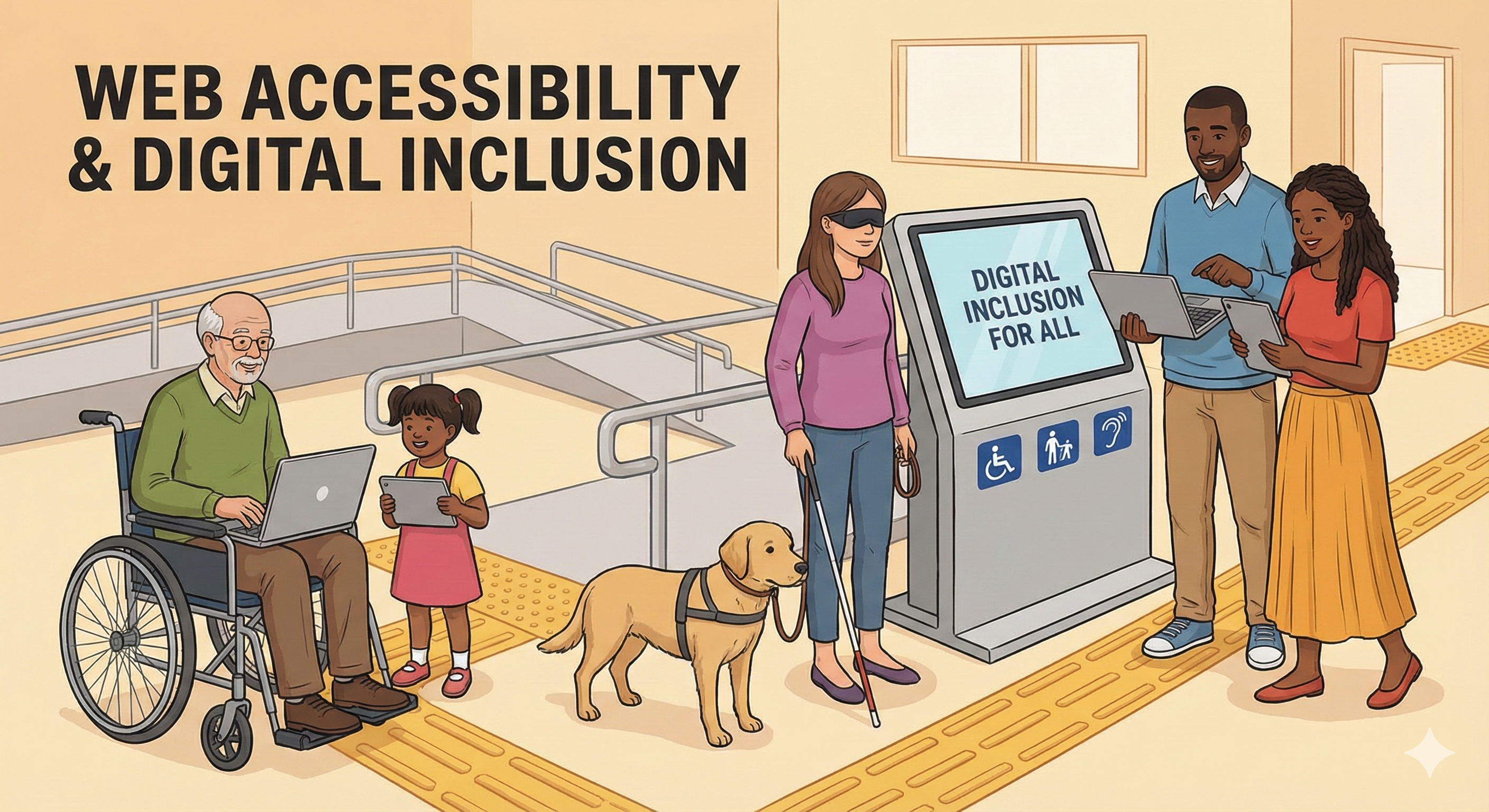
제작: 나노바나나
참고 자료: